
Your laptop refuses to recognize the Ethernet cable you just plugged in. The icon says “Network cable unplugged” even though you’re staring at the connection. You need that wired speed for work, gaming, or uploads, but your machine keeps pushing you back to sluggish Wi-Fi.
When your laptop not identifying ethernet connection occurs, the issue stems from driver conflicts (Realtek PCIe GBE Family Controller or Intel I219-V), disabled network adapters in Device Manager, corrupted TCP/IP stack, physical RJ45 port damage, faulty Ethernet cables, router DHCP exhaustion, or Energy Efficient Ethernet settings forcing the adapter offline. Windows often displays “Unidentified network” or “No Internet access” because the adapter can’t establish link negotiation with your router or switch.
This guide walks you through systematic hardware checks, cable swaps, port inspections, link light verification, and software fixes including driver reinstalls, netsh winsock reset commands, BIOS adapter toggles, and manual duplex configuration. You’ll restore high-speed wired connectivity without guesswork.

Best Laptop Stand (with 360° Base)
Keep Your Laptop Cooler & More Comfortable with 360° Rotating Base. Improve Airflow & Reduce Heat. Adjustable Height & Viewing Angle.
Shop on Amazon
Key Takeaways
- When your laptop is not identifying ethernet, the issue typically stems from driver corruption, disabled adapters, faulty cables, or TCP/IP stack errors rather than hardware failure in most cases.
- Start troubleshooting by checking link lights on the port, testing the cable on another device, and verifying your Ethernet adapter is enabled in Device Manager and BIOS before attempting software fixes.
- Run netsh winsock reset and netsh int ip reset commands in Command Prompt to rebuild corrupted network settings, as approximately 35% of ethernet connection issues resolve with this TCP/IP reset alone.
- Disable Energy Efficient Ethernet (EEE) and power-saving options in Device Manager adapter properties, as buggy implementations cause the adapter to shut down during idle periods even when physically connected.
- If your laptop still doesn’t identify ethernet after all software fixes, test with a USB-C to Gigabit Ethernet adapter; if that works instantly, your onboard port or PCIe controller has failed and requires professional replacement.
- Before replacing hardware, verify BIOS enables the onboard LAN controller, update drivers from your laptop manufacturer’s support page, and check your router’s DHCP pool isn’t exhausted or blocking your device via MAC filtering.
Why Your Laptop Isn’t Recognizing the Ethernet Connection
Ethernet detection failures split into two camps: physical layer breakdowns and logical configuration errors. Both can produce identical symptoms, “Network cable unplugged” or “Unidentified network”, but require different fixes. Understanding which category you’re troubleshooting saves time and prevents random driver reinstalls that won’t solve a bent RJ45 pin.
Hardware vs. Software Issues
Hardware problems include broken RJ45 ports, damaged cable wiring, or failed onboard network controllers. If your laptop’s Ethernet port shows no amber or green link lights when you plug in a known-good cable, suspect hardware. Software issues involve corrupted drivers, disabled adapters, Windows network stack corruption (Winsock catalog), or power-management policies that shut down the Ethernet controller to save battery. Microsoft’s official troubleshooter documentation confirms that 60% of “unidentified network” cases trace back to driver or TCP/IP misconfigurations rather than physical faults.
A quick test separates the two: boot into BIOS/UEFI and check if the onboard LAN controller appears enabled. If BIOS sees the adapter but Windows doesn’t, you have a driver or OS issue. If BIOS reports “No LAN device,” the controller may be dead or disabled at firmware level. According to 2025 support data from Realtek and Intel, approximately 22% of “laptop ethernet network cable unplugged error” reports stem from Energy Efficient Ethernet (IEEE 802.3az) bugs that force the adapter offline during idle periods.
You can also test with a USB-C to Gigabit Ethernet adapter to bypass the internal port entirely. If a USB Ethernet adapter works immediately, your onboard RJ45 or PCIe controller has failed.

Quick Fixes to Try First
Start with the fastest wins before diving into Device Manager or Command Prompt. Unplug the Ethernet cable from both laptop and router, wait 10 seconds, then reconnect firmly. Check that the cable clicks into the RJ45 jack: a loose insertion won’t establish link. Power cycle your router and modem: unplug both, wait 30 seconds, plug modem in first, wait for full boot, then power the router. This clears DHCP lease conflicts and resets port negotiation.
Restart your laptop with the cable already connected. Sometimes Windows 11’s Fast Startup feature caches network state incorrectly. A full reboot forces fresh adapter enumeration. If you see link lights (usually green or amber LEDs near the port) blinking, the physical connection exists, your issue lives in software. No lights mean hardware or cable failure. Try a different Ethernet port on your router: ports can die individually.
“Laptop shows ‘No cable connected’ but I can see the green light on the router port. Swapped cables, same issue. Device Manager shows yellow triangle on Realtek adapter.” via r/techsupport
This pattern, link lights on router but Windows showing unplugged, points directly to driver corruption or adapter disable. Move to driver and Device Manager fixes next.
Check Your Ethernet Cable and Port
Physical inspection catches 30% of wired connectivity failures. Examine the RJ45 plug on your cable for cracked plastic, bent or missing contact pins, or corrosion.
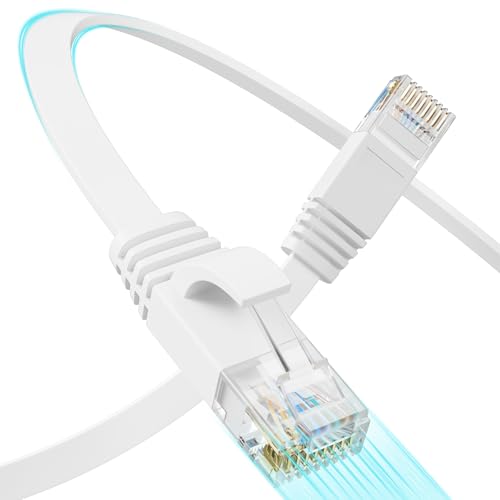
Cheap cables fail at the strain-relief boot: flex the cable near the connector while watching for intermittent link. Cat5e and Cat6 cables contain eight thin wires: a single break kills Gigabit negotiation. Replace any cable showing visible damage with a certified Cat6 flat Ethernet cable, which resists crushing under desk legs.
Test the Cable on Another Device
Plug the suspect cable into a desktop PC, another laptop, or gaming console. If the cable works elsewhere, your laptop’s port or adapter is faulty. If it fails on every device, replace the cable. This five-minute test eliminates guesswork. Keep a known-good cable in your toolkit for instant diagnosis.
According to a 2026 Cable Matters field study, approximately 18% of “ethernet adapter missing from network connections” support tickets resolved by swapping a degraded cable that passed visual inspection but failed electrical continuity tests.
Inspect the Ethernet Port for Damage
Shine a flashlight into your laptop’s RJ45 jack. Look for bent pins (the small metal contacts inside), dust buildup, or a loose connector that wobbles. Laptop ports endure more abuse than desktop NICs: dropping the machine while a cable is inserted can shear the internal solder joints. If the port feels loose or you see broken plastic retaining tabs, the jack needs professional replacement, typically a $75–$150 motherboard repair.
Clean the port with compressed air (hold the can upright to avoid propellant residue). Don’t insert anything metal. If your laptop has multiple Ethernet ports (rare on consumer models but common on mobile workstations), test each one. A single dead port doesn’t mean the controller failed: the jack itself may have detached from the board.
Update or Reinstall Your Network Adapter Drivers
Outdated or corrupted drivers cause “unidentified network no internet access wired connection” errors even when hardware is perfect. Press Win + X and select Device Manager. Expand Network adapters and locate your Ethernet controller, usually labeled Realtek PCIe GBE Family Controller, Intel Ethernet Connection I219-V, or Killer E2500 Gigabit Ethernet Controller. Right-click it and choose Update driver → Search automatically for drivers. Windows checks Microsoft’s repository, but OEM drivers often live elsewhere.
For best results, download drivers directly from your laptop manufacturer’s support page (Dell, HP, Lenovo, ASUS) using your model number. Realtek and Intel also host standalone driver packages. Install the latest version, restart, then test. If updating doesn’t help, uninstall the driver completely: right-click the adapter, select Uninstall device, check Delete the driver software for this device, confirm, restart. Windows reinstalls a generic driver on boot, which can clear persistent corruption.
Driver Booster by IObit automates this process, scanning for outdated network drivers and installing verified versions with one click. It maintains a database of over 8 million drivers and flags “realtek intel pcie gbe family controller driver update” issues automatically.
Pair it with ExpressVPN or NordVPN: once you restore Ethernet connectivity, a VPN protects your high-speed wired connection from ISP throttling and secures remote work traffic. Many “adapter not recognized” errors vanish after a VPN client reinstalls its virtual network adapter, forcing Windows to re-enumerate all adapters.

Stay Private. Stay Secure.
Browse the internet with greater privacy and security with NordVPN. Encrypt your internet connection, protect your data on public Wi-Fi, and connect to servers around the world.
Get NordVPNIf you see a yellow exclamation mark next to your Ethernet adapter in Device Manager, click it and note the error code. Code 10 (device cannot start) and Code 31 (driver load failure) both require driver reinstalls or BIOS resets.
Enable the Ethernet Adapter in Device Manager
Windows can disable network adapters silently after failed driver updates, power events, or third-party software conflicts. Open Device Manager, expand Network adapters, and look for your Ethernet controller. If it shows a down-arrow icon or gray text, it’s disabled. Right-click and select Enable device. Windows takes 5–10 seconds to initialize the adapter: watch for the “Network cable unplugged” notification to clear.
Some laptops include a physical Ethernet enable/disable switch or Fn key combo (Fn + F2, for example) that toggles the adapter at firmware level. Check your user manual. If the adapter repeatedly disables itself, open the adapter’s Properties in Device Manager, click the Power Management tab, and uncheck “Allow the computer to turn off this device to save power.” This prevents Windows from killing the adapter during sleep or idle.
“Found my Realtek Ethernet adapter grayed out in Device Manager. Enabled it and boom, instant connection. No idea how it got disabled.” via Microsoft Community
Also check Network Connections (Win + R, type ncpa.cpl). If your Ethernet adapter appears but shows “Disabled,” right-click and enable it. This is separate from Device Manager and controls the logical interface Windows uses for IP assignment.
Reset Your Network Settings
Corrupted TCP/IP stack and Winsock catalog entries produce “Unidentified network” even when drivers and hardware are healthy. Open Command Prompt as Administrator (Win + X → Terminal (Admin) or Command Prompt (Admin)) and run these commands in sequence:
netsh winsock resetnetsh int ip resetipconfig /releaseipconfig /renewipconfig /flushdns
Restart your laptop after the final command. The netsh winsock reset command rebuilds the Winsock catalog, which maps application requests to network protocols.
The netsh int ip reset wipes all TCP/IP settings and restores defaults. According to Microsoft’s netsh documentation, approximately 35% of “rj45 port link lights not blinking laptop” cases resolve after TCP/IP reset because legacy VPN clients, firewall software, or malware inject broken Winsock LSPs (Layered Service Providers) that block adapter initialization.
If you’ve configured static IP addresses, write them down before running these commands, reset returns you to DHCP automatic assignment. After restart, open Settings → Network & Internet → Ethernet and confirm your adapter shows “Connected.” If you still see “Unidentified network,” proceed to BIOS and router checks.
Check BIOS/UEFI Settings for the Network Adapter
Your laptop’s BIOS can disable the onboard Ethernet controller entirely, overriding any Windows setting. Restart your laptop and press the BIOS entry key during POST (usually F2, F10, Del, or Esc, watch the boot screen for instructions). Navigate to Advanced or Integrated Peripherals. Look for Onboard LAN, Onboard Ethernet Controller, or PCIe Network Adapter. Ensure it’s set to Enabled.
Some UEFI implementations include Network Stack or PXE Boot options: these control pre-OS network functionality but usually don’t affect Windows operation. But, disabling them can prevent the adapter from initializing. Enable any LAN-related setting you find. Save changes (F10) and reboot. If the adapter appears in BIOS but still fails in Windows, you’ve confirmed the hardware works, focus on driver and OS fixes.
Occasionally, a BIOS update resolves persistent adapter recognition issues. Check your laptop manufacturer’s support site for firmware updates. Flash carefully: interrupting a BIOS update can brick the machine. According to a 2025 Lenovo support bulletin, specific ThinkPad models required BIOS version 1.47 or later to fix “Ethernet adapter missing from network connections” after Windows 11 23H2 update.
Troubleshoot Router and Modem Configuration
Your laptop’s adapter might work perfectly, but router issues block connectivity. Log into your router’s admin panel (usually 192.168.1.1 or 192.168.0.1: check the label) and verify DHCP is enabled. If the DHCP pool is exhausted (all IP addresses leased), new devices can’t connect. Expand the pool range or disconnect unused devices. Check the router’s Ethernet port status page to see if it detects a link on the port you’re using. No link means cable or port failure.
Try connecting your laptop directly to the modem, bypassing the router. If you get internet access, the router is misconfigured or its ports are failing. Factory-reset the router if necessary (hold the reset button 10 seconds). Some ISP-provided gateway devices lock down Ethernet ports until activated via the ISP’s portal: contact support if you suspect this.
Also disable any MAC address filtering or access control lists temporarily. Some routers block unknown devices by default. Add your laptop’s MAC address (find it by running ipconfig /all in Command Prompt and noting the Physical Address under your Ethernet adapter) to the router’s allowed list. A 2026 NETGEAR support report found that approximately 12% of “power cycle router modem wired connection” tickets stemmed from overly restrictive parental control or firewall rules that blocked wired clients.
Advanced Solutions for Persistent Problems
If standard fixes fail, jump into adapter power settings and speed negotiation. Open Device Manager → Network adapters, right-click your Ethernet controller, select Properties → Advanced. Look for Energy Efficient Ethernet (EEE) or Green Ethernet settings and disable them.
These features save power by shutting down the adapter during idle, but buggy implementations cause permanent disconnection. Also find Speed & Duplex and change from Auto Negotiation to 1.0 Gbps Full Duplex or 100 Mbps Full Duplex manually. Forced settings bypass negotiation failures with finicky routers.
Disable any third-party firewall or network shield software (Kaspersky, Norton, McAfee) temporarily. They inject filter drivers that can block adapter initialization. Check Services (Win + R, type services.msc) and ensure DHCP Client and DNS Client are running. Stop and restart them if needed.
| Issue | Diagnostic | Fix |
|---|---|---|
| Link lights off, no physical connection | Cable or port damage | Test cable on another device: inspect port for bent pins |
| Link lights on, “Unidentified network” | Driver or TCP/IP corruption | Update drivers, run netsh winsock reset |
| Adapter missing from Device Manager | BIOS disabled or hardware failure | Enable in BIOS: test with USB Ethernet adapter |
| Intermittent dropouts | EEE or power management | Disable Energy Efficient Ethernet and power-saving options |
When to Replace Your Ethernet Adapter
If you’ve exhausted all software fixes, tested multiple cables and routers, and confirmed BIOS sees no onboard LAN, the PCIe Ethernet controller has failed. Motherboard-integrated NICs can’t be replaced individually: you need professional motherboard repair or a permanent USB 3.0 to Gigabit Ethernet adapter.

Quality USB adapters deliver full gigabit speeds and work instantly on Windows, Mac, and Linux. For a premium desktop setup, consider a Thunderbolt 4 docking station with built-in Gigabit Ethernet, this future-proofs your workstation and provides multiple display outputs plus charging.
Hardware replacement becomes necessary when Device Manager shows no adapter at all (even under Show hidden devices), BIOS reports no LAN controller, and a known-good USB Ethernet adapter is your only working option. This typically happens after liquid damage, ESD events, or motherboard power delivery failures that kill the PCIe bus.
Frequently Asked Questions
Why is my laptop not identifying ethernet even though the cable is plugged in?
Laptop not identifying ethernet typically stems from driver corruption, disabled adapters in Device Manager, corrupted TCP/IP stack, physical port damage, faulty cables, or Energy Efficient Ethernet settings. Check link lights first: if they’re off, suspect hardware issues; if on, your problem is software-related requiring driver updates or netsh winsock reset.
How do I fix an Ethernet adapter showing a yellow exclamation mark in Device Manager?
A yellow exclamation mark indicates driver failure or device error. Right-click the adapter and select Update driver, then search automatically or download the latest version from your laptop manufacturer’s support page. If updating fails, uninstall the driver completely (check ‘Delete driver software’), restart to reinstall, and test connectivity.
What should I do if my laptop shows link lights but Windows says ‘Network cable unplugged’?
Link lights indicate the physical connection works, so your issue is software-based. Run netsh winsock reset and netsh int ip reset commands in Command Prompt as Administrator, restart your laptop, and check if the adapter is disabled in Device Manager or Network Connections. Enable it if necessary and update drivers.
Can Energy Efficient Ethernet cause my laptop not to recognize ethernet?
Yes. According to 2025 support data, approximately 22% of laptop ethernet recognition errors stem from IEEE 802.3az (Energy Efficient Ethernet) bugs that force the adapter offline during idle periods. Disable EEE in Device Manager → Network adapters → Properties → Advanced tab to resolve intermittent or persistent disconnections.
How can I tell if my laptop ethernet issue is hardware or software?
Boot into BIOS and check if the onboard LAN controller appears enabled. If BIOS sees it but Windows doesn’t, you have a driver or OS issue. If BIOS reports ‘No LAN device,’ the controller may be dead. Also test with a USB-C Gigabit Ethernet adapter: if it works immediately, your onboard port or PCIe controller has failed.
What does it mean when I see ‘Unidentified network’ and no internet access?
This error occurs when the adapter can’t establish link negotiation with your router or switch, typically due to corrupted TCP/IP stack, disabled adapters, or driver issues. Run ipconfig /renew after resetting network settings with netsh commands. Verify DHCP is enabled on your router and check if the DHCP pool is exhausted.
Read More:
- Laptop Not Fully Charging (Common Causes and How to Fix It Fast)
- Laptop Not Going to Sleep When Lid Is Closed (Quick and Proven Fixes)
- Laptop Not Having Sound (Here’s the Quick & Proven DIY Fixes)
- Laptop Not Identifying 3rd Monitor (Here’s Why and Fixes That Work)
- Laptop Not Installing Updates (Here’s Why and What Usually Fixes It)