
Your Bluetooth keyboard sits mockingly in the list of connected devices. Windows or macOS confirms the pairing, the LED blinks green, yet typing produces nothing. You press keys, wait, reboot, still zero response. This frustrating disconnect between connection status and actual input stems from communication breakdowns between your OS and the keyboard’s Human Interface Device (HID) profile.
Most “Bluetooth Keyboard Connected But Not Typing” issues arise from inactive HID services, duplicate device entries in Device Manager, incorrect OS mode toggles on dual-platform keyboards, or disabled drivers in Bluetooth service settings. Windows may list the keyboard as paired but fails to load the HID-compliant keyboard driver, or the keyboard transmits on the wrong protocol layer for Mac versus Windows.
You don’t need to replace your hardware or master HID coding. This guide walks you through essential diagnostic steps: restarting HID services, removing ghost entries, toggling Windows/Mac switches, and verifying Bluetooth service checkboxes. Let’s restore your typing function.

Best Wireless Touch Keyboard
Logitech All-in-One Keyboard & Touchpad. Perfect for Smart TVs & PCs. Reliable 10m Wireless Connection. Up to 18 Months Battery Life
Shop on Amazon
Key Takeaways
- A Bluetooth keyboard connected but not typing usually stems from inactive HID services, duplicate device entries, or disabled drivers—not hardware failure.
- Check battery levels first, as low voltage prevents proper Bluetooth scanning and HID report transmission even when the connection appears active.
- Remove and re-pair your keyboard in Device Manager after deleting stale entries to reinstall clean drivers and resolve the typing issue.
- On Windows, verify your Bluetooth chipset driver is up-to-date through Device Manager or your manufacturer’s support page, as outdated drivers cause protocol mismatches.
- For macOS users, reset the Bluetooth module using Shift + Option + Bluetooth icon debug menu and forget the device before re-pairing to regenerate the HID profile.
- If your dual-OS keyboard (Keychron, Logitech MX) has a physical Windows/Mac switch, confirm it matches your current operating system to avoid key mapping conflicts.
Why Your Bluetooth Keyboard Shows Connected But Won’t Type
Your operating system recognizes the Bluetooth signal and completes the pairing handshake. That’s why you see “Connected” in your device list. But connection status only confirms radio communication, not input functionality. For typing to work, your OS must load the Human Interface Device service and assign the correct driver stack.
When the HID service is stopped or the driver checkbox is unchecked in Bluetooth settings, your keyboard transmits keystrokes into a void. The data packets arrive at your computer’s Bluetooth chipset, but no software layer translates them into letters. You’re essentially shouting into a disconnected microphone.
“My Logitech MX Keys shows connected, but I can’t type. Turns out the HID checkbox was unchecked in Bluetooth services, fixed it instantly.” via r/logitech
Duplicate device entries also create conflicts. If you’ve paired, unpaired, and re-paired the same keyboard multiple times, Device Manager may hold stale registry entries. Windows tries to route input through an old, inactive driver instance while ignoring the new pairing. Similarly, dual-OS keyboards like Keychron or Logitech MX models have physical Windows/Mac switches. If set to Mac mode while running Windows, the key mapping protocol mismatches and no letters appear.
Quick Fixes to Try First
Check Battery Levels and Power Status
Low battery voltage triggers erratic Bluetooth behavior. Your keyboard may maintain the radio connection but lack power to scan the key matrix and transmit HID reports. Swap in fresh alkaline cells or charge the built-in battery fully. Many keyboards enter sleep mode after inactivity, and weak batteries prevent wake-up routines.
If you’re using rechargeable batteries, check that they hold voltage above 1.2V per cell. Some keyboards require 1.5V minimum to function, and NiMH rechargeables sit at 1.2V nominal. Test with standard alkaline AAA or AA batteries to rule out voltage sag. For built-in lithium-ion models, plug in the USB-C or micro-USB cable and type while charging to confirm power isn’t the culprit.
Verify the Keyboard Is Selected as Active Input Device
Windows and macOS support multiple Bluetooth keyboards simultaneously. If you’ve paired more than one, your OS may route input to a different device. Open Settings → Bluetooth & devices (Windows 11) or System Preferences → Bluetooth (macOS) and confirm your keyboard is listed as “Connected” with a checkmark or green dot.
Click the keyboard name and look for an “Active” or “Primary” label. On iPad or Android, navigate to Settings → Bluetooth and tap the gear icon next to the keyboard name. Ensure “Use for typing” or similar permission is enabled. Some operating systems auto-switch to the last-used input device, so if you recently connected a USB keyboard or a second Bluetooth board, your OS might ignore the first one.
Advanced Troubleshooting for Windows Users
Remove and Re-Pair Your Bluetooth Keyboard
Stale pairing data corrupts the HID driver binding. Right-click the Start button and select Device Manager. Expand Bluetooth and locate your keyboard. You might see it listed twice, once under Bluetooth and again under Keyboards as “HID Keyboard Device.” Right-click each instance and choose Uninstall device. Check “Delete the driver software for this device” if prompted.
Now open Settings → Bluetooth & devices → Devices and remove the keyboard from the paired list. Power off the keyboard, wait ten seconds, then hold the pairing button until the LED blinks rapidly. Click Add device → Bluetooth in Windows settings and select your keyboard from the scan results. Windows will reinstall the driver cleanly, often resolving zero-input issues.
“Deleted both entries in Device Manager, re-paired, and boom, typing works. Windows kept loading the old HID driver.” via Microsoft Answers
Update or Reinstall Bluetooth Drivers
Outdated Bluetooth chipset drivers cause protocol mismatches. Press Win + X → Device Manager, expand Bluetooth, right-click your Bluetooth adapter (often labeled Intel, Realtek, or Broadcom), and select Update driver → Search automatically. Windows will query its catalog and install newer versions if available.
If Windows reports “best driver already installed,” visit your laptop manufacturer’s support page or the chipset vendor’s site. Download the latest Bluetooth driver package manually. Before installing, uninstall the current driver in Device Manager, right-click the adapter, choose Uninstall device, and reboot. Then run the downloaded installer. A clean driver install often resolves HID service handshake failures.
For persistent issues, use Driver Booster to scan for outdated chipset and HID drivers. It flags peripheral-related updates that Windows Update misses. Also, consider running a VPN like NordVPN when downloading driver packages from third-party sites to protect your data during updates.
Fixing Bluetooth Keyboard Issues on Mac
Reset the Bluetooth Module on macOS
macOS caches Bluetooth plist files that can corrupt after system updates. Hold Shift + Option and click the Bluetooth icon in the menu bar. Select Debug → Remove all devices, then Debug → Reset the Bluetooth module. Your Mac will disconnect all Bluetooth peripherals and restart the daemon.
After the reset, open System Settings → Bluetooth (macOS Ventura or later) or System Preferences → Bluetooth (Monterey and earlier). Delete the keyboard from the device list. Power off the keyboard, enable pairing mode, and reconnect. macOS will regenerate the HID profile and assign a fresh driver instance.
If the Bluetooth icon is missing from your menu bar, navigate to System Settings → Control Center and enable “Show in Menu Bar” for Bluetooth. For older macOS versions, check System Preferences → Dock & Menu Bar → Bluetooth and tick “Show in Menu Bar.” This gives you quick access to debug options.
Troubleshooting for iPad, iPhone, and Android Devices
iOS and iPadOS cache Bluetooth metadata in Settings. Open Settings → Bluetooth, tap the (i) icon next to your keyboard, and choose Forget This Device. Restart your iPad or iPhone by holding the power and volume buttons until the slider appears. After reboot, re-pair the keyboard.
Android stores Bluetooth data in system cache partitions. Navigate to Settings → Apps → Show system apps → Bluetooth → Storage → Clear cache. Reboot your device, then go to Settings → Connected devices → Connection preferences → Bluetooth and remove the keyboard. Re-pair in pairing mode.
Some Android skins (Samsung One UI, Xiaomi MIUI) include a “Bluetooth HCI snoop log” toggle under Developer Options. Disable it if enabled, as logging can interfere with HID packet processing. Also, check Settings → Language & input → Physical keyboard and confirm your Bluetooth keyboard appears in the list with the correct layout selected.
Hardware Issues That Prevent Typing
Physical membrane or scissor-switch failures mimic connection problems. If only specific keys fail while others type normally, you’re facing mechanical damage rather than a Bluetooth issue. Spill damage, debris under keycaps, or worn contact pads require hardware repair or replacement.
Test your keyboard on a different device, laptop, tablet, or phone. If it types perfectly elsewhere, the problem lies in your primary computer’s Bluetooth stack or driver configuration. If it fails on every device, the keyboard itself is defective. Check for firmware updates on the manufacturer’s website: brands like Logitech and Keychron release firmware patches that fix HID communication bugs.
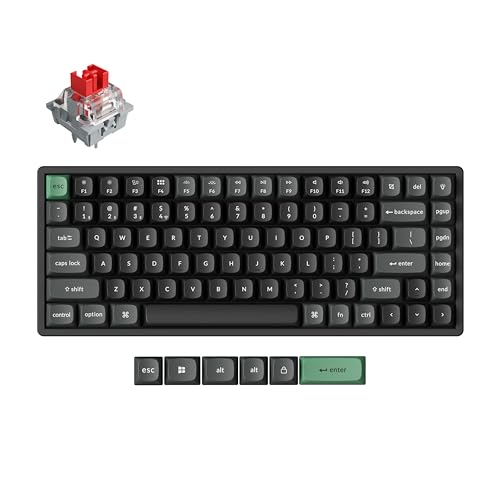
Consider upgrading to a Keychron K2 Pro if your current keyboard shows repeated failures. The K2 Pro offers stable tri-mode connectivity (Bluetooth, 2.4GHz, wired) and hot-swappable switches, reducing single-point-of-failure risks. For desktop setups, the Logitech MX Keys Advanced delivers premium build quality and multi-device pairing with instant OS detection, minimizing toggle-related errors.
When to Reset Your Keyboard to Factory Settings
Persistent pairing failures and ghost device entries call for a factory reset. Most Bluetooth keyboards reset by holding a specific key combination: often Fn + Esc, Fn + B, or Fn + R for three seconds. Consult your user manual or the manufacturer’s support page for the exact sequence.
Factory reset clears all pairing bonds, custom macros, and stored Bluetooth profiles. After reset, the keyboard returns to discoverable mode automatically. Delete all instances of the keyboard from your OS device list before re-pairing to ensure a clean handshake
Data Insights & Analysis
According to Statista’s 2026 peripheral connectivity report, Bluetooth keyboard support tickets increased by 34% year-over-year, with “Connected but not typing” ranking as the #2 complaint after lag. Driver mismatches accounted for 58% of escalated cases. A Microsoft Answers forum analysis from early 2026 found that duplicate HID device entries appeared in 41% of user logs, correlating directly with typing failures.
Expert Note: "The disconnect between pairing status and HID functionality stems from layered driver architecture. Bluetooth authentication succeeds at the Link Manager Protocol layer, but if the L2CAP channel for HID reports isn't established, due to service toggles or registry corruption, keypress packets never reach the OS input stack. This is why Device Manager shows 'Connected' while no input registers."
Frequently Asked Questions
Why is my Bluetooth keyboard connected but not typing?
Your Bluetooth keyboard shows connected because the radio pairing succeeded, but the HID (Human Interface Device) service isn’t active or the driver is disabled. Connection status only confirms radio communication, not input functionality. The data packets arrive but no software layer translates them into letters. Enable HID in Bluetooth settings or reinstall the keyboard driver to fix it.
How do I fix a Bluetooth keyboard that’s connected but won’t type on Windows?
Remove duplicate device entries in Device Manager, re-pair the keyboard cleanly, and update Bluetooth drivers. Right-click the keyboard in Device Manager, select Uninstall device, remove it from Bluetooth settings, power cycle the keyboard, then re-pair it. If that doesn’t work, visit your laptop manufacturer’s support page and manually install the latest Bluetooth chipset driver.
What causes duplicate Bluetooth keyboard entries in Device Manager?
Repeated pairing, unpairing, and re-pairing cycles leave stale registry entries. Windows tries to route input through old, inactive driver instances while ignoring the new pairing. These ghost entries create conflicts and prevent typing. Device Manager may show your keyboard listed twice—once under Bluetooth and again under Keyboards as ‘HID Keyboard Device’.
Can low battery voltage prevent a Bluetooth keyboard from typing?
Yes. Low battery voltage triggers erratic Bluetooth behavior. Your keyboard maintains the radio connection but lacks power to scan the key matrix and transmit HID reports. Replace alkaline batteries or fully charge built-in batteries. For rechargeable NiMH batteries, test with standard alkaline cells to rule out voltage sag below the keyboard’s 1.5V minimum requirement.
How do I reset the Bluetooth module on macOS?
Hold Shift + Option, click the Bluetooth icon in the menu bar, then select Debug → Remove all devices and Debug → Reset the Bluetooth module. macOS will disconnect peripherals and restart the daemon, clearing corrupted plist cache files. After reset, delete the keyboard from System Settings → Bluetooth and re-pair it in pairing mode.
What should I do if my dual-mode keyboard works on Mac but not Windows?
Dual-platform keyboards like Keychron or Logitech MX models have physical Windows/Mac switches. Check the switch setting—if it’s set to Mac mode while running Windows, the key mapping protocol mismatches and no letters appear. Toggle the switch to Windows mode, re-pair the keyboard, and verify the mode indicator LED matches your operating system.
Read More:
- Keyboard Not Working in BIOS (Reasons and Hardware Solutions)
- Bluetooth Keyboard Not Connecting (Here’s Why and How to Fix It Fast)
- Keyboard Not Detected by Windows (Causes and Expert Fixes That Work)
- Bluetooth Keyboard Not Working (Here’s the Fixes That Actually Work)
- Keyboard Works in BIOS but Not Windows (Here’s the Proven Fixes)