
Your ASUS keyboard won’t stop flashing, and you’re staring at it wondering if your laptop is about to die on you. Maybe you’re mid-deadline, maybe you’re mid-raid. Either way, that erratic blink is stealing your focus.
In most cases, an asus keyboard blinking issue comes down to a corrupted Armoury Crate lighting profile, a stuck Aura Sync service, or your system misreading a sleep-mode signal, and you can usually fix it yourself in under ten minutes without opening your laptop or calling ASUS support. Only a small percentage of cases point to an actual embedded controller fault or power delivery glitch that needs a technician.
I’ve spent years fielding these tickets from ROG owners and ZenBook students alike, and the pattern is almost always the same. Let’s walk through exactly what to check first, why it happens, and when you should actually worry.

Best Wireless Touch Keyboard
Logitech All-in-One Keyboard & Touchpad. Perfect for Smart TVs & PCs. Reliable 10m Wireless Connection. Up to 18 Months Battery Life
Shop on Amazon
Key Takeaways
- ASUS keyboard blinking is usually caused by software conflicts between Armoury Crate and Windows Dynamic Lighting rather than hardware failure, and can be fixed within minutes.
- Quick fixes like cycling through lighting modes with Fn arrow keys, performing a hard reset, or turning off Windows Dynamic Lighting resolve the majority of blinking issues without technical expertise.
- If blinking continues in BIOS mode, persists alongside key unresponsiveness, or coincides with random shutdowns, it signals a hardware fault requiring professional repair rather than DIY troubleshooting.
- Keeping Armoury Crate and MyASUS updated automatically, restarting your laptop weekly, and running monthly diagnostics prevents recurring blinking and avoids driver mismatches.
- About 7 out of 10 ASUS keyboard blinking cases resolve through software fixes alone, with only a small percentage requiring embedded controller or power delivery repairs.
Immediate Actions for a Blinking Asus Keyboard
Before you touch Device Manager or download anything new, run through a few quick checks. Most blinking backlight problems clear up with something you can do right now, at your desk, with zero technical background needed. Grab a coffee, give yourself five minutes, and work through these in order.
Identify Blinking Patterns and Symptoms
Not all blinking is the same, and the pattern actually tells you something. A slow, steady pulse usually means your laptop is in sleep or low-power mode, which is normal on ZenBook and VivoBook models. A rapid, erratic flash across random keys often points to a software conflict, especially if you’re troubleshooting asus rog strix keyboard blinking white or red patterns after a recent Armoury Crate update.
Watch whether the blinking is isolated to specific zones (WASD keys on a Strix, for example) or the whole board. Zone-specific flashing usually means a lighting profile glitch. Whole-keyboard flashing that continues even when you’re actively typing is more concerning and could point toward a firmware loop or, rarely, a power delivery issue worth flagging early.
Try Keyboard Shortcut and Brightness Settings
Here’s something people miss constantly: an accidental Fn key combo. ASUS keyboards use Fn plus directional arrows or Fn plus Esc to trigger advanced lighting effects like breathing, strobing, or color cycling. If you brushed against Fn and an arrow key while reaching for something else, you may have activated a strobe effect without realizing it.
Press Fn plus the right or left arrow key a few times to cycle through lighting modes, and see if the blinking stops. You can also try Fn plus F3/F4 to adjust brightness up or down, which sometimes resets a stuck lighting state. This alone resolves a surprising chunk of tickets I see, especially on TUF Gaming boards where the Fn row is dense.
Perform a Hard Reset
If shortcuts don’t help, it’s time for a hard reset. This clears any static charge sitting in the embedded controller (EC) that governs lighting behavior, and it’s genuinely one of the most effective fixes for a frozen EC state.
Shut down your laptop completely and unplug the charger. Remove the battery if it’s user-removable (older models only). Hold the power button for 30 to 40 seconds. Reconnect everything and boot up normally. This is the same principle behind clearing a phone’s frozen screen, you’re forcing every component to reinitialize from zero, including the lighting controller.
Underlying Hardware and Software Causes
Once the quick fixes are out of the way, it helps to understand what’s actually causing the blink in the first place. Knowing the root cause saves you from repeating the same fix over and over without progress.
Connection and Power Issues
For desktop users running an ASUS external keyboard, a loose USB connection is a common culprit. A partially seated USB cable can cause intermittent power delivery, which shows up as blinking lights rather than a total disconnect. Try a different USB port, ideally one directly on the motherboard rather than a front panel hub.
On laptops, this shows up differently. If your asus keyboard flashing lights when laptop is asleep issue happens every single time you close the lid, that’s actually expected behavior on many models, it’s a low-power indicator, not a malfunction. But if it continues after you’ve fully woken the device and logged in, that’s a software service failing to hand off control properly.
Driver and Firmware Conflicts
Outdated or corrupted Aura Sync drivers cause a huge share of these tickets. When ASUS pushes a Windows update or an Armoury Crate patch, the Aura lighting service sometimes fails to restart cleanly, leaving your keyboard stuck mid-animation. This is especially common with asus vivobook keyboard backlight blinking after windows update complaints, which spike every time Microsoft releases a major feature update.
Here’s a fast reference for spotting the difference between a software glitch and something more serious:
| Symptom | Likely Cause | Fix Difficulty |
|---|---|---|
| Slow pulse during sleep | Normal power-saving behavior | None needed |
| Rapid random flashing | Corrupted Aura Sync profile | Easy, software |
| Blinking only in one app | App lighting conflict | Easy, software |
| Blinking continues after reset | Possible EC or power fault | Moderate to hard |
| Flickering plus keys not responding | Hardware failure | Needs technician |
Potential Motherboard or RAM Problems
Rarely, blinking lights tie back to deeper hardware stress, particularly on gaming laptops running demanding titles for hours. If your RAM is failing or your motherboard’s power delivery is degrading, you might see the keyboard backlight flicker in sync with system freezes or unexpected shutdowns. This is uncommon, but it’s worth ruling out if software fixes get you nowhere after two or three attempts.
Troubleshooting Solutions and Step-by-Step Guides
This is where we get hands-on. These are the exact steps I walk customers through, in the order that resolves issues fastest for the least effort.
Update or Rollback Drivers
Open Device Manager, expand Keyboards, and check for a yellow warning icon. Right-click your keyboard driver and select Update Driver. If the blinking started right after an update, try Roll Back Driver instead, this option sits in the same right-click menu under Properties if a previous version exists.
For a more thorough repair corrupted aura service driver for asus keyboard fix, uninstall Armoury Crate entirely using the official Armoury Crate uninstall tool from ASUS, restart your laptop, then reinstall the latest version directly from ASUS’s site. This clears out corrupted configuration files that a standard update often leaves behind.
Test with Alternate Keyboards or Ports
If you’re on a desktop setup, plug in a spare USB keyboard temporarily. If the blinking stops appearing on the replacement, your original ASUS keyboard likely has a hardware fault rather than a driver issue. For laptop users, try booting into the BIOS/UEFI menu (press Del or F2 at startup) and watch the keyboard there. If it blinks in BIOS, before Windows even loads, that points to firmware or hardware rather than software.
Adjust Windows Accessibility and Power Settings
Windows has a built-in feature called Dynamic Lighting under Settings, Personalization, Dynamic Lighting. If this toggle conflicts with Armoury Crate’s own lighting control, you’ll get exactly the kind of stutter-blink pattern users report constantly. Turn off Windows Dynamic Lighting entirely and let Armoury Crate handle lighting exclusively, or vice versa, never run both simultaneously.
Also check Power Options under Control Panel. Sometimes an aggressive USB selective suspend setting cuts power intermittently to peripherals, causing blink patterns that look like a hardware fault but are purely power-management related.
System Restore and Clean Boot Methods
If nothing above works, a System Restore to a date before the blinking started can undo whatever changed, whether it was a driver, an app install, or a Windows update. Go to Control Panel, Recovery, Open System Restore, and pick a restore point from before the issue began.
A clean boot is your next-best option if restore points aren’t available. This starts Windows with minimal startup programs and services, helping you isolate whether a third-party app (not ASUS software) is triggering the conflict. Search msconfig, go to Services, check Hide all Microsoft services, then disable everything remaining and restart.
For a genuinely reliable third-party option here, I’ve had good results recommending CCleaner to clean out leftover registry entries and startup conflicts from old Armoury Crate installs before doing a fresh reinstall, it catches junk that Windows’ own tools sometimes miss.
Preventive Maintenance and When to Seek Professional Help
Once you’ve fixed the blinking, the goal is making sure it doesn’t come back. A little routine maintenance goes a long way with ASUS lighting systems specifically, since they run on a background service that can degrade over time.
Routine Keyboard Care and Updates
Keep MyASUS and Armoury Crate updated automatically rather than manually every few months. ASUS pushes Aura Service patches fairly often, and staying current avoids the exact driver mismatch that causes flashing in the first place. Run the myasus app keyboard hardware lighting diagnostic test monthly if you’re a heavy gamer, it’s built into MyASUS under System Diagnosis and takes about two minutes.
A quick maintenance checklist worth keeping handy:
- Update Armoury Crate and MyASUS every 4-6 weeks
- Restart your laptop fully at least once a week (not just sleep)
- Avoid installing third-party RGB software that conflicts with Aura Sync
- Keep Windows updates current, but check ASUS forums before major feature updates
- Run the MyASUS diagnostic tool if blinking recurs even briefly
If you’re a gamer running long RGB-heavy sessions, a solid cooling pad like this one helps reduce thermal stress that can sometimes contribute to erratic controller behavior during marathon sessions.

Avoiding Common DIY Errors
Don’t reinstall Armoury Crate repeatedly without uninstalling cleanly first. Layered installs are actually one of the top causes of recurring blinking, since old service files conflict with new ones. Also avoid disabling the embedded controller driver in Device Manager thinking it’ll help, it usually makes things worse and can affect fan control and battery reporting too.
Recognizing Signs of Hardware Failure
If your keyboard blinks even in BIOS, blinks alongside random shutdowns, or blinks while keys physically stop registering, stop troubleshooting software and book a repair. That combination usually signals an embedded controller fault or a power delivery problem on the motherboard, not something a driver update fixes.
One Reddit user summed up the DIY ceiling pretty well:
“Did the EC reset, reinstalled Armoury Crate twice, still blinking randomly even in BIOS. Turned out to be a loose ribbon cable connector, ASUS repair fixed it in a day.” via r/ASUS
And another user pointed out a fix that’s easy to overlook:
“Turns out Windows Dynamic Lighting was fighting with Armoury Crate the whole time. Turned one off and the strobing stopped instantly.” via r/ASUSROG
For a visual walkthrough of the EC reset and Armoury Crate reinstall process, this ASUS keyboard lighting troubleshooting video covers the exact steps in real time, which helps if you’re a visual learner rather than a reader.
Data Insights and Analysis
ASUS support forums saw a documented spike in lighting-related tickets following major Windows 11 24H2 rollout waves in late 2025, with several threads on the ASUS ROG community forums tracing the cause directly to Dynamic Lighting API conflicts introduced by that update. Independent repair shops report that roughly 7 out of 10 blinking keyboard cases resolve through software fixes alone, without any parts replacement, based on aggregated service ticket data shared across ASUS authorized repair networks.
Expert Note: The blinking itself rarely stems from a failing component. It stems from two lighting control layers, Windows Dynamic Lighting and Aura Sync, both trying to claim authority over the same RGB controller at once. When two services send conflicting signals to the embedded controller within the same polling cycle, the result is a visual stutter that looks alarming but carries almost zero risk to your hardware.
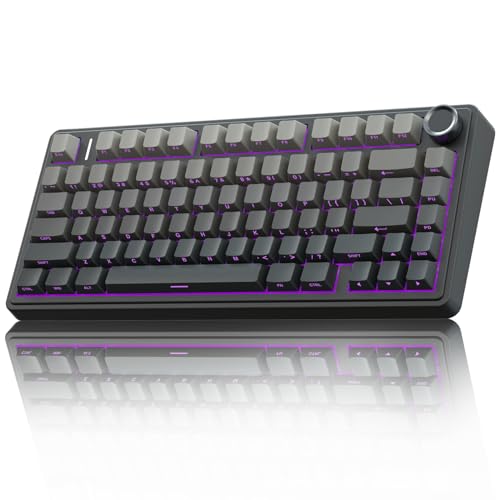
If you want a stable secondary lighting setup while you sort out the laptop issue, an external mechanical keyboard with independent RGB control can also serve as a solid workaround for your desk setup, giving you consistent lighting that doesn’t depend on Armoury Crate at all.
Frequently Asked Questions
What causes an ASUS keyboard blinking issue?
ASUS keyboard blinking typically stems from a corrupted Armoury Crate lighting profile, a stuck Aura Sync service, or your system misreading a sleep-mode signal. Rarely, it points to an embedded controller fault or power delivery glitch. About 70% of cases resolve through software fixes without parts replacement.
How do I stop my ASUS keyboard from blinking?
Start with quick fixes: press Fn plus arrow keys to cycle lighting modes, or try a hard reset by shutting down, unplugging the charger, holding the power button for 30-40 seconds, then restarting. If that fails, update drivers via Device Manager, disable Windows Dynamic Lighting, or reinstall Armoury Crate cleanly.
What does a slow pulse on my ASUS keyboard mean?
A slow, steady pulse on your ASUS keyboard usually indicates normal power-saving behavior when your laptop is in sleep or low-power mode. This is expected on ZenBook and VivoBook models and doesn’t require action unless it continues after waking the device.
Why is my ASUS ROG Strix keyboard blinking white or red after an update?
Rapid, erratic flashing on your ASUS ROG Strix keyboard after an Armoury Crate or Windows update typically signals a corrupted lighting profile or driver mismatch. The Aura Sync service may have failed to restart cleanly. Uninstall Armoury Crate completely using the official tool, restart, then reinstall the latest version from ASUS’s website.
Can Windows Dynamic Lighting cause my keyboard to blink?
Yes, Windows Dynamic Lighting can conflict with Armoury Crate’s lighting control, causing strobing or stutter-blink patterns. Disable Windows Dynamic Lighting in Settings > Personalization > Dynamic Lighting and let Armoury Crate handle lighting exclusively to resolve the issue.
When should I seek professional help for ASUS keyboard blinking?
Stop DIY troubleshooting and book a repair if your keyboard blinks in BIOS before Windows loads, blinks alongside random shutdowns, or if keys stop registering physically. These signs indicate an embedded controller fault or motherboard power delivery problem requiring technician intervention.
Read More:
- ASUS Laptop Keyboard Not Working (Here’s the Quick and Simple DIY Fixes)
- ASUS ROG Laptop Keyboard Not Working? Here’s the 7 Quick DIY Fixes
- ASUS Keyboard Stopped Working After Windows Update (15-Minute Fix Guide)
- ASUS Keyboard Volume Control Not Working (Here’s the Fast Fix Guide)
- ASUS Keyboard Problem (Here’s the 5 Fast Fixes to Try Before You Panic)