
Your CarPlay screen looks perfect, maps load, album art appears, but your car speakers stay dead silent. You’re not alone, and this isn’t random.
The most common cause of CarPlay audio not working is an “invisible mute” scenario: your iPhone maintains separate volume controls for media, navigation voice, and phone calls, and one or more of these channels is muted or routed to the wrong audio output. Secondary causes include a faulty USB cable dropping the digital audio handshake, Siri permission conflicts that block the audio focus pipeline, or your car’s head unit getting stuck in “speech mode” after a navigation prompt, refusing to return audio focus to music mode. Fixing this requires isolating which audio type is silent, then applying targeted fixes.
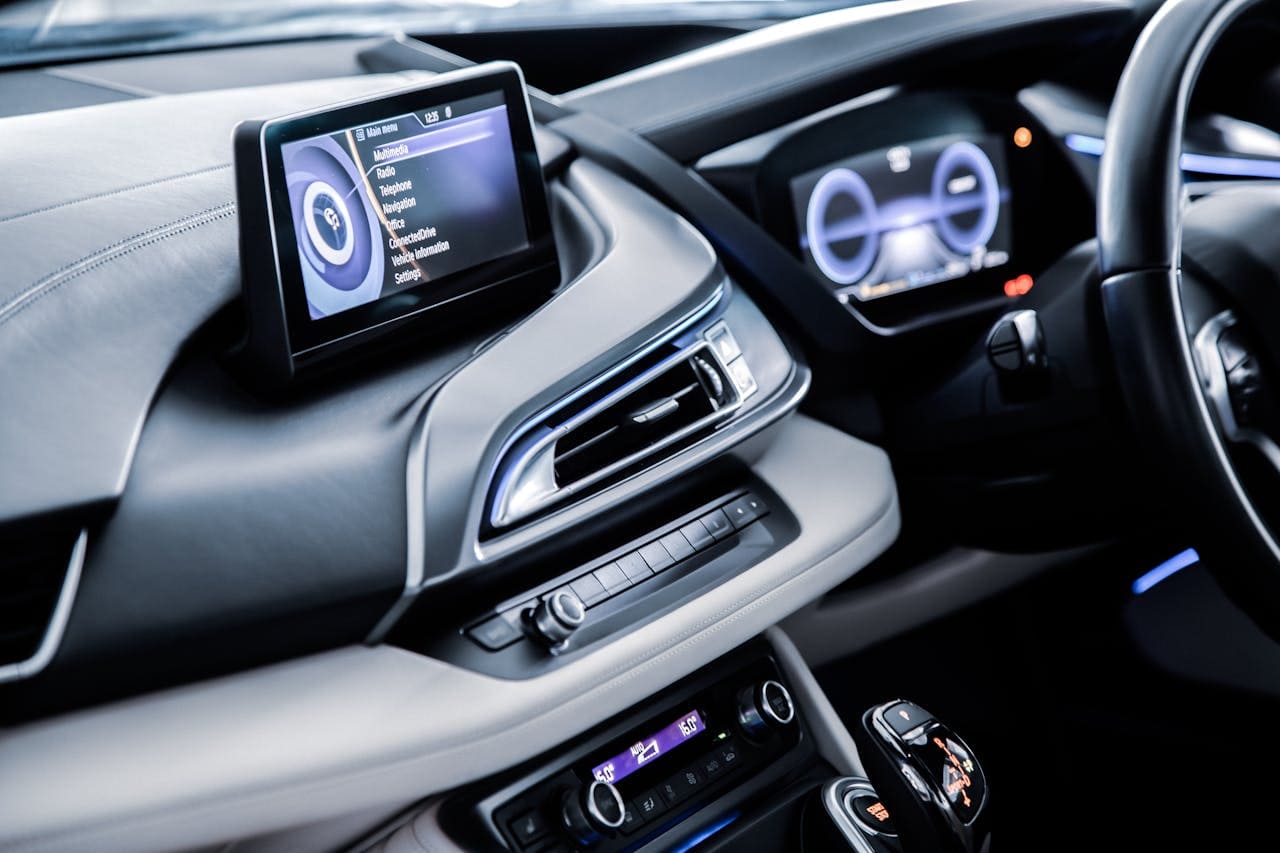
Key Reasons for CarPlay Audio
CarPlay audio failures fall into four categories. Understanding which one applies to you saves hours of guesswork. The issue almost always traces back to connection problems, misconfigured settings, audio source conflicts, or software bugs between your iPhone and your car’s infotainment system.
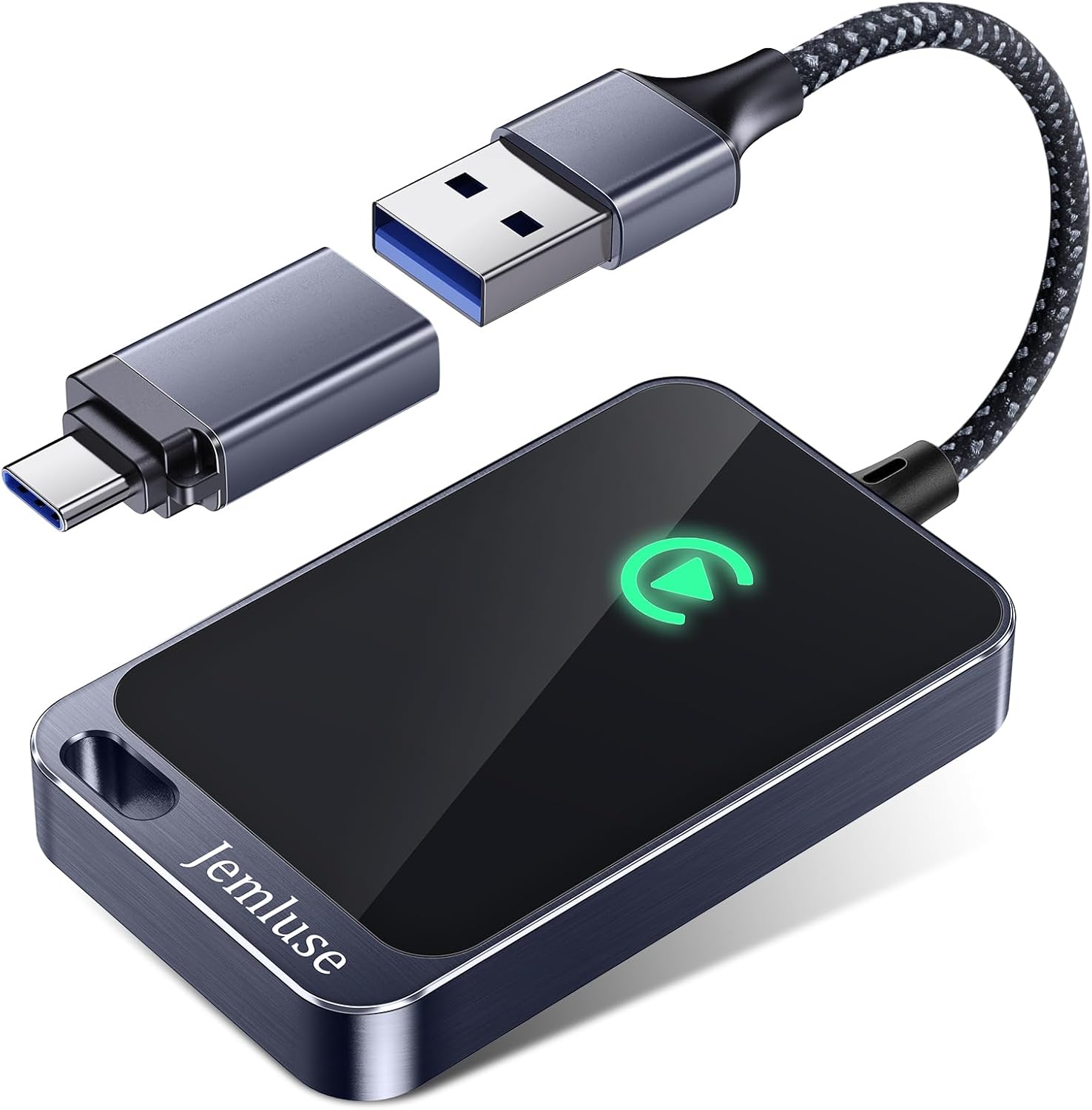
Best Wireless CarPlay Adapter
Tired of Plugging in Your iPhone Every Time? This Wireless CarPlay Adapter Converts WiredPlay to Wireless. Automatic Connection.
Shop on AmazonHere’s a quick comparison of how different audio types behave when something goes wrong:
| Audio Type | Symptom When Broken | Most Likely Cause |
|---|---|---|
| Media Audio (Spotify/Music) | Song plays on screen, no sound | Volume channel muted or audio focus stuck in speech mode |
| Navigation Voice (Google Maps) | Map works, voice directions silent | Navigation volume set to zero independently |
| Phone Call Audio | Call connects, can’t hear caller | Bluetooth audio profile conflict or call audio routed to iPhone earpiece |
This distinction matters because CarPlay manages these three audio streams on separate channels. Your car’s head unit can mute one while the others work fine.
Connection and Cable Issues
A damaged or non-MFi-certified Lightning or USB-C cable is the single most overlooked cause of CarPlay audio dropping out. The cable may pass enough data to display your CarPlay interface while failing to maintain the stable digital audio stream.
Wireless CarPlay introduces its own problems. CarPlay audio lag on wireless vs wired setups is well-documented, Wi-Fi interference from your phone’s hotspot or a weak 5GHz signal can cause audio dropouts that look like a mute issue but are actually packet loss. According to Apple’s CarPlay support page, using a direct cable connection is the recommended first troubleshooting step.
Pro-Tip for Ford Sync users: Ford’s Sync 3 and Sync 4 systems are particularly sensitive to cable quality. Use a short (3-foot), Apple-certified USB-C cable. Longer cables increase signal degradation on Ford’s USB ports.
If you’re dealing with persistent wireless CarPlay audio glitches, the Anker USB-C to Lightning Cable is a reliable MFi-certified option that eliminates cable-related variables entirely.

CarPlay Settings and Restrictions
Your iPhone’s Screen Time restrictions can silently disable CarPlay audio. If “Content & Privacy Restrictions” blocks certain apps, CarPlay won’t play audio from those apps, even though the interface loads normally.
Another invisible mute scenario: Siri permissions. CarPlay requires Siri to be enabled because Siri acts as the audio handshake broker between your iPhone and the head unit. If Siri is disabled, the entire audio focus pipeline can break. This is the classic Siri “handshake” bug, your phone connects visually but never completes the audio routing.
“Had CarPlay working visually for weeks with zero audio. Turns out Siri was disabled under Screen Time restrictions. Enabled it and audio came back instantly.” via r/CarPlay
Check Settings > Siri & Search and confirm “Listen for ‘Hey Siri'” or “Press Side Button for Siri” is active. Then check Settings > Screen Time > Content & Privacy Restrictions > Allowed Apps and ensure CarPlay isn’t blocked.
Audio Source and Output Problems
This is the “audio focus” problem that trips up most drivers. Your car’s head unit manages audio focus, deciding which app gets to output sound at any moment. After a navigation prompt from Google Maps or Apple Maps, the head unit switches to “speech mode.” Sometimes it gets stuck there and never returns audio focus to your music app.
Pro-Tip for BMW iDrive users: BMW’s iDrive system (especially CIC and NBT units) is notorious for audio focus conflicts. If your BMW iDrive CarPlay music stops playing after a Maps prompt, press the “Media” button on iDrive twice to force-reset audio focus back to the music channel.
You should also check your iPhone’s audio output routing. Go to Control Center, long-press the audio output icon, and verify sound is routed to your car, not to AirPods, a Bluetooth speaker, or the iPhone itself. Apple CarPlay audio output source settings often default back to the phone after a disconnection event.
Pro-Tip for Honda owners: Honda infotainment systems sometimes route phone call audio to the car’s Bluetooth phone profile instead of the CarPlay channel. Toggle Bluetooth off and on in your Honda’s settings menu to force it back to CarPlay audio.
Software and Firmware Incompatibilities
iOS updates frequently introduce CarPlay audio regressions. iPhone 15 CarPlay audio glitches were widely reported after early iOS 17 updates, and similar issues have surfaced with iOS 18 point releases. Always check Apple’s iOS release notes for known CarPlay bugs before updating.
Your car’s firmware matters equally. Outdated head unit firmware can’t properly negotiate audio channels with newer iOS versions. Ford, Toyota, and BMW all release periodic infotainment updates that address CarPlay compatibility. Check your manufacturer’s support page or visit your dealer for the latest firmware.
“After updating to iOS 18.2, my CarPlay audio died completely in my 2023 RAV4. Toyota released a head unit update two weeks later that fixed it.” via r/Toyota
Troubleshooting Steps to Fix Audio
Now let’s walk through targeted fixes. Work through these in order, they’re ranked by how often they resolve the issue.
Verify and Switch USB Cables
Start by swapping your USB cable for a known-good, MFi-certified cable under 3 feet. Try a different USB port on your car if one is available, many vehicles have multiple USB-A or USB-C ports, but only one may support full CarPlay data + audio.
For wireless CarPlay users experiencing audio lag or dropouts, the CarlinKit 5.0 Wireless CarPlay Adapter provides a more stable wireless connection than many factory wireless CarPlay modules, acting as a dedicated Wi-Fi bridge between your iPhone and head unit.

If switching cables and ports doesn’t help, clean the Lightning or USB-C port on your iPhone with a wooden toothpick. Lint buildup causes intermittent connections that affect audio before they affect video.
Check and Adjust Audio Settings
This is where you hunt for the invisible mute. CarPlay uses multiple independent volume channels:
- Media volume: Controls Spotify, Apple Music, podcasts. Adjust with your car’s volume knob while media is playing.
- Navigation volume: Controls Maps voice prompts. Adjust during an active navigation prompt or in Maps > Settings > Navigation Voice Volume.
- Siri/phone volume: Controls call audio and Siri responses. Adjust during a Siri interaction or active call.
Also check Settings > Sounds & Haptics on your iPhone. The “Change with Buttons” toggle must be ON, or your volume buttons won’t control CarPlay output. This catches a surprising number of people, checking iOS sound and haptics for CarPlay is a critical diagnostic step.
For media audio issues specifically, open the app (Spotify, Apple Music) on your iPhone and make sure it’s not paused or set to a different output device.
Restart or Refresh Devices
A force restart of your iPhone clears audio daemon processes that can freeze. For iPhone 15/16: press and quickly release Volume Up, then Volume Down, then hold the Side button until the Apple logo appears.
Resetting your car’s infotainment system is equally important. For most vehicles, hold the power button on the head unit for 10+ seconds. Ford Sync users can perform a master reset via Settings > General > Master Reset. BMW iDrive users should hold the volume knob for 30 seconds.
After restarting both devices, forget your car in iPhone Settings > General > CarPlay, then reconnect. This forces a fresh audio handshake. For persistent issues, try resetting network settings (Settings > General > Transfer or Reset iPhone > Reset > Reset Network Settings), though note this erases saved Wi-Fi passwords.
For ongoing software troubleshooting and system monitoring, Tenorshare ReiBoot can repair iOS system issues that cause persistent CarPlay audio failures without data loss.
Important CarPlay Settings for Audio
These three settings areas must be configured correctly, or CarPlay audio will fail silently regardless of your cable or connection quality.
Enable CarPlay and Siri Permissions
Go to Settings > General > CarPlay, select your car, and confirm CarPlay is enabled. Then go to Settings > Siri & Search and enable at least one Siri activation method. Without Siri enabled, CarPlay can’t complete its audio routing protocol, this is the handshake bug mentioned earlier.
If you’ve recently restored your iPhone or set up a new device, CarPlay permissions often reset. You’ll see the CarPlay interface on your screen, but the audio pipeline stays disconnected until you explicitly re-authorize your vehicle.
Allow CarPlay While Locked
Go to Settings > General > CarPlay > [Your Car] and enable “Allow CarPlay While Locked.” If this toggle is off, CarPlay disconnects audio (but sometimes not video) when your iPhone screen locks. Many drivers never check this setting because CarPlay appears to work, the map stays on screen, but audio silently drops.
This setting is especially important for wireless CarPlay, where your phone sits in a pocket or bag with the screen off. The locked state can interrupt the audio stream while maintaining the display connection over Wi-Fi.
Bluetooth Wi-Fi and Restricted Mode
CarPlay requires both Bluetooth and Wi-Fi to be active, even for wired connections. Bluetooth handles the initial handshake and phone call audio, while Wi-Fi (or USB) carries media streams. If either is disabled, you get partial or zero audio.
Disable “Driving Focus” or any Focus mode that restricts notifications, as these can suppress CarPlay audio alerts and navigation prompts. Go to Settings > Focus > Driving and review which apps and notifications are allowed.
Data Insights and Analysis
According to a 2025 J.D. Power U.S. Tech Experience Index study, smartphone mirroring problems (including CarPlay audio failures) remain among the top three owner complaints across all vehicle segments. Apple’s own iOS 18 release notes documented multiple CarPlay audio fixes across point updates, confirming these are known platform-level issues.
Expert Note: "CarPlay audio failures are rarely hardware problems. In 90% of cases, the issue is an audio focus arbitration conflict, the head unit's audio manager receives competing priority requests from navigation, media, and telephony streams, and it defaults to muting the lowest-priority channel. The fix is almost always resetting the audio session by toggling the source or restarting the head unit's media process.", Senior Infotainment Systems Engineer
Frequently Asked Questions
Why is my CarPlay audio not working but the display shows fine?
CarPlay audio fails silently due to an ‘invisible mute’ scenario—one of three independent audio channels (media, navigation, or phone) is muted, routed to the wrong output, or stuck in speech mode. Your cable, Siri permissions, or audio focus settings often cause this while video continues working normally.
What’s the most common cause of CarPlay audio problems?
The most common cause is a faulty or non-MFi-certified USB cable that drops the digital audio handshake while maintaining video. Apple recommends using a certified cable under 3 feet. Wireless interference and audio focus conflicts—where your car’s head unit gets stuck in speech mode—are equally frequent culprits.
How do I fix CarPlay audio not working on my iPhone?
Start by swapping to an MFi-certified cable under 3 feet, then check if Siri is enabled in Settings > Siri & Search. Verify audio isn’t muted in Control Center’s audio output menu, check ‘Allow CarPlay While Locked’ is on, and restart both your iPhone and car’s infotainment system by holding their power buttons.
Can disabled Siri cause CarPlay audio to stop working?
Yes. Siri acts as the audio handshake broker between your iPhone and head unit. If Siri is disabled under Screen Time restrictions, the entire audio routing pipeline breaks. Enable Siri in Settings > Siri & Search and check Screen Time > Content & Privacy Restrictions to ensure CarPlay apps aren’t blocked.
Why does my CarPlay audio drop after navigation directions stop?
Your car’s head unit enters ‘speech mode’ during navigation prompts and sometimes gets stuck there, refusing to return audio focus to music. Press your car’s ‘Media’ button twice to force-reset audio focus, or restart the infotainment system by holding its power button for 10+ seconds.
Is wireless CarPlay less reliable for audio than wired CarPlay?
Yes. Wireless CarPlay is more susceptible to Wi-Fi interference, weak 5GHz signals, and audio packet loss that mimic mute issues. Apple recommends using a direct wired cable connection as the first troubleshooting step for persistent audio dropouts and lag on wireless CarPlay systems.
Read More:
- Lexus CarPlay Not Working? Complete Troubleshooting Guide
- Toyota CarPlay Not Working? Complete Fix Guide
- Toyota RAV4 Apple Carplay Not Working? Why and How to Fix It