
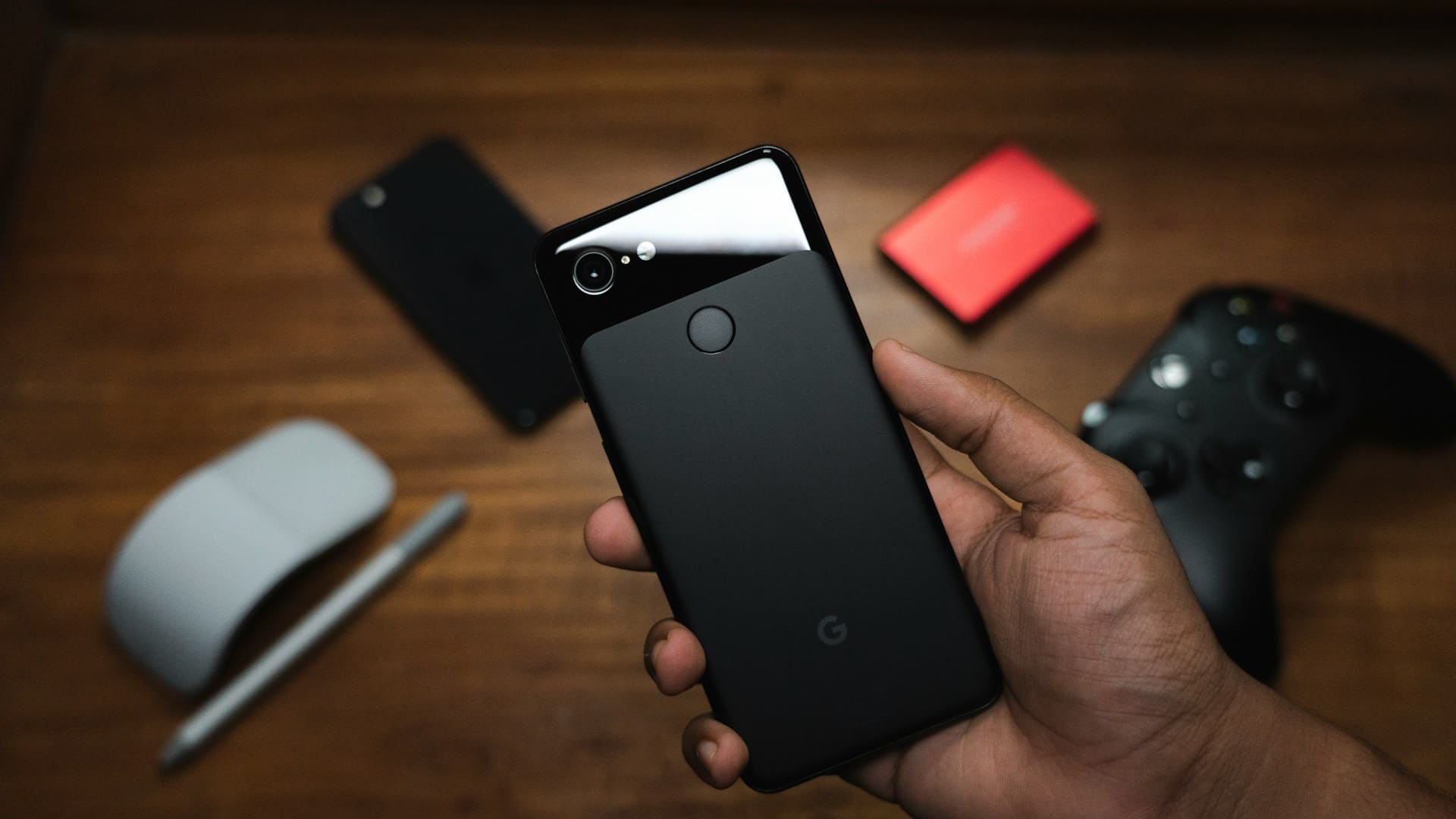
If your Google Pixel flashlight is not working, it’s often because the camera app is still running in the background or a software glitch is blocking access to the flash.
Closing the camera app or restarting your phone usually restores flashlight functionality.
Sometimes other factors like battery saver mode, overheating, or conflicting apps can also prevent the flashlight from turning on.
By checking these settings and ensuring your phone is updated, you can address many issues on your own before seeking additional help.
The flashlight shares hardware with the camera.
If software fixes don’t work, the problem might be a hardware fault requiring professional service.

Common Causes Of Google Pixel Flashlight Issues
Several specific factors can prevent the flashlight on your Google Pixel from working properly.
These include conflicts with camera usage, software problems within the operating system, and battery-related limitations that restrict flashlight function.
Camera In Use Conflict
One of the most frequent causes for your Pixel flashlight not working is a conflict where the system reports the camera as “in use.”
This happens because the flashlight hardware is shared with the camera’s LED flash.
If any app or process accesses the camera without fully releasing it, your flashlight button may become disabled or greyed out.
Sometimes even after a reboot, the system thinks the camera is active.
Opening the camera app briefly can reset this status, allowing the flashlight to function normally again.
If the problem persists, it might indicate an app is running in the background using camera permissions, or there could be a system bug causing false reports of camera use.
This issue is common on devices like the Pixel 7 and Pixel 6 series and can affect both front and rear camera flashlight capabilities.
Software Glitches and OS Bugs
Your Google Pixel’s operating system plays a critical role in controlling the flashlight feature.
Occasionally, software glitches or bugs in Android updates can disable the flashlight or cause it to behave unpredictably, such as flickering or refusing to turn on.
Such issues may arise after system upgrades, especially if the update hasn’t fully installed or conflicts with existing apps.
Corrupted cache or background processes can also interfere with flashlight operation.
In these cases, simple software fixes like clearing the camera app cache, restarting your phone, or updating all apps and the OS can restore functionality.
On Pixel devices, booting into safe mode can help determine whether a third-party app is causing the problem.
Battery-Related Problems
Your Pixel’s flashlight may stop working if your battery is low or the device is in a power-saving mode.
Many Android phones restrict certain functions, including the flashlight, when battery levels drop below a threshold or when battery saver settings are enabled to extend usage time.
Check if your phone is charging, or if power saver or extreme battery saver modes are activated.
These modes often limit hardware features to preserve energy.
Disabling them or charging your device above 15-20% usually resolves this limitation.
Additionally, overheating or hardware damage to the battery can sometimes disrupt flashlight operation, though this is less common than software-related causes.
Essential Troubleshooting Steps On Pixel Devices
When your Pixel 7 flashlight stops working, addressing software glitches and app-related issues can often restore its function.
The steps focus on resetting key functions related to the camera and flashlight controls without risking data loss.
Restarting Your Google Pixel
Restarting your Pixel device is the simplest and often most effective way to resolve flashlight problems.
It clears temporary files and stops processes that may be blocking the flashlight.
To restart, press and hold the power button until the menu appears.
Tap Restart and wait for the phone to reboot fully.
If there is no restart option, select Power Off, wait 20 seconds, then turn on your phone by pressing the power button again.
This step helps resolve conflicts between apps or temporary system errors that cause the flashlight not to work.
Make sure the camera app is closed before testing the flashlight after reboot.
Testing In Safe Mode
Safe mode disables all third-party apps temporarily, allowing you to determine if an app is interfering with your flashlight.
To enter safe mode on your Pixel 7, press and hold the power button.
When you see the reboot options, tap and hold Power Off until a prompt says “Reboot to safe mode.” Tap OK.
While in safe mode, try turning on the flashlight through the quick settings or the camera app.
If the flashlight works, one of your installed apps is likely causing the issue.
You will need to uninstall recently installed or suspicious apps one by one to find the cause.
Exit safe mode by restarting your phone normally.
Clearing Camera App Data
Your Pixel’s flashlight is controlled by the camera app, so corrupted app data can make the flashlight unresponsive.
Go to Settings > Apps > Camera.
Tap Storage & cache, then select Clear storage or Clear data.
This resets the camera app to default settings, removing any faulty configurations.
After clearing, open the camera app once to reset permissions and settings, then test your flashlight again.
This method solves problems caused by camera app corruption or misconfigured permissions.
For more in-depth troubleshooting on Pixel flashlights, visit the Google Pixel troubleshooting guide.
Advanced Solutions To Restore Flashlight Functionality
If basic troubleshooting hasn’t restored your Google Pixel’s flashlight, deeper system adjustments may be necessary.
These steps target possible app conflicts or corrupted settings that could block the flashlight function.
Some methods require caution as they impact broader device settings or data.
Reset App Preferences
Resetting app preferences can resolve issues caused by disabled apps or altered permissions that interfere with the flashlight.
To do this, open Settings and go to Applications (or Apps & notifications).
Tap the three-dot menu in the top-right corner and select Reset app preferences.
This action will:
- Restore default app permissions
- Enable disabled apps
- Reset background data restrictions
It does not delete personal app data, but you will need to reconfigure any custom app settings.
This method is effective if the flashlight is disabled due to permission conflicts or an app you disabled previously that uses the camera or flash.
Trying A Third-Party Flashlight App
If your Pixel’s native flashlight control remains unresponsive, testing a third-party flashlight app can help isolate the problem.
Download a reliable flashlight app from the Google Play Store, such as “Flashlight Android,” which requires minimal permissions.
Using the third-party app will:
- Verify if the issue is software-related or tied to the default flashlight control
- Offer a temporary flashlight option if the system app fails
If the third-party app works, the problem likely lies with your system’s flashlight toggle or camera app integration.
This approach avoids resetting device settings while letting you assess the flashlight’s core functionality.
Performing A Factory Data Reset
When other fixes fail, a factory data reset refreshes your Pixel by erasing all data and restoring system software to its original state.
Before proceeding, back up important files, photos, and app data.
To perform a reset:
- Go to Settings > System > Reset options
- Select Erase all data (factory reset)
- Confirm and wait as your phone restarts and wipes all content
This step clears software glitches impacting the flashlight but also deletes apps and custom settings.
Use this as a last resort after ruling out hardware faults.
After the reset, verify the flashlight function before reinstalling your apps.
For more details on troubleshooting Pixel flashlight issues, visit this detailed guide.
Pixel 7 And Quick Tap Flashlight Problems
The Pixel 7’s Quick Tap feature offers convenient access to functions like taking screenshots or opening apps.
However, many users encounter issues specifically with toggling the flashlight using this gesture, while other Quick Tap actions remain functional.
Software updates and certain settings can also affect how this feature behaves on your device.
Quick Tap Not Activating Flashlight
If your Pixel 7’s Quick Tap isn’t turning the flashlight on or off, this is a known problem affecting many users.
You might notice that Quick Tap works fine for other tasks like screenshots or launching apps, but fails only with the flashlight toggle.
This issue can intermittently resolve itself after restarting the phone, but often returns.
A common workaround is to disable Quick Tap in Settings > System > Gestures, restart your phone, then re-enable the feature.
This process refreshes the gesture system and can restore flashlight control.
However, this fix is temporary, and the problem may recur.
Keep in mind that the issue is not hardware-related since other tap actions function correctly.
Unique Pixel 7 Issues And Updates
Some Pixel 7 users report that recent Android system or security updates introduce bugs affecting the flashlight toggle via Quick Tap.
These bugs may prevent the flashlight from activating even after rebooting or toggling settings.
In some cases, the flashlight icon appears grayed out with an error like “Camera in use,” which blocks flashlight access on your Pixel device.
Google is rolling out phased updates that may resolve these problems over time.
If you experience these difficulties, ensure your phone’s software is up to date.
You can also track community reports and fixes for Pixel 7 flashlight problems on forums and official support pages.