
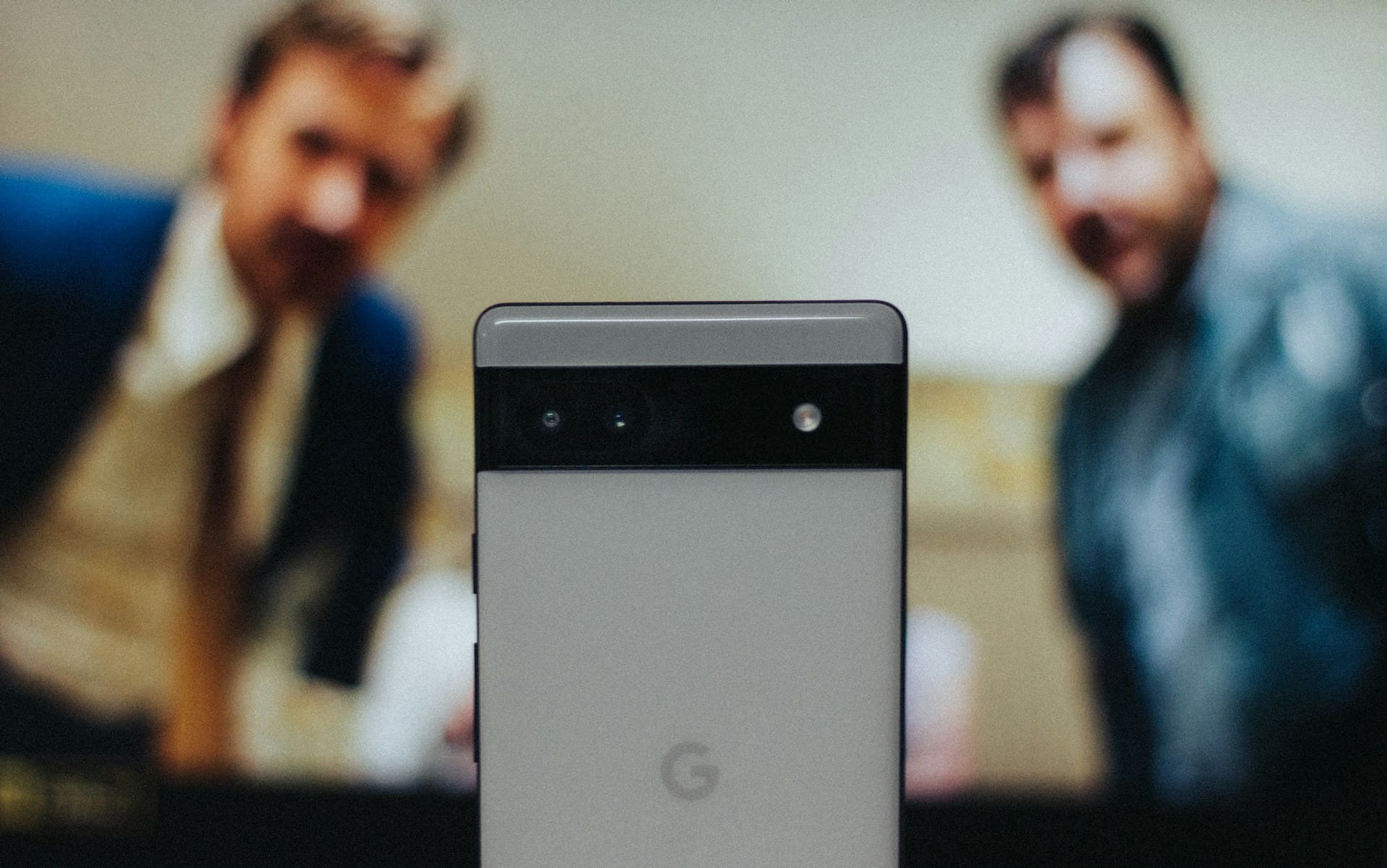
If your Google Pixel stopped working after being dropped, the most likely cause is internal damage to the screen or its connection to the motherboard. Physical impact can dislodge components or cause hardware failures that prevent the display from turning on or responding to touch.
This kind of damage often requires professional repair or replacement.
You might notice your phone’s screen stays black, becomes unresponsive, or won’t power on at all. Sometimes, minor drops cause intermittent touchscreen issues that can be tricky to diagnose.
Severe impacts often lead to more obvious malfunctions.

Immediate Effects of Dropping Your Google Pixel
When your Google Pixel takes a sudden fall, you may notice a mix of visible and hidden damages. These often affect the phone’s display, internal components, and overall responsiveness, with some issues showing instantly while others emerge over time.
Common Physical and Internal Damages
Dropping your Pixel can cause immediate physical damage such as cracks on the screen or dents in the frame. The Pixel 7 Pro, despite its improved durability, remains vulnerable to impact-related cracks, especially on the display glass.
Internally, the delicate AMOLED screen and integrated touch sensors can shift or disconnect, causing touchscreen failures. Components like the display flex cable or internal connectors may loosen, leading to intermittent or total loss of display function.
Water damage might also occur if the drop happens near moisture. Impacts can harm the battery or logic board, causing power or performance problems.
Physical damage isn’t always obvious—sometimes internal parts suffer without visible signs.
Signs and Symptoms of Screen Failure
If your Pixel’s screen stops working after a drop, you might see black screens, flickering, or unresponsive touch. The display might glitch with lines or color distortions even if the glass isn’t cracked.
Some Pixel 7 Pro users report intermittent touchscreen issues after minor drops with no visible damage. Sometimes the screen stays black while the phone remains powered on, indicating the display or its connectors are damaged, but the system still runs.
Other times, your Pixel won’t respond to touches, won’t show the lock screen, or freezes during boot. These signs point to display failure or damaged screen hardware that requires attention.
Importance of Initial Inspection
Right after dropping your Google Pixel, a thorough inspection is crucial. Begin by examining the screen for cracks, scratches, or discoloration.
Check if the touchscreen responds to taps or swipes. Also assess if the phone powers on and if any display issues appear immediately.
Minor physical damage like small hairline cracks might not disrupt function but can worsen without protection. Understanding early symptoms helps you decide between software troubleshooting or immediate hardware repair.
Documenting these initial signs can also assist if you need to file an insurance claim or seek professional repair. For further insight into how your Pixel’s display failure might progress, detailed troubleshooting guides are available.
For reference, see signs and solutions for Pixel 7 Pro display issues.
Diagnosing Google Pixel Display Issues After a Drop
When your Google Pixel stops working after a drop, pinpointing the exact issue requires careful observation and a few tests. You’ll need to check if the problem is related to the screen showing no image, if there are underlying software glitches, how the touchscreen and connections behave, and whether internal components or sensors suffered damage.
How to Identify a Black Screen or Black Screen of Death
A true black screen means no display activity despite the phone being on or responsive. The Black Screen of Death (BSOD) refers to the device being completely unresponsive—no screen light, no vibrations, and no sounds—even when pressing the power button.
First, try a forced restart by holding the power button for about 10-15 seconds. If the screen remains black but you hear vibrations or other signs of power, the display might be damaged or disconnected internally.
If nothing happens, check if the battery is completely drained or disconnected. If the screen lights up briefly or shows faint images, it indicates display failure or loose connectors rather than total hardware failure.
This is different from software-related problems causing temporary blackouts in certain apps.
Differentiating Between Hardware and Software Glitches
Software glitches can cause screen freezes or blackouts but usually don’t persist after a restart or when booting into recovery mode. If your Pixel boots into safe mode or recovery with a visible display, the issue is likely software-related.
Hardware issues from drops often cause permanent display failures, such as flickering, non-responsive touch, or a black screen of death that doesn’t clear with resets. Look for signs like cracks or physical damage, unusual heat, or inconsistent screen behavior.
Try connecting your phone to a computer or charger. Recognition by external devices suggests the phone’s hardware is functional but the display or touchscreen may be compromised.
If it doesn’t respond or show signs of life at all, a hardware problem is probable.
Testing for Touch and Connectivity Problems
After a drop, your touchscreen responsiveness might degrade or fail entirely even if the display turns on. Test this by attempting to unlock the phone and swipe through screens or menus.
If touches are inconsistent or ignored, digital input might be damaged or disconnected. Check for screen protector interference or case pressure first—they can affect touch sensitivity.
You should also inspect the display connector inside the device if you’re comfortable opening it. Loose retainers or connectors often cause intermittent screen and touch failures after impact.
Bent or damaged pins can also cause issues but require careful handling.
Assessing Sensors and Internal Component Damage
Impact can harm more than just the screen. Sensors like the proximity sensor, ambient light sensor, or fingerprint reader may fail when their connectors loosen or circuits break.
Observe if your phone reacts inconsistently to light changes or fails to turn the screen off during calls, as these signs indicate sensor problems. Internal components such as the motherboard or battery may also suffer damage, causing boot loops or power issues.
Look for unusual swelling, overheating, or swelling in the battery area. Thorough inspection and testing with diagnostic apps or professional repair guides can identify these failures, which often accompany display issues following drops.
For detailed guidance on screen-related problems and repairs on Pixel phones after drops, see this Pixel screen troubleshooting resource.
Troubleshooting and Repair Steps
When your Google Pixel stops working after being dropped, there are specific steps you can take to diagnose and potentially fix the issue. These include software resets, hardware inspections, and deciding when a screen replacement is necessary.
Knowing when to seek professional help can also save time and effort.
Force Restart and Software Fixes
Start by performing a force restart to clear temporary glitches. On most Pixel models, press and hold the power button for about 30 seconds until the device powers off and restarts.
This can resolve issues where the screen appears unresponsive, but the phone is still working internally, as indicated by responses from Google Assistant. If the screen remains black or touch is unresponsive after the restart, try booting into safe mode to check if a third-party app is causing conflicts.
Additionally, connecting the phone to a charger can rule out battery drain as the cause. For persistent software-related display failures, a factory reset may be necessary, but back up your data first.
Inspecting and Reseating Display Connectors
Physical damage from a drop often leads to loose or damaged internal connections. If you’re comfortable opening your Pixel, carefully remove the back cover and battery (if removable) to check the display connectors.
These ribbon cables can disconnect or partially loosen, causing the screen to malfunction or stay black. Use a plastic tool to gently reseat the connectors, ensuring they fit firmly.
Be cautious to avoid static discharge or further damage to components. Poor connection is a common cause of display failure after impact and addressing it can restore the screen without full replacement.
When to Replace the Display Assembly
If software fixes and connector reseating do not resolve the problem, the display assembly might be physically damaged. Signs include flickering, unresponsive touch, or a completely black screen with no visible cracks but internal damage.
Replacing the screen typically resolves these issues. Google’s Pixel 6 and later models have relatively durable screens, but damage beyond connectors or internal components requires a new display assembly to restore full function.
Replacement kits and parts are available from trusted sources.
Professional Repair Resources and iFixit Guides
When you’re unsure about self-repairs, professional services offer reliable Pixel repairs including screen replacements and diagnostics. Authorized repair centers provide quality parts and warranty coverage.
For DIY repairs, iFixit offers detailed, step-by-step Pixel repair guides, including how to replace screen assemblies safely. These guides include tools lists and precautions to avoid damaging sensitive parts.
Following these resources can help you decide whether to repair yourself or consult a professional.
For more on this, see the iFixit screen replacement guide.
Preventing Future Damage and Maintaining Your Pixel
Protecting your Pixel from drops and damage requires a combination of the right accessories and careful habits. Maintaining your device regularly also ensures longevity and consistent performance over time.
Choosing and Applying a Screen Protector
A high-quality screen protector is essential for minimizing damage from impacts and scratches. Look for tempered glass protectors with at least 9H hardness rating—they provide strong resistance against cracks and abrasions.
When applying a screen protector, clean your screen thoroughly with the included wipes and use dust-removal stickers to avoid trapped particles. Align the protector carefully before laying it down to prevent bubbles.
Replacing a worn or cracked screen protector promptly maintains continuous protection. Some protectors come with oleophobic coatings to reduce fingerprints and smudges, improving touch sensitivity and viewing clarity.
Investing in a reputable brand ensures the screen protector fits your Pixel model precisely.
Handling Tips and Protective Cases
Handling your Pixel with care reduces the risk of accidental drops. Avoid placing it on uneven surfaces or near edges where it can easily fall.
Use both hands when possible, especially when multitasking. Choose a protective case designed for your Pixel’s model and size.
Cases offering shock absorption, raised edges, and reinforced corners provide better protection against drops. Thin cases may look sleek but often sacrifice impact resistance.
Some cases include textured grips to reduce slippage. Waterproof or water-resistant cases can further protect your phone from liquid damage.
Combining a sturdy case with a screen protector dramatically decreases the chance of costly screen repairs.
Regular Maintenance for Device Longevity
Keep your Pixel running smoothly by regularly cleaning it with a microfiber cloth to remove dust and oils.
Avoid harsh chemicals which can damage coatings and screen surfaces.
Check for software updates frequently, as these optimize your device’s performance and fix bugs that could lead to freezing or unresponsiveness after minor impacts.
Back up your data regularly to avoid loss in case repairs are needed.
Inspect charging ports and headphone jacks for debris to ensure proper connections.
Avoid exposing your phone to extreme temperatures or moisture, as these conditions accelerate hardware wear and degrade water resistance.