
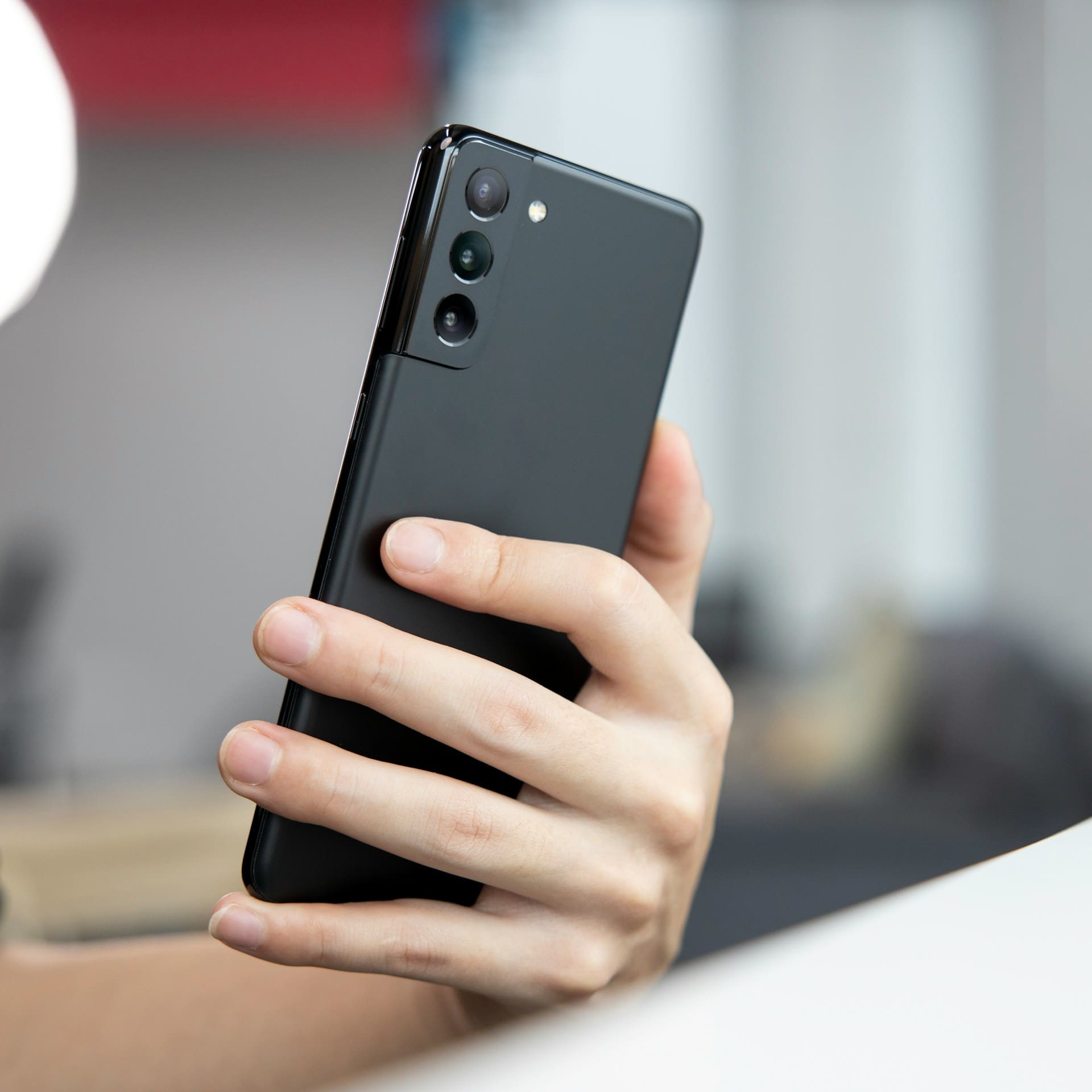
If your Google Pixel camera is not working, you’re not alone. Many users experience issues like the camera app crashing, blurry images, or the camera failing to open.
The most effective way to fix these problems is by following a step-by-step approach that includes checking for software updates, clearing the app cache, and verifying camera permissions.
Your Pixel camera is designed to deliver high-quality photos, but glitches or conflicts with other apps can cause it to malfunction. Addressing common Pixel camera issues can often be done without professional help by using basic troubleshooting techniques.
For detailed help, check out this Google Pixel camera troubleshooting guide.

Key Reasons for Google Pixel Camera Not Working
When your Google Pixel camera stops functioning properly, several technical and physical factors can be responsible. Problems often relate to software updates, app stability, or hardware condition.
Understanding these causes helps you pinpoint the issue and apply the right fix.
Outdated Software and Updates
Your Pixel’s camera relies heavily on up-to-date firmware and system software to function correctly. If your software is outdated, it can cause instability, reduce camera performance, or prevent the camera app from opening entirely.
Sometimes, updates themselves may introduce bugs, especially if a recent Pixel camera update was installed. To keep your camera working smoothly, regularly check for system updates in Settings.
Google often releases patches that fix camera-specific bugs. Ignoring updates can lead to errors like blurry photos or slow focus.
Also, ensure that the camera app itself is updated, as this can improve compatibility and fix crashes related to outdated components.
App Glitches and Camera App Crashing
Frequent crashing or freezing of the camera app is a common reason your Pixel camera may not work. These glitches often happen due to corrupted app data or temporary system conflicts.
When the camera app crashes, you might see a prompt that it has stopped working, or the app may not open at all. Clearing the camera app cache and data through Settings can resolve many app-related problems.
Restarting your phone or testing the camera in Safe Mode can also identify if system-level conflicts trigger these crashes. Occasionally, background processes or excessive app permissions contribute to instability, so managing app permissions may help.
Third-Party App Interference
Third-party camera apps or apps with camera permissions can interfere with your Pixel’s native camera. Conflicts arise when these apps access the camera simultaneously or override native camera settings.
This can cause focusing problems, lag, or even prevent the camera from opening. If the Pixel camera is not working after you installed a new app, try uninstalling or disabling that app.
Testing your camera in Safe Mode disables third-party apps temporarily, helping determine if interference is the culprit. Restricting camera permissions for less trustworthy apps also reduces the risk of conflicts.
Always use trusted, well-reviewed camera apps to minimize problems.
Hardware and Lens Issues
Physical damage or dirt on your Pixel camera can cause blurry photos or failing autofocus. Even a small scratch or dust on the lens can degrade image quality significantly.
Regularly clean your lens and laser autofocus sensor with a microfiber cloth to remove fingerprints and debris. Hardware faults like a faulty camera module or internal connector issues may also cause your camera to malfunction or not open.
If cleaning and software fixes don’t help, a hardware repair or replacement might be necessary. Signs of hardware issues include persistent camera errors or failure in both native and third-party camera apps.
For more detailed troubleshooting, see solutions to fix camera problems on Google Pixel phones and tablets.
Essential Troubleshooting Steps
When your Pixel camera is not working, addressing software glitches and app conflicts is critical. These steps target common issues that affect camera performance and often restore normal function quickly.
Restart Device and Camera App
Begin by closing the Camera app completely. Swipe up or use the recent apps button to clear it from active processes.
Then, restart your Pixel device. This refreshes system resources, stops background tasks that may interfere with the camera, and can resolve temporary glitches.
After the reboot, open the Camera app again and test its function. If the camera still fails to open or shows errors, proceed to the next steps.
Clear Camera App Cache and Data
Cached files can become corrupted and cause the Pixel camera to malfunction. To clear the cache, go to Settings > Apps > Camera > Storage.
Tap Clear Cache first. This removes temporary files without affecting app settings.
If issues persist, select Clear Data or Clear Storage. This resets the Camera app settings to default and deletes user preferences.
Note that clearing data will erase custom settings, but it can fix persistent bugs caused by corrupted data files. After clearing, open the app to see if performance improves.
Update Phone OS and Camera App
Running outdated software can cause compatibility problems with the camera hardware or app. Check for system updates by going to Settings > System > System Update.
Install any available updates, as they often include bug fixes and security patches. Similarly, update the Camera app via the Google Play Store if an update is available.
Updated versions often contain improvements to camera stability and features. Keeping your device software current reduces the chance of crashes and errors in the Pixel camera app.
Test in Safe Mode
Safe Mode disables third-party apps and allows you to see if any installed apps are causing camera conflicts. To enter Safe Mode on your Pixel, press and hold the power button, then tap and hold Power Off until the Safe Mode prompt appears.
Tap OK. Once in Safe Mode, open the Camera app and test its functionality.
If the camera works fine, a third-party app is likely interfering. Consider uninstalling recently added apps or those with camera permissions.
To exit Safe Mode, restart your device normally. This step helps isolate deeper software conflicts affecting your Pixel camera.
Fixing Software and App Conflicts
Addressing software and app issues often resolves camera problems on your Google Pixel. You should verify camera permissions, reset settings to their defaults, and pinpoint any third-party apps that might interfere with your device’s camera functions.
Check Camera Permissions
Start by confirming your Pixel 7 Pro or other Pixel model has proper camera permissions enabled. Open Settings > Apps > Camera > Permissions.
Make sure the camera access is granted, especially if an update or app installation recently occurred. If permissions are disabled, the camera app won’t function correctly.
Re-enabling access allows the app to use the hardware fully. Additionally, check if any apps are set to block camera access in the device’s privacy dashboard.
These settings can sometimes reset during system updates or when third-party security apps are installed.
Reset Camera Settings to Default
If your camera continues to malfunction, resetting its settings might help. Go to the Camera app settings, and find the option to reset camera settings or restore defaults.
This process clears customizations like resolution, focus mode, or exposure, which might conflict with the hardware or software. Resetting does not delete your photos or videos but removes all altered preferences, returning the app to its original configuration.
This step often resolves issues such as persistent crashes, freezing, or blurry images caused by incompatible settings or glitches.
Identify and Remove Conflicting Third-Party Camera Apps
Third-party camera apps can sometimes interfere with the native Pixel camera. If you’ve installed any alternative camera apps, try uninstalling them, especially if issues started afterward.
Some apps might run processes in the background or alter camera permissions, causing conflicts. To troubleshoot, restart your phone in Safe Mode, which disables third-party apps.
If the camera works fine there, a third-party app is likely the cause. Remove recently installed apps one by one or perform a factory reset if you cannot isolate the problem.
Monitoring app reviews and updates can also help avoid apps known to cause camera issues on Pixel devices. For detailed troubleshooting steps, refer to guidance on fixing Google Pixel camera problems from Google Help.
Advanced Solutions and When to Seek Help
If common fixes haven’t resolved your Pixel camera issues, deeper steps can help restore full functionality. You’ll need to carefully consider wiping your device or addressing physical hardware faults.
Knowing when to ask for professional help can also save time and prevent further damage.
Factory Reset as a Last Resort
A factory reset should be your final step when the Pixel camera continues malfunctioning despite software updates, clearing cache, and testing in safe mode. This process erases all data and settings, returning your phone to its original state.
Before proceeding, back up important files and photos to avoid permanent loss. Once reset, you’ll need to reinstall apps and adjust settings manually.
This method often resolves issues caused by corrupted system files or conflicting third-party camera apps interfering with the default camera function. Access this option under Settings > System > Reset options > Erase all data (factory reset).
Confirm your choice, then wait for the phone to restart and complete the reset. Test the camera after the reset to see if the problem persists.
Addressing Persistent Hardware Issues
If your Pixel camera still isn’t working or is producing blurry photos after software fixes, chance is high that hardware is damaged. Common culprits include cracked lenses, faulty camera sensors, or internal connection problems.
You can start by visually inspecting the camera lens for dirt, scratches, or cracks. Cleaning it gently with a microfiber cloth can sometimes improve image clarity.
However, physical damage requires professional repair, as DIY fixes might void warranties or worsen the issue. Hardware problems can also cause the camera app to crash or fail across multiple apps, such as in video calls.
When suspected, avoid further attempts at software troubleshooting to reduce risk of hardware strain.
When to Contact Support
When neither software resets nor simple hardware checks restore your Pixel camera, it’s time to involve Google Support or a certified technician.
They have specialized diagnostic tools to pinpoint complex problems beyond user-level fixes.
Contact Support through the official Pixel Help page.
Provide a detailed description of your symptoms, including if issues appear across several apps or only with the stock camera.
Support can guide you through advanced troubleshooting or arrange hardware repairs if necessary.
If your device is under warranty, professional servicing prevents accidental damage during repair and covers parts replacement.