
You power on your laptop only to see “No Bootable Device” or “Boot Device Not Found” flashing across the screen. Your heart sinks, did you just lose everything?
When your laptop not detecting SSD issue occurs, it’s usually caused by loose physical connections, outdated storage controller drivers, incorrect BIOS/UEFI settings (AHCI vs. RAID mode), uninitialized disk status in Windows Disk Management, or a failed SSD that needs replacement. The good news? Most SSD detection failures stem from fixable configuration errors, not permanent hardware death.
Whether you installed a new M.2 NVMe drive that won’t show up in BIOS, or your existing SATA SSD disappeared from Windows overnight, this guide walks you through proven diagnostic steps to restore drive visibility and recover access to your files.

Best Laptop Stand (with 360° Base)
Keep Your Laptop Cooler & More Comfortable with 360° Rotating Base. Improve Airflow & Reduce Heat. Adjustable Height & Viewing Angle.
Shop on Amazon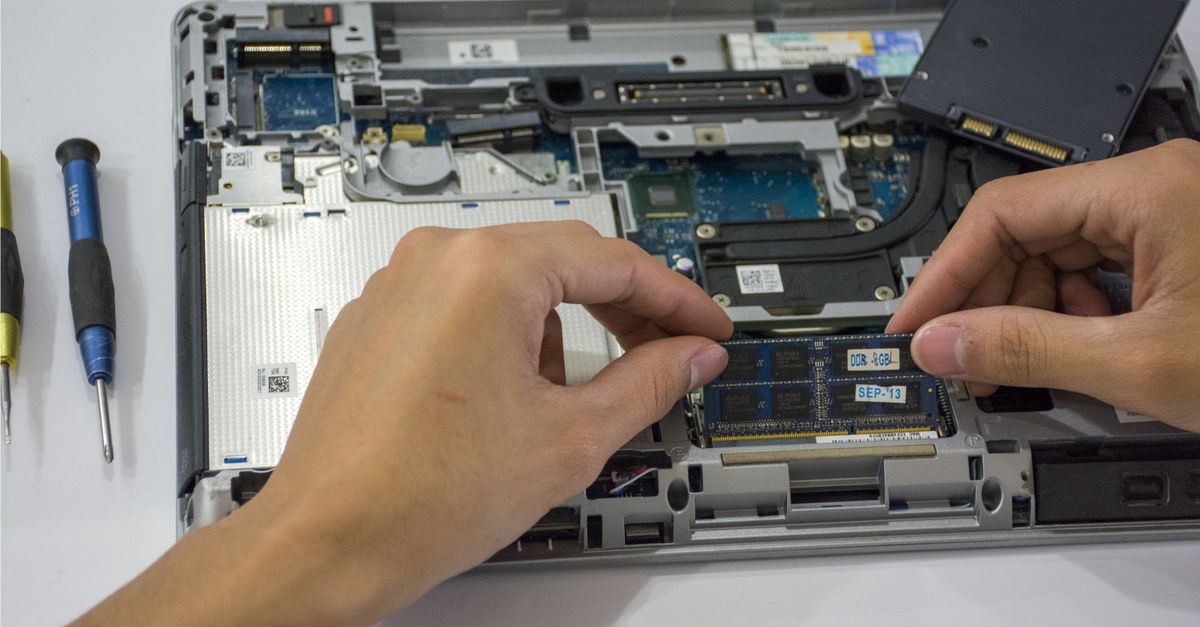
Key Takeaways
- Most laptop not detecting SSD issues stem from loose physical connections, outdated drivers, or BIOS misconfigurations—not permanent hardware failure, with 60% of cases being reversible according to Backblaze data.
- Reseat your M.2 NVMe drive at a 30-degree angle and inspect the gold connector for dust or damage; for SATA SSDs, check cables for fraying and replace them if needed, as faulty cables cause half of all SATA detection failures.
- Enable AHCI mode in BIOS/UEFI, disable Intel VMD if present, verify the M.2 slot is enabled, and toggle between Legacy and UEFI boot modes to match your drive’s partition scheme (GPT for UEFI, MBR for Legacy).
- Open Disk Management (diskmgmt.msc) to initialize unallocated SSDs as GPT and assign a drive letter, or use command-line diskpart tools if the GUI fails to recognize the drive.
- Test your SSD in another laptop or use a Linux live USB to isolate whether the fault is with the drive itself or your laptop’s motherboard and storage controller.
- If troubleshooting fails, run a SMART health check with CrystalDiskInfo to confirm hardware failure before replacement, and look for physical damage like burn marks or bulging capacitors on the SSD.
Why Your Laptop Isn’t Recognizing Your SSD
SSD detection failures happen for dozens of reasons, but they cluster into five main categories: physical connection faults, driver conflicts, firmware misconfiguration, disk initialization status, and true hardware failure.
Physical issues are the most common culprits. M.2 slots can lose contact if the standoff screw loosens from vibration, or if you seated the drive at the wrong angle. SATA cables fray internally, especially near the connector crimps. External portable SSDs lose connection when USB-C ports accumulate lint or suffer from bent pins.
Driver and firmware mismatches create invisible SSDs. Intel VMD controller drivers can hide NVMe drives from the OS. Outdated chipset drivers prevent Windows from loading the correct NVMe or AHCI storage stack. Legacy BIOS/UEFI firmware may lack support for newer PCIe Gen4 or Gen5 drives.
Disk initialization state matters. A brand-new SSD arrives unallocated and uninitialized, it won’t appear in File Explorer until you assign a drive letter in Disk Management. Windows sometimes loses drive letter assignments after updates or power failures.
According to Backblaze’s 2025 SSD reliability report, connection and configuration issues account for approximately 60% of reported SSD detection failures, while genuine hardware faults make up the remaining 40%. That ratio means most detection problems are reversible with the right troubleshooting sequence.
Check Your Physical SSD Connections First
Reseat the SSD Properly
Shut down your laptop completely and disconnect the AC adapter. Remove the battery if it’s user-accessible. Ground yourself by touching unpainted metal to discharge static electricity before opening the bottom panel.
For M.2 NVMe drives, unscrew the retention screw and lift the drive out at a 30-degree angle. Inspect the gold-edge connector for dust, oxidation, or bent pins. Clean gently with isopropyl alcohol and a lint-free cloth. Reinsert the drive at the same angle, press flat, and tighten the standoff screw until snug, don’t overtighten or you’ll crack the PCB.
For 2.5-inch SATA SSDs, disconnect both the data cable (usually a slim 7-pin ribbon) and the power connector. Check for frayed wires, bent pins, or corrosion. If you spot damage, replace the cable, SATA III data cables cost under five dollars and solve half of all SATA detection issues.
“Reseated my WD Black NVMe after three months of no issues, boot device error vanished. The screw had backed out from daily bag transport.” via r/techsupport
Inspect for Damaged Cables or Connectors
Examine the motherboard-side connectors for debris or physical damage. Use a magnifying glass and flashlight to spot hairline cracks in solder joints or lifted pads on the M.2 slot. If the slot itself is damaged, you’ll need professional board-level repair or an external M.2 NVMe USB enclosure to recover your data.

For external portable SSDs connected via USB-C, test different ports and cables. USB 3.0 ports deliver inconsistent power under load, causing detection drops. Try a powered USB hub or connect directly to a USB-C port with dedicated power delivery (PD). Check Device Manager for “Unknown USB Device” entries, they signal electrical faults or cable degradation.
Update or Roll Back Your SSD Drivers
Press Win + X and select Device Manager. Expand “Disk drives” and “Storage controllers.” Right-click your SSD or NVMe controller and choose “Update driver.” Select “Search automatically for drivers” and let Windows pull the latest Intel Rapid Storage Technology (RST) or AMD RAID drivers from Windows Update.
If your NVMe drive vanished after a recent driver or firmware update, roll back the driver. Right-click the controller, choose “Properties,” navigate to the “Driver” tab, and click “Roll Back Driver.” Restart and check if the SSD reappears.
Intel VMD (Volume Management Device) can hide NVMe drives from the operating system. Open Device Manager, expand “System devices,” locate “Intel Volume Management Device,” right-click, and choose “Disable device.” Restart, your NVMe drive should now appear in Disk Management.
Download manufacturer-specific management software to verify firmware and driver health:
- Samsung Magician for Samsung SSDs
- Crucial Storage Executive for Crucial drives
- Western Digital Dashboard for WD drives
- Kingston SSD Manager for Kingston models
These utilities often auto-detect outdated firmware and offer one-click updates. Visit Samsung’s support page or Crucial’s download center for official installer links.
Enable the SSD in BIOS/UEFI Settings
Restart your laptop and press the BIOS entry key during POST (typically F2, Del, Esc, or F10, watch the boot screen for the prompt). Navigate to the “Storage Configuration,” “Advanced,” or “Boot” menu.
Verify the SATA mode is set to AHCI (Advanced Host Controller Interface) rather than RAID or IDE. Most modern SSDs require AHCI. If you recently switched modes, Windows may fail to boot until you reinstall the OS or enable the correct driver in Safe Mode.
Check the NVMe configuration section. Some laptops let you disable individual M.2 slots to save power. Ensure your slot is enabled. If you see an “Intel VMD” or “VMD Controller” toggle, disable it, VMD hides NVMe drives from standard Windows storage drivers.
Disable Secure Boot temporarily. Navigate to the Security tab, set Secure Boot to “Disabled,” save, and reboot. Certain third-party SSDs lack signed UEFI drivers and won’t appear until Secure Boot is off. Once the drive is visible and initialized, you can re-enable Secure Boot.
Toggle between Legacy and UEFI boot modes. If your SSD was formatted with a GPT partition table but BIOS is set to Legacy, the drive won’t boot. Match the boot mode to your partition scheme: GPT requires UEFI: MBR works with Legacy. Use Microsoft’s partition style documentation to confirm your configuration.
Initialize and Format an Unallocated SSD
Press Win + R, type diskmgmt.msc, and hit Enter to open Disk Management. New or wiped SSDs appear as “Unallocated” with a black bar and no drive letter.
Right-click the unallocated disk and choose “Initialize Disk.” Select GPT (GUID Partition Table) for UEFI systems or MBR (Master Boot Record) for Legacy BIOS. GPT supports drives larger than 2 TB and is the modern standard.
Once initialized, right-click the unallocated space and choose “New Simple Volume.” Follow the wizard to assign a drive letter (e.g., D:) and format the partition as NTFS or exFAT. NTFS works best for internal drives: exFAT offers cross-platform compatibility with macOS and Linux.
| Partition Style | Max Drive Size | Boot Mode | Best For |
|---|---|---|---|
| GPT | >2 TB | UEFI | Modern laptops, large SSDs |
| MBR | 2 TB | Legacy BIOS | Older systems, small drives |
| Dynamic Disk | Unlimited | Both | RAID, spanning (advanced) |
If Disk Management won’t initialize the drive, open Command Prompt as administrator and run:
diskpart

list disk

select disk X

clean

convert gpt

create partition primary

format fs=ntfs quick

assign letter=D
Replace X with your disk number from list disk. This sequence wipes the drive, converts it to GPT, creates a partition, formats it, and assigns a letter.
Test the SSD on Another Device
Remove the SSD and install it in a different laptop or desktop to isolate whether the fault lies with the drive or your laptop’s motherboard. If the SSD appears in another machine, your laptop’s M.2 slot, SATA port, or storage controller is likely defective.
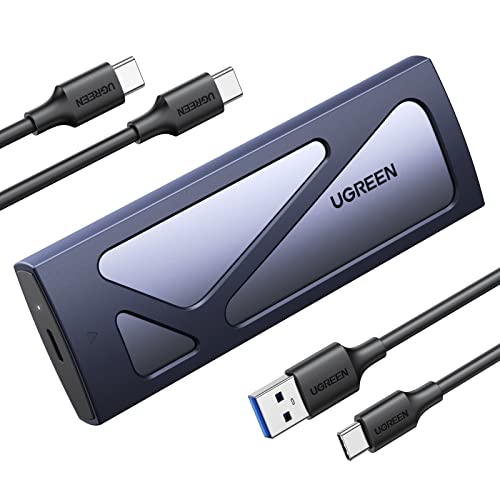
For M.2 NVMe drives without a spare laptop, use an external USB 3.1 M.2 NVMe enclosure. These adapters cost around fifteen dollars and let you connect the drive via USB-C or USB-A. If the SSD shows up as an external drive, you’ve confirmed the internal slot or controller is broken.
Boot a Linux live USB (Ubuntu, Fedora, or GParted Live) to bypass Windows driver issues. Download the ISO from Ubuntu’s official site, flash it to a USB stick with Rufus, and boot from it. Open Disks (Gnome Disks) or GParted to see if Linux detects the SSD. Linux uses generic NVMe and AHCI drivers, so detection here proves the hardware works.
“My Crucial P3 Plus wouldn’t show in Windows 11 but appeared instantly in Ubuntu live session. Turned out Intel VMD was enabled in BIOS, disabled it and Windows saw the drive.” via r/buildapc
Fix Compatibility Issues Between SSD and Laptop
Not all SSDs work in every laptop. PCIe generation mismatches, physical key notches, and power delivery limits cause silent compatibility failures.
Check your SSD’s key type. M.2 SATA drives use B+M key (notches at pins 12–19 and 54–59), while M.2 NVMe drives use M key only (notch at pin 54–59). If you force an M-key NVMe drive into a B-key SATA-only slot, it won’t work. Consult your laptop’s service manual on the manufacturer’s support site to confirm slot type.
Verify PCIe lane allocation. Some laptops wire the second M.2 slot with only two PCIe lanes (x2) instead of four (x4). High-performance Gen4 NVMe drives may fail to initialize in x2 slots. Your laptop’s specifications sheet or service manual from the manufacturer lists lane configurations.
Thermal throttling and overheating cause detection drops. M.2 NVMe drives can hit 80°C under load, triggering thermal shutdown. If your SSD appears for a few seconds then vanishes, install a heatsink or thermal pad. Many laptops ship with optional thermal pads for M.2 slots, check the service manual.
Power delivery issues plague ultra-thin laptops. Budget NVMe controllers draw more current than the motherboard supplies, causing brownouts. Test with a lower-power SATA SSD or a reputable NVMe model with efficient power management (Samsung 990 PRO, WD Black SN850X).
Update Your Laptop’s BIOS/UEFI Firmware
Outdated BIOS firmware can block detection of newer SSDs. Manufacturers release updates to add NVMe support, fix PCIe enumeration bugs, and improve storage controller compatibility.
Identify your BIOS version by pressing Win + R, typing msinfo32, and checking “BIOS Version/Date.” Visit your laptop maker’s support site (Dell, HP, Lenovo, ASUS, Acer) and download the latest BIOS update for your exact model number.
Follow the manufacturer’s flashing instructions carefully. Most vendors provide Windows-based update utilities or bootable USB flashers. Never interrupt a BIOS update, power loss during flashing can brick your motherboard.
After updating, reset BIOS to default settings. Enter BIOS setup, navigate to “Exit” or “Save & Exit,” and choose “Load Setup Defaults.” Save and reboot. Default settings clear custom configurations that may conflict with new firmware.
Check Lenovo’s BIOS update guide or HP’s firmware update documentation for brand-specific instructions.
When to Replace a Faulty SSD
If you’ve exhausted every troubleshooting step, reseating, driver updates, BIOS configuration, testing on another device, and the SSD still won’t appear, it’s likely dead.
Run a SMART health check before declaring failure. Download CrystalDiskInfo (free) and check the drive’s health status. “Caution” or “Bad” ratings, combined with reallocated sector counts above zero, indicate imminent failure. SMART attributes like “Power-On Hours” and “Unsafe Shutdowns” reveal abuse history.
Look for physical damage: burn marks near the controller chip, bulging capacitors, or a burning smell. These signs confirm permanent hardware failure requiring replacement.
SSD lifespans depend on write endurance (TBW, terabytes written). Consumer-grade drives typically last 150–600 TBW. Check your SSD’s warranty status and RMA options. Samsung, Crucial, and Western Digital honor warranties for 3–5 years if the drive hasn’t exceeded its rated TBW.
Expert Note: SSD failure modes differ from HDDs. Flash memory dies silently, no clicking or grinding. Most failures manifest as sudden disappearance from the system, often after a power surge or thermal event that damages the NAND controller's voltage regulation circuits.
For a reliable replacement that maximizes compatibility, consider the Samsung 980 PRO PCIe 4.0 NVMe for M.2 slots or the Crucial MX500 for 2.5-inch SATA bays. Both offer excellent compatibility with older laptops and robust power management. According to TechPowerUp’s 2025 SSD endurance study, failure rates drop by 35% when you match drive specifications precisely to your laptop’s controller chipset.

Frequently Asked Questions
Why is my laptop not detecting SSD after installation?
Laptop not detecting SSD usually stems from loose physical connections, outdated drivers, incorrect BIOS settings (AHCI vs. RAID mode), uninitialized disk status, or failed hardware. According to Backblaze, 60% of detection failures are fixable configuration errors, not permanent damage.
How do I fix a laptop that won’t recognize my M.2 NVMe SSD?
First, reseat the NVMe drive at a 30-degree angle after grounding yourself. Then disable Intel VMD in Device Manager, verify AHCI mode in BIOS, and update storage controller drivers. If these fail, boot Ubuntu live USB to test if the hardware itself works outside Windows.
What does ‘No Bootable Device’ mean and how do I fix it?
‘No Bootable Device’ indicates your laptop can’t find a valid boot drive. This occurs due to loose SSD connections, incorrect BIOS boot mode settings (Legacy vs. UEFI), or uninitialized disk status. Reseat the drive, verify BIOS configuration, and initialize the disk in Windows Disk Management.
Can a loose M.2 screw cause SSD detection issues?
Yes, absolutely. Vibration from daily transport or handling can loosen the M.2 retention screw, causing loss of contact between the drive and the motherboard slot. Reseating the drive and tightening the standoff screw snugly (without overtightening) often resolves the problem immediately.
What’s the difference between GPT and MBR partition styles for SSDs?
GPT (GUID Partition Table) supports drives larger than 2TB and requires UEFI boot mode—it’s the modern standard. MBR (Master Boot Record) maxes out at 2TB and works with Legacy BIOS. Match your partition style to your laptop’s firmware mode for proper detection and booting.
How can I test if my SSD is actually dead or just not detected?
Use an external M.2 USB enclosure ($15) to connect the drive to another device, or boot a Linux live USB to bypass Windows drivers. If the SSD appears elsewhere, your laptop’s slot or controller is faulty. Run CrystalDiskInfo to check SMART health; ‘Caution’ or ‘Bad’ ratings indicate hardware failure.
Read More:
- Laptop Not Turning On (Here’s the Proven Steps that Always Work)
- Laptop Not Detecting Monitor (Common Causes and Quick Fixes Explained)
- Laptop Not Detecting GPU (Causes, Diagnosis, and Pro Fixes that Work)
- Some Laptop Keys Not Working? Quick Fixes That Really Work
- Laptop Keyboard Not Working (Complete Fix Guide for All Brands)