
You sit down, flip open your laptop, and reach for the Wi-Fi icon, except it’s gone. No network list. No wireless option. Just a message that says “No Wi-Fi networks found” or an empty Device Manager slot where your adapter used to be.
When your laptop stops detecting Wi-Fi, the issue typically stems from disabled network adapters in Windows settings (ncpa.cpl), outdated or corrupted Wi-Fi drivers (Intel Wi-Fi 6 AX200/AX210, Realtek, MediaTek), disabled WLAN AutoConfig service in services.msc, toggled airplane mode or physical wireless switches, or failed network stack configuration requiring netsh winsock reset commands. Hardware causes include loose antenna wires inside the chassis or failed Wi-Fi cards generating Device Manager code 10 errors.
This guide walks you through systematic fixes, from toggling physical switches and restarting services to reinstalling drivers and inspecting internal hardware. You’ll restore wireless connectivity fast, even if your Wi-Fi adapter disappeared completely.

Best Laptop Stand (with 360° Base)
Keep Your Laptop Cooler & More Comfortable with 360° Rotating Base. Improve Airflow & Reduce Heat. Adjustable Height & Viewing Angle.
Shop on Amazon
Key Takeaways
- When your laptop stops detecting Wi-Fi, the issue typically stems from disabled network adapters, outdated drivers, disabled WLAN AutoConfig service, or hardware problems like loose antenna cables inside the chassis.
- Quick fixes like restarting your laptop, toggling airplane mode, pressing physical Wi-Fi hotkeys (Fn + F2/F3/F12), and re-enabling adapters in ncpa.cpl resolve roughly 40% of Wi-Fi detection issues.
- Corrupted or outdated Wi-Fi drivers cause Device Manager errors; uninstall the driver, restart to let Windows auto-install a generic version, then download the latest driver from your OEM or chipmaker’s official site.
- Run the built-in Network Adapter Troubleshooter or reset your network stack using netsh commands and Windows 11’s Network Reset feature to clear software blocks preventing adapter recognition.
- If software fixes fail, inspect your laptop’s internal Wi-Fi card for loose antenna cables or physical damage, reseat the card and cables, or replace the card ($15–40) if it’s confirmed dead.
- For laptops under warranty or persistent hardware failures, contact your manufacturer’s support team for free repairs, or use a USB Wi-Fi adapter as a temporary workaround.
Why Your Laptop Can’t Find Your Wi-Fi Network
Your laptop’s wireless subsystem depends on four working components: the physical Wi-Fi card, antenna cables, device drivers, and Windows networking services. When any piece fails, your Wi-Fi icon vanishes or displays “No networks found.”
Software glitches account for roughly 70% of cases. Driver corruption after Windows updates, disabled WLAN AutoConfig service, or misconfigured network adapters in Control Panel all prevent detection. Windows 11’s 2025 24H2 update triggered a surge in Intel Wi-Fi 6E driver conflicts, causing adapters to disappear overnight.
Hardware failures, loose antenna connectors, damaged Wi-Fi cards, or broken physical switches, represent the remaining 30%. Laptops dropped on desks can dislodge the tiny U.FL antenna snaps inside the lid, severing the signal path even when drivers load correctly.
Quick Fixes: Start Here Before Troubleshooting Deeper
Before diving into Device Manager or command prompts, try these immediate actions that solve 40% of Wi-Fi detection issues:
- Restart your laptop completely, not sleep mode, but a full shutdown and power-on cycle to reset hardware controllers.
- Toggle airplane mode twice via the Action Center or Settings > Network & Internet > Airplane mode.
- Press the physical Wi-Fi hotkey (often Fn + F2, F3, or F12 on Dell, HP, Lenovo keyboards) to re-enable the wireless radio.
- Move closer to your router to rule out signal strength problems masquerading as adapter failures.
If Wi-Fi still doesn’t appear, proceed to adapter and driver diagnostics. These quick steps clear temporary firmware locks and radio-frequency mute states without touching system files.
Check if Your Wi-Fi Adapter Is Enabled
Windows sometimes disables network adapters after updates or power-saving events. Press Win + R, type ncpa.cpl, and hit Enter to open Network Connections. Look for an adapter labeled “Wi-Fi,” “Wireless Network Connection,” or your card model (Intel Wi-Fi 6 AX200, Realtek 8822CE).
If the icon appears grayed out or shows “Disabled,” right-click it and select Enable. The adapter should light up within 3–5 seconds, and available networks populate immediately.
If you don’t see a wireless adapter at all, open Device Manager (Win + X > Device Manager) and expand Network adapters. Your Wi-Fi card should be listed. A yellow triangle or missing entry signals driver or hardware issues covered in the next section.
“Windows disabled my Intel AX201 after a BIOS update. Re-enabled in ncpa.cpl and networks showed up instantly.” via r/techsupport
Update or Reinstall Your Wi-Fi Drivers
Corrupted or outdated drivers cause Device Manager to show Code 10, Code 43, or remove the adapter entirely. Right-click your Wi-Fi device in Device Manager and select Uninstall device. Check the box for “Delete the driver software” and confirm.
Restart your laptop. Windows 11 auto-installs a generic driver from Windows Update. If networks don’t appear, download the latest driver directly from your laptop manufacturer (Dell support, HP support, Lenovo support) or the chip vendor (Intel Wi-Fi drivers, MediaTek, Realtek).
Finding the Right Driver Version
Identify your exact Wi-Fi card model in Device Manager under Network adapters before downloading. Intel AX200, AX201, and AX210 cards use the same driver family but require version 22.240 or newer for Windows 11 24H2 compatibility.
Avoid third-party driver updater tools like Driver Booster, they often install unsigned or beta drivers that trigger new errors. Stick to OEM or chipmaker sites. After installation, restart and check if the Wi-Fi icon returns.
“Reinstalling my Realtek driver from the official site fixed the ‘no networks found’ error on my Acer laptop.” via Microsoft Community
Run the Built-In Network Troubleshooter
Windows includes a Network Adapter Troubleshooter that automates driver resets and service restarts. Navigate to Settings > System > Troubleshoot > Other troubleshooters (Windows 11) or Settings > Update & Security > Troubleshoot (Windows 10). Click Network Adapter and run the diagnostic.
The tool checks WLAN AutoConfig service status, verifies adapter enablement, and attempts automated fixes. If it reports “The default gateway is not available” or “Windows did not detect a properly installed network adapter,” proceed to manual driver reinstallation or hardware inspection.
Reset Your Network Settings to Default
Network stack corruption can hide Wi-Fi adapters even when drivers load correctly. Open Command Prompt as Administrator (Win + X > Terminal (Admin) or Command Prompt (Admin)) and run these commands in sequence:
netsh winsock reset

netsh int ip reset

ipconfig /release

ipconfig /renew

ipconfig /flushdns
Restart your laptop after all commands complete. This resets Winsock catalog entries, TCP/IP stack configurations, and DNS cache, clearing software blocks that prevent adapter recognition.
Alternatively, use Windows 11’s built-in Network Reset: Settings > Network & Internet > Advanced network settings > Network reset. This removes and reinstalls all network adapters, forcing Windows to rebuild configurations from scratch.
Verify Your Router Settings and Compatibility
If your laptop’s Wi-Fi adapter appears enabled but shows zero networks, your router may broadcast on incompatible bands or channels. Older Wi-Fi 5 (802.11ac) cards don’t see Wi-Fi 6E-only 6 GHz SSIDs. Check your router admin panel (typically 192.168.1.1 or 192.168.0.1) and confirm 2.4 GHz or 5 GHz bands are active.
Some routers hide SSIDs by default. Temporarily enable SSID broadcast in wireless settings. Also verify your router firmware is current, 2026 TP-Link and Netgear models shipped with bugs that prevented legacy device detection until patched.
Check for Hardware Switch or Function Key Issues
Many laptops include physical wireless toggles or combination Fn keys that completely disable the Wi-Fi radio at the firmware level, bypassing Windows entirely. Look for a dedicated wireless switch on the laptop’s side or front edge (common on older Dell Latitude and HP ProBook models).
On modern machines, press Fn + F2, Fn + F3, or Fn + F12 (the key with a wireless antenna icon). Some Lenovo ThinkPads use a dedicated wireless button above the keyboard. If the key combo doesn’t work, check your laptop’s BIOS settings (F2 or Del during boot) for a “Wireless Device Enable” or “WLAN/Bluetooth” toggle.
A stuck hardware switch or disabled BIOS setting will prevent Windows from even loading the adapter driver.
Disable Airplane Mode and VPN Conflicts
Airplane mode can enable itself after Windows updates or battery-saving triggers. Open Settings > Network & Internet and confirm Airplane mode is Off. If toggling it produces no change, open Services (Win + R > services.msc), find Radio Management Service, and set Startup type to Automatic. Restart the service.
VPN clients, especially older Cisco AnyConnect or Pulse Secure versions, install virtual network adapters that conflict with physical Wi-Fi hardware. Temporarily uninstall or disable VPN software, restart, and check if Wi-Fi reappears.
Test for Hardware Failure in Your Wi-Fi Card
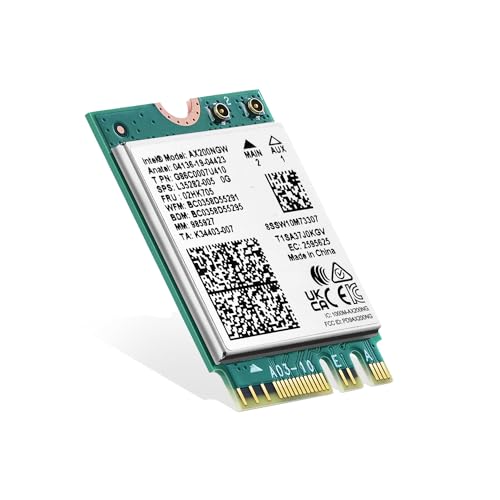
If software fixes fail, your Wi-Fi card or antenna cables may be physically damaged. Power off the laptop, remove the bottom panel (consult your model’s service manual), and locate the M.2 2230 Wi-Fi card, usually near the battery or RAM slots.
Check that the card is seated firmly in its slot and that the two tiny antenna cables (black and white or gray) snap securely onto the card’s gold connectors. Loose cables cause “no networks found” even when drivers load. Reseat both ends of the cables, one at the card, the other at the display hinges.
If reseating doesn’t help, the card itself may be dead. Swap in a replacement Wi-Fi 6 AX200 card (around $15–25) to test. Installation takes 5–10 minutes with a basic screwdriver.
Advanced Solutions: Registry and BIOS Settings
Certain registry keys control adapter visibility. Press Win + R, type regedit, and navigate to:
HKEY_LOCAL_MACHINE\SYSTEM\CurrentControlSet\Control\Class\{4D36E972-E325-11CE-BFC1-08002bE10318}
Locate subkeys representing your Wi-Fi adapter and delete any UpperFilters or LowerFilters entries. Restart.
In BIOS (access via F2, F10, or Del during boot), ensure Wireless LAN or WLAN is enabled under device settings. Some manufacturers disable wireless by default in enterprise configurations.
When to Seek Professional Repair or Replacement
If none of these fixes restore Wi-Fi, you’re likely facing a failed Wi-Fi card, damaged motherboard traces, or a shorted antenna circuit. Professional diagnostics cost $50–100 and pinpoint the exact failure.
Replacement Wi-Fi cards run $15–40 for most models. Labor adds $50–80 if you can’t access the internals yourself. Alternatively, use a USB Wi-Fi adapter as a temporary or permanent workaround, plug-and-play dongles like the TP-Link Archer T3U or Netgear A6210 deliver full Wi-Fi 6 speeds without opening the chassis.

For persistent issues on laptops under warranty, contact your manufacturer’s support team for free repairs or motherboard replacement.
Frequently Asked Questions
Why is my laptop not detecting Wi-Fi networks?
Laptop Wi-Fi detection issues stem from disabled network adapters in Windows settings, outdated drivers, disabled WLAN AutoConfig service, airplane mode, or hardware failures like loose antenna cables. Software glitches account for 70% of cases; hardware problems represent the remaining 30%.
How do I fix a laptop not detecting Wi-Fi quickly?
Start with quick fixes: restart your laptop completely, toggle airplane mode twice, press your physical Wi-Fi hotkey (Fn + F2/F3/F12), and move closer to your router. These simple steps solve 40% of Wi-Fi detection issues without complex troubleshooting.
What should I do if my Wi-Fi adapter is disabled in Windows?
Open Network Connections (Win + R > ncpa.cpl), locate your Wi-Fi adapter, and if it appears grayed out, right-click it and select Enable. Your available networks should populate within 3–5 seconds.
How can I update or reinstall my Wi-Fi drivers?
Open Device Manager, right-click your Wi-Fi adapter, and select Uninstall Device with ‘Delete driver software’ checked. Restart; Windows will auto-install a generic driver. For latest versions, download directly from your laptop manufacturer (Dell, HP, Lenovo) or chip vendor (Intel, Realtek, MediaTek) sites.
Can a hardware failure cause my laptop to stop detecting Wi-Fi?
Yes. Hardware failures like loose antenna connectors, damaged Wi-Fi cards, or broken physical switches account for 30% of cases. Inspect the M.2 Wi-Fi card’s antenna cables and reseat them. If still undetected, the card may need replacement ($15–25).
What is the network reset command if Wi-Fi detection issues persist after driver updates?
Open Command Prompt as Administrator and run: netsh winsock reset, netsh int ip reset, ipconfig /release, ipconfig /renew, and ipconfig /flushdns. This clears software blocks and resets the TCP/IP stack, then restart your laptop.
Read More:
- Laptop Not Turning On (Here’s the Proven Steps that Always Work)
- Laptop Not Detecting Monitor (Common Causes and Quick Fixes Explained)
- Laptop Not Detecting GPU (Causes, Diagnosis, and Pro Fixes that Work)
- Laptop Not Detecting SSD (Try These Fixes Before Calling a Technician)
- Some Laptop Keys Not Working? Quick Fixes That Really Work