
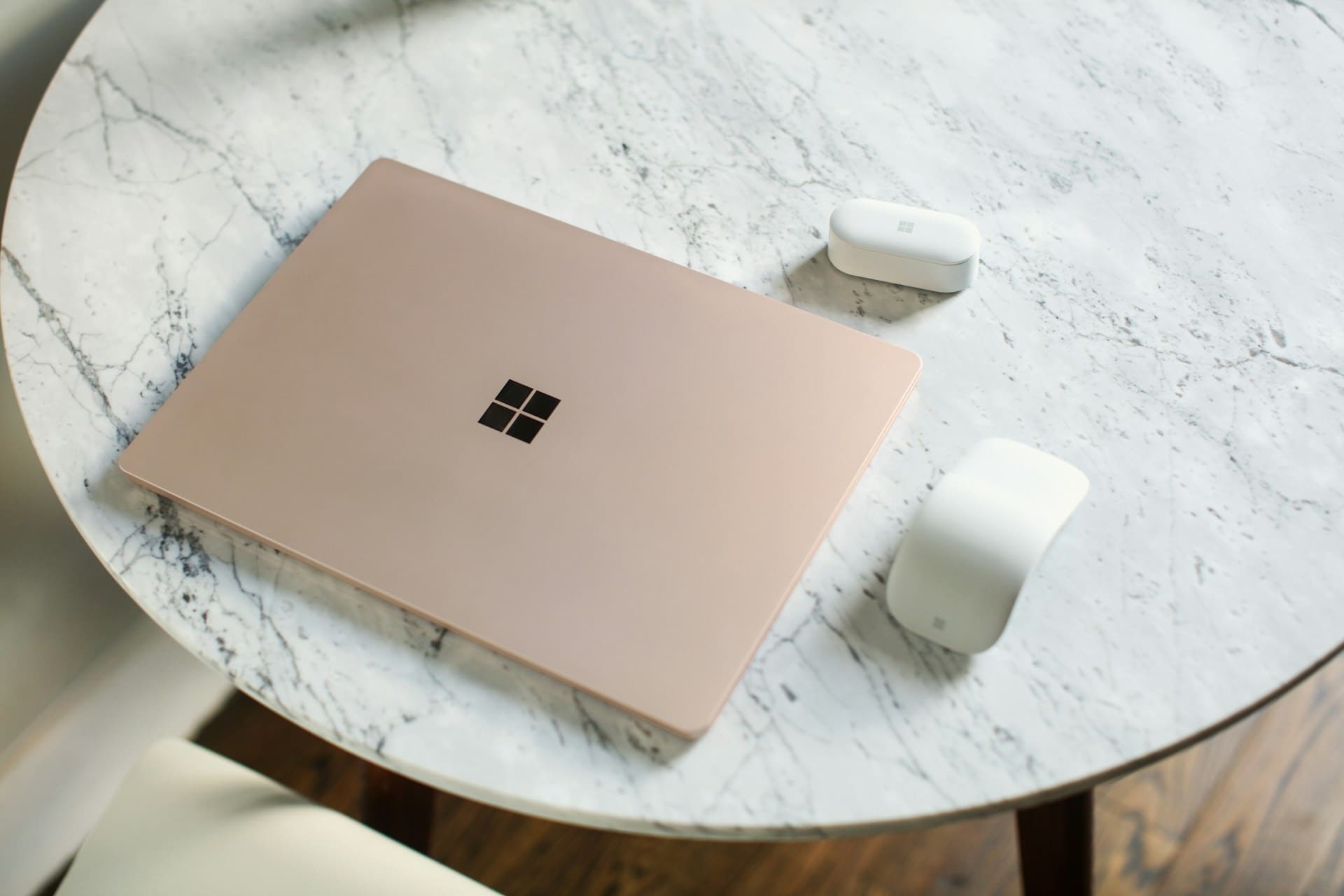
Bluetooth problems on a Surface can feel sudden and disruptive, but many issues have simple fixes you can try right away. If your Surface won’t pair or the Bluetooth toggle is gone, start by checking that Bluetooth is enabled, the device is in pairing mode, and Windows is up to date — these steps fix most connection problems.
If those quick checks don’t work, the article walks you through diagnosing whether the issue is a hardware radio, a driver/service problem, or an OS configuration. You’ll get clear initial troubleshooting to try immediately and targeted advanced fixes if the problem persists.
If none of those steps restore connectivity, the guide shows further options and practical alternatives so you can keep using audio, mice, and keyboards with minimal downtime.

Best Laptop Stand (with 360° Base)
Keep Your Laptop Cooler & More Comfortable with 360° Rotating Base. Improve Airflow & Reduce Heat. Adjustable Height & Viewing Angle.
Shop on Amazon
Diagnosing Microsoft Surface Bluetooth Not Working
Start by isolating whether the Surface or the accessory causes the problem, then verify the Surface’s Bluetooth radio, software state, and the accessory’s power and pairing mode.
How to Recognize Bluetooth Issues on Surface
Look for these clear signs: the Bluetooth toggle is missing from Settings, paired devices show “Not connected,” or your Surface cannot discover new devices. If audio stutters or the mouse disconnects repeatedly, the problem may be interference, low battery, or driver instability.
Check Device Manager for a missing or flagged Bluetooth adapter (yellow triangle). Use Settings > Bluetooth & devices to see device status and connection errors. If the Bluetooth list is empty but Device Manager shows hardware, suspect a service or driver issue rather than the accessory.
Note time-based patterns. Problems that start after a Windows update or resume from sleep often point to driver or power-management conflicts. Intermittent failures that occur only at distance usually mean range or interference issues.
Checking Bluetooth Status and Visibility
Open Start > Settings > Bluetooth & devices and confirm the Bluetooth toggle is on. If the toggle is missing, open Device Manager and confirm a Bluetooth adapter appears under “Bluetooth” or “Network adapters.” Right-click the adapter and choose Enable if disabled.
Check Services: press Win+R, run services.msc, and ensure “Bluetooth Support Service” is Running and set to Automatic. Update or roll back the adapter driver from Device Manager > Properties > Driver if you see recent update-related failures.
Turn off Airplane mode and check Windows Update for pending fixes. For Surface models, ensure the Surface firmware and Windows updates are installed; device firmware can restore radio stability. Also try toggling Bluetooth off, wait 10 seconds, then on again to reset the radio.
Confirming Bluetooth Device Power and Range
Verify the accessory is in pairing mode and has enough battery; rechargeable headphones and speakers often won’t enter pairing mode on low charge. Consult the accessory’s pairing indicator (LED pattern or voice prompt) to confirm correct mode.
Keep the device within 3–10 meters and away from USB 3.0 ports or crowded 2.4 GHz Wi‑Fi equipment that can cause interference. For repeatable testing, place the accessory next to the Surface and attempt pairing. If it pairs close but fails at normal use distance, test other Bluetooth devices to determine whether the Surface’s radio or that specific accessory causes the issue.
If your accessory previously paired to another host, remove it from that host or clear paired-device memory on the accessory before attempting a fresh pairing with the Surface.
Initial Troubleshooting for Bluetooth Connectivity
Start with quick checks that often fix the problem: confirm Bluetooth is turned on, the device is in pairing mode, and your Surface and accessory are close and charged. If those basics fail, move to restart and re-pair steps, check Windows settings and Airplane Mode, then restore missing Bluetooth controls or services.
Restarting Bluetooth and Devices
Turn Bluetooth off and on in Windows to clear transient faults. Open Settings > Bluetooth & devices, toggle Bluetooth off, wait 10 seconds, then toggle it back on. This refreshes the radio and often restores discoverability.
Power-cycle both devices. For your Surface, do a full restart from Start > Power > Restart. For headphones, speakers, or mice, hold their power button until they power down, wait five seconds, then power up and enter pairing mode again.
If the Bluetooth toggle is present but devices still fail, toggle the accessory’s pairing mode and move it within 3 feet of the Surface. Low battery in the accessory can block pairing, so charge it before retrying.
Removing and Re-pairing Bluetooth Devices
Remove a problematic pairing to clear corrupted pairing data. Go to Settings > Bluetooth & devices, find the device entry, choose the three-dot menu and select Remove device. Confirm removal.
Put the accessory into pairing mode—follow the manufacturer’s button-hold sequence—and on the Surface click Add device > Bluetooth and select the accessory when it appears. Watch for PIN prompts or consent dialogs and accept them.
If Windows lists the device but shows error icons, uninstall the device from Device Manager: expand Bluetooth, right-click the device, and choose Uninstall device. Restart Windows to let it reinstall the driver automatically. If problems persist, update the Bluetooth adapter driver via Windows Update or the Surface driver page.
Checking Airplane Mode and Windows Settings
Make sure Airplane Mode isn’t blocking wireless radios. Open Action Center or Settings > Network & internet and confirm Airplane mode is off. Airplane Mode disables Bluetooth and Wi‑Fi simultaneously on many Surface models.
Check Bluetooth services and system settings. Open Services (services.msc) and verify Bluetooth Support Service is running and set to Automatic. If it’s stopped, start it and set the startup type to Automatic, then restart the Surface.
Confirm Windows itself is up to date. Go to Settings > Windows Update and select Check for updates. Install pending updates since driver and stack fixes for Bluetooth are commonly delivered via Windows Update on both Windows 10 and Windows 11.
Resolving Missing Bluetooth or Icon Disappearance
If the Bluetooth toggle or icon disappears, first check Device Manager. Press Windows+X > Device Manager and look under Bluetooth and Network adapters for a Bluetooth radio (Intel, Qualcomm, Realtek, Microsoft). A missing adapter indicates a driver or hardware issue.
If the adapter shows a yellow triangle, right-click and choose Update driver > Search automatically. If Windows cannot find a driver, use the Surface support site to download the latest Bluetooth driver for your Surface model and install it manually.
If Device Manager doesn’t show any Bluetooth hardware, run the Bluetooth troubleshooter in Settings > System > Troubleshoot > Other troubleshooters (Windows 11) or Get Help app on newer builds. The troubleshooter can re-enable the Bluetooth radio or point to deeper hardware faults.
Advanced Fixes for Persistent Bluetooth Issues
These steps target stubborn pairing failures, intermittent audio drops, or a missing Bluetooth radio by fixing drivers, services, power settings, and firmware that commonly break Surface Bluetooth behavior.
Running the Windows Bluetooth Troubleshooter
Open Settings > System > Troubleshoot > Other troubleshooters and run the Bluetooth troubleshooter first. The troubleshooter detects common problems, restarts the Bluetooth adapter, and can automatically apply fixes like re-enabling the radio or removing stale device entries.
If the troubleshooter reports it fixed something but Bluetooth still fails, remove the device in Settings > Bluetooth & devices and try pairing again. Use Device Manager to confirm the adapter appears under “Bluetooth” or “Network adapters” and shows no warning icon.
If the troubleshooter can’t complete, run the Get Help app for automated diagnostics or use the classic troubleshooter: press Win+R, enter msdt.exe -id DeviceDiagnostic, and follow prompts. Record any error codes it returns; they help when contacting Microsoft or the device maker.
Updating or Reinstalling Bluetooth Drivers
Open Device Manager (press Win+X > Device Manager). Expand Bluetooth, right‑click your Bluetooth radio or adapter, and choose Update driver to let Windows search automatically. If that fails, choose Uninstall device, check “Delete the driver software for this device” only if you have a downloaded driver to reinstall, then reboot to let Windows reinstall the driver.
If automatic updates don’t help, visit Microsoft Update Catalog or the Surface drivers page to download the specific Bluetooth driver package for your Surface model. Install the driver manually with Device Manager > Update driver > Browse my computer for drivers.
When audio devices stutter after a driver update, roll back the driver in Device Manager > Properties > Driver > Roll Back Driver. Keep a copy of working driver installers so you can restore them if a Windows Update replaces a stable driver.
Managing Bluetooth Services and Power Settings
Press Win+R, type services.msc, and press Enter. Confirm these services are set to Automatic or Automatic (Delayed Start): Bluetooth Support Service and Device Association Service. Right‑click each service, open Properties, and click Start if stopped.
Open Device Manager, right‑click the Bluetooth adapter, select Properties > Power Management, and uncheck “Allow the computer to turn off this device to save power.” Do the same for your Bluetooth peripheral entries (HID, audio endpoints). This prevents Windows from suspending the radio and causing disconnects.
Also check Power & battery settings: open Settings > System > Power & battery > Additional power settings > Change plan settings > Change advanced power settings. Expand Wireless Adapter Settings and set Mode to Maximum Performance on battery and plugged in.
Using Windows Update and Firmware Solutions
Install all pending updates via Settings > Windows Update before deeper troubleshooting. Windows Update often delivers cumulative fixes and matching Bluetooth driver updates that resolve incompatibilities between the OS and your Surface radio.
Also check the Surface firmware and driver package on Microsoft’s Surface support site and install any model‑specific firmware updates. Firmware updates can restore proper Bluetooth radio behavior and resolve protocol-level issues with newer peripherals.
If Windows Update installs a driver that breaks Bluetooth, block that specific driver using the “Show or hide updates” troubleshooter package from Microsoft and reinstall a known-good driver manually.
Further Steps and Alternatives When Bluetooth Does Not Work
If built‑in Bluetooth keeps failing, check the hardware and firmware, try a USB dongle as a temporary or permanent fix, or restore Windows and get official support. These steps target the adapter, UEFI settings, Bluetooth services, and repair options so you can decide what to try next.
Checking Bluetooth Hardware and UEFI Settings
Verify the Surface’s internal Bluetooth adapter in Device Manager first. If the adapter is missing or shows an error, note its device name and code; that guides driver downloads from the Surface support site or the adapter vendor.
Restart into UEFI (hold Volume Up while you power on) and confirm wireless radios aren’t disabled at firmware level. Some Surface models include a radio or wireless setting in UEFI that can block Bluetooth even when Windows shows the device. Toggle the setting and save changes.
Also check Windows services: open Services and confirm “Bluetooth Support Service” is set to Automatic and is running. If the device appears in Device Manager but won’t function, try uninstalling the adapter, shutting down, and powering up to force Windows to reinstall the driver. If Windows can’t reinstall, download the latest Bluetooth driver package from your Surface model page and install it manually.
Using USB Bluetooth Dongles as a Workaround
A USB Bluetooth dongle gives an immediate alternative when the internal adapter fails. Pick a dongle with a chipset supported by Windows 10/11 (Broadcom, Qualcomm/Atheros, or Intel) and USB 2.0/3.0 compatibility to avoid driver issues.
Plug the dongle into a rear or directly accessible USB port, install the vendor drivers if Windows does not auto-install, then pair devices through Settings > Bluetooth & devices. Disable the internal adapter in Device Manager to prevent conflicts between two Bluetooth radios.
Use a dongle when you need reliable audio, a keyboard/mouse, or file transfer and don’t want to perform system restores. A modern dongle can support low-latency audio and multiple connections; check the dongle’s specs for Bluetooth version and profile support before buying.
Restoring Windows or Contacting Support
If drivers, UEFI, and a dongle don’t solve the issue, use System Restore or Reset only after backing up important files. Choose a restore point dated before the problem began to revert driver and system changes without reinstalling apps.
If System Restore isn’t available or fails, use Settings > System > Recovery to perform an in-place repair or Reset while keeping files. Note that Reset can remove apps and settings, so export license keys and configuration details first.
Contact Microsoft Support or an authorized repair center when hardware faults persist. Provide serial number, Surface model, the behavior you observed, and steps you already tried (UEFI check, driver reinstall, Bluetooth services, and use of a USB Bluetooth dongle) so support can escalate or authorize hardware repair.