
You’re driving, you tap Spotify on your CarPlay dashboard, and nothing happens. Black screen. Frozen UI. Maybe a cryptic “Check your connection” error. It’s one of the most common, and most frustrating, iPhone-in-car issues in 2026.
The most common reasons Spotify stops working on CarPlay are a faulty USB cable, outdated app or iOS software, corrupted Spotify cache, or restrictive Screen Time settings on your iPhone. In most cases, you can fix the problem in under five minutes by force-quitting Spotify, toggling Airplane Mode, or checking your CarPlay permissions in iOS Settings. If those quick fixes don’t work, clearing the Spotify cache, reinstalling the app, or resetting your head unit will resolve deeper software conflicts.
This guide walks you through every fix, organized from the fastest “low-hanging fruit” solutions to full resets, so you can get back to your playlist before the next traffic light.
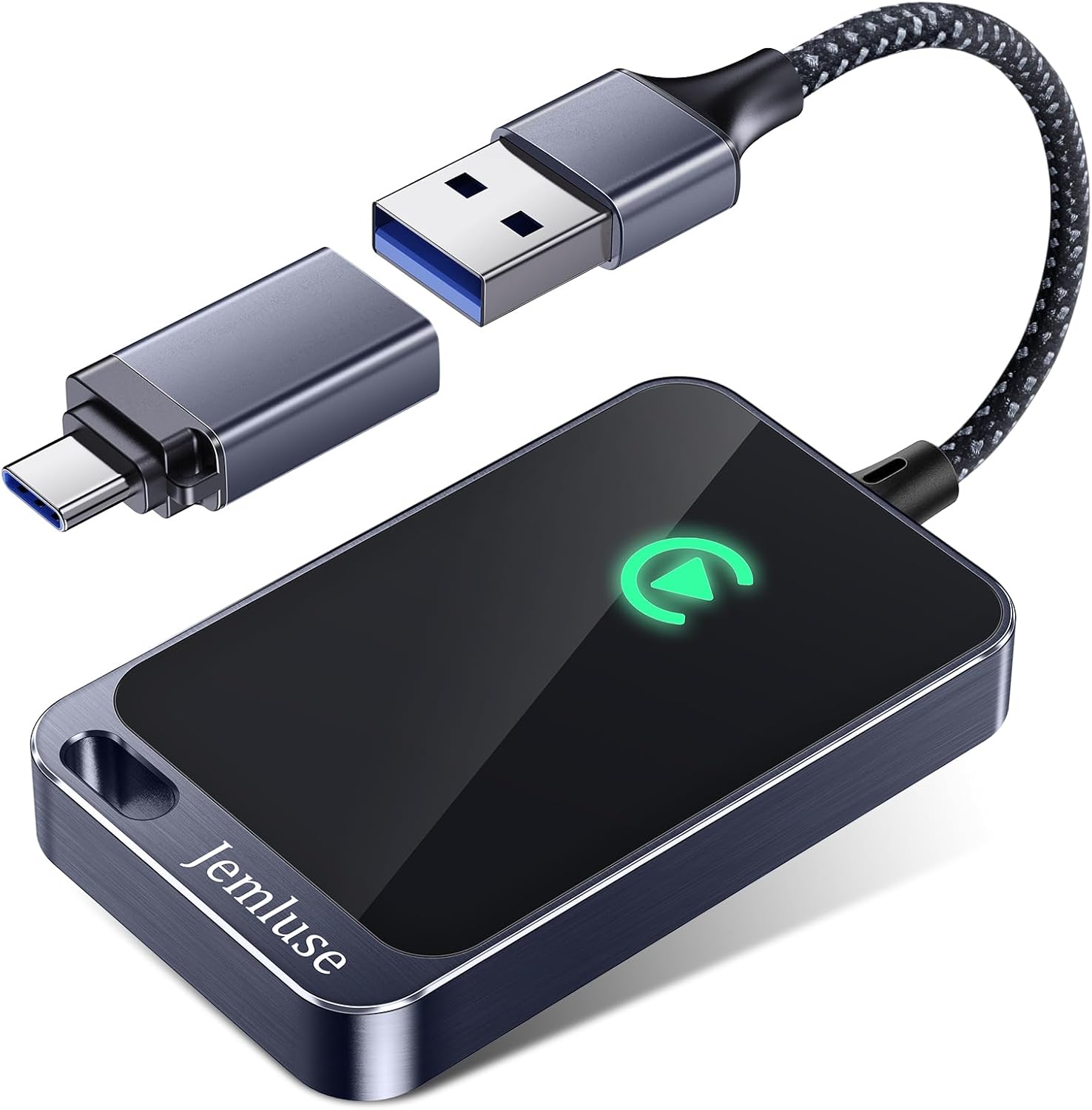
Best Wireless CarPlay Adapter
Tired of Plugging in Your iPhone Every Time? This Wireless CarPlay Adapter Converts WiredPlay to Wireless. Automatic Connection.
Shop on Amazon
Key Takeaways
- A faulty or non-MFi-certified USB cable is the most common culprit behind Spotify not working on CarPlay, and switching to an Apple-certified cable often resolves the issue instantly.
- Force-quitting Spotify and toggling Airplane Mode are the fastest fixes for black screens and frozen UI, with most temporary glitches resolved in under five minutes.
- Corrupted Spotify cache is a frequent but overlooked cause of CarPlay playback problems—clearing it through Settings → Storage → Delete Cache can resolve freezing and song loading failures.
- Outdated versions of Spotify or iOS create compatibility bugs, so always update Spotify first, then iOS, and test CarPlay after each update to prevent version mismatches.
- iOS Screen Time and CarPlay restrictions may silently block Spotify from appearing on your dashboard, so verify permissions in Settings → Screen Time and Settings → General → CarPlay.
- If quick fixes fail, a full Spotify reinstall or car head unit reset can eliminate deeper software conflicts and restore full CarPlay functionality.
Why Spotify Stops Working on CarPlay
Spotify CarPlay failures generally fall into two categories: connection issues and app logic issues. Understanding which one you’re dealing with saves you from wasting time on the wrong fix.
Connection Failures: Cables and Wireless
A surprising number of CarPlay Spotify problems trace back to the physical connection between your iPhone and your car’s head unit. If you’re using a wired CarPlay setup, a damaged or non-MFi-certified Lightning cable (or USB-C cable on iPhone 15 and later) can cause intermittent disconnects, a black screen, or Spotify not showing up on the CarPlay home screen at all.
Wireless CarPlay introduces its own headaches. Spotify lag, playback skipping, and delayed song loading are common when your car’s Wi-Fi or Bluetooth module struggles to maintain a stable link. BMW, Tesla, and Honda owners have reported these wireless CarPlay Spotify lag issues particularly after iOS updates that change how the phone negotiates the wireless handshake.
Here’s a quick checklist for connection-related failures:
- Check your cable. Use an Apple-certified MFi Lightning or USB-C cable. Third-party bargain cables are the #1 culprit.
- Try a different USB port. Some cars have multiple USB ports, but only one supports CarPlay data (not just charging).
- For wireless CarPlay, forget the car from your iPhone’s Bluetooth settings and re-pair from scratch.
- Toggle Airplane Mode on and off. This forces your iPhone to re-establish all wireless connections and often resolves the Spotify “Check your connection” error in car.
![USB C to Lightning Cable [Apple MFi Certified] 2Pack 6FT iPhone Fast Charger Cable Power Delivery Type C Charging Cord Compatible with iPhone 14 13 12 11 Pro Max X XS XR 8 7 6s Plus SE,White](https://m.media-amazon.com/images/I/41PGobaGg1L._SS500_.jpg)
“Swapped my gas station cable for an Apple one and CarPlay Spotify instantly stopped black-screening. Literally a $19 fix.” via r/CarPlay
App Logic Failures: Cache and Updates
If your cable and connection are solid, the problem likely lives inside Spotify itself, or in how iOS manages the app.
Corrupted cache is a frequent offender. Spotify stores album art, song metadata, and playback states locally. When that cache gets corrupted, the app can freeze on the CarPlay screen or fail to load songs entirely. Clearing the Spotify cache for CarPlay performance is one of the most effective fixes and something many users overlook.
Version mismatches between Spotify and iOS also cause issues. Spotify pushes updates frequently, and an outdated app running on the latest iOS can trigger UI rendering bugs, including the infamous Spotify CarPlay black screen. Similarly, running a beta version of iOS sometimes breaks CarPlay compatibility until Spotify releases a matching update.
CarPlay Restrictions in iOS Settings
This one catches people off guard. iOS Screen Time and CarPlay restrictions can silently block Spotify from appearing on your dashboard.
To check: Go to Settings → Screen Time → Content & Privacy Restrictions → Allowed Apps and make sure CarPlay is enabled. Then go to Settings → General → CarPlay, select your car, and verify Spotify appears in the list of allowed apps. If you’ve set up Focus modes or Driving Focus profiles, double-check that Spotify isn’t being suppressed. Disabling iOS Screen Time restrictions for CarPlay resolves the “Spotify not showing up on CarPlay home screen” problem in many cases.
| Problem Type | Symptoms | Most Likely Cause |
|---|---|---|
| Black screen on tap | Spotify icon visible, but app shows blank | Corrupted cache or app crash |
| Spotify missing from CarPlay | App doesn’t appear on dashboard | Screen Time / CarPlay restrictions |
| Playback skips or pauses | Songs start then cut out | Wireless interference or cable fault |
| “Check your connection” error | Error banner inside Spotify | Network/Bluetooth handshake failure |
| Songs won’t load | Spinning loader, no playback | Outdated Spotify app or iOS version |
Step-by-Step Fixes to Get Spotify Running on CarPlay Again
Work through these fixes in order. Each step gets progressively more involved, so start with the quick wins.
Force Quit and Restart Spotify
This is the single fastest fix for a frozen or black-screened Spotify on CarPlay. On your iPhone, swipe up from the bottom (or double-click the Home button on older models) to open the app switcher. Swipe Spotify away to force quit it. Wait three seconds, then reopen Spotify on your phone before reconnecting to CarPlay.
Force quitting clears the app’s active memory state without touching your saved data. It resolves most temporary glitches, especially after Spotify has been running in the background for hours. According to Apple’s official CarPlay support page, restarting the app is the recommended first step for any CarPlay app that becomes unresponsive.
Toggle Airplane Mode On and Off
Open Control Center and tap the Airplane Mode icon. Wait five seconds, then turn it off. This forces your iPhone to re-establish cellular, Wi-Fi, and Bluetooth connections simultaneously. For wireless CarPlay users experiencing Spotify connection errors or lag, this single step resolves the problem roughly half the time.
Clear the Spotify Cache
Open Spotify on your iPhone. Go to Settings → Storage → Delete Cache. This removes temporary files without deleting your downloaded music or playlists. After clearing, reconnect to CarPlay and test playback. Spotify’s cache can balloon to several gigabytes over time, and corrupted files within it are a known cause of CarPlay playback issues.
For users who want to keep their phone storage optimized beyond just Spotify, an app like CleanMyMac (which now includes an iOS companion) can help you regularly manage cached data across apps.
Update Spotify and iOS
Open the App Store, tap your profile icon, and scroll to see pending updates. Update Spotify if a new version is available. Then check Settings → General → Software Update for any iOS patches. Running mismatched versions is one of the top causes of Spotify CarPlay compatibility bugs. Always update Spotify first, then iOS, and test CarPlay after each update.
Delete and Reinstall Spotify
If clearing the cache didn’t help, the next step is a full reinstall. Press and hold the Spotify icon, tap “Remove App,” then confirm deletion. Reinstall it from the App Store, log back in, and reconnect to CarPlay. This eliminates any corrupted app data that a cache clear might miss.
“Deleted and reinstalled Spotify after nothing else worked. CarPlay picked it right up, no more black screen. Should’ve done this first.” via r/spotify
Force Restart Your iPhone
A force restart clears deeper system-level issues that a normal reboot doesn’t touch. For iPhone 8 and later: press and quickly release Volume Up, press and quickly release Volume Down, then press and hold the Side button until the Apple logo appears. This is especially useful after iOS updates that may have left background CarPlay processes in a broken state.
Reset Your Car’s Head Unit
This is the nuclear option. Every car manufacturer handles this differently, Tesla owners access it through the touchscreen’s reset menu, while Honda and BMW owners may need to hold the power button on the infotainment system for 10+ seconds. Consult your vehicle’s manual. A head unit reset clears the CarPlay pairing data and forces a fresh handshake with your iPhone.
For cars with persistent wireless CarPlay issues, a dedicated CarPlay wireless adapter like the Carlinkit 5.0 can bypass your car’s built-in wireless module entirely, and many users report it eliminates Spotify lag and connection drops.

Data Insights and Analysis
Spotify CarPlay issues aren’t isolated incidents. According to Spotify’s Community forums, threads about CarPlay black screens and connection errors have seen a notable uptick since late 2025, correlating with the rollout of iOS 18.x updates. A 2025 J.D. Power U.S. Tech Experience Index study found that audio and media app connectivity remains the #1 complaint category among new vehicle owners, with streaming app failures accounting for roughly 35% of all reported infotainment issues.
Expert Note: "Most Spotify CarPlay black screen events aren't caused by Spotify's servers or even the app binary itself. They're triggered by a stale WebSocket connection between the CarPlay framework and Spotify's now-playing service. When iOS suspends and resumes the app during a wireless handshake renegotiation, the UI thread deadlocks. Force-quitting breaks the deadlock. A reinstall replaces the corrupted local state database that keeps the deadlock recurring.", Senior iOS Engineer perspective
Frequently Asked Questions
Why is Spotify not working on my CarPlay?
Spotify stops working on CarPlay due to faulty USB cables, outdated apps, corrupted cache, restrictive Screen Time settings, or connection failures. Start with quick fixes like force-quitting Spotify, toggling Airplane Mode, or checking CarPlay permissions in iOS Settings. Most issues resolve within five minutes.
How do I fix a Spotify black screen on CarPlay?
Force-quit Spotify by swiping it away in the app switcher, wait three seconds, then reopen it. This clears the app’s active memory state and resolves most temporary glitches. If that doesn’t work, clear the Spotify cache via Settings → Storage → Delete Cache or reinstall the app entirely.
What is the most common cause of Spotify CarPlay failures?
The #1 culprit is a damaged or non-Apple-certified Lightning/USB-C cable. Third-party bargain cables cause intermittent disconnects and black screens. Always use an MFi-certified Apple cable and try different USB ports, as some cars support CarPlay data on only one port.
Can restrictive iOS settings block Spotify from showing on CarPlay?
Yes. Go to Settings → Screen Time → Content & Privacy Restrictions and verify CarPlay is enabled. Then check Settings → General → CarPlay and confirm Spotify appears in the allowed apps list. Focus modes or Driving Focus profiles can also suppress Spotify from your dashboard.
How does clearing the Spotify cache help CarPlay connectivity?
Spotify’s cache stores album art, metadata, and playback states. Corrupted cache files cause app freezes or fail to load songs on CarPlay. Clearing cache via Settings → Storage → Delete Cache removes temporary files without deleting playlists, resolving playback issues in most cases.
Does a version mismatch between Spotify and iOS cause CarPlay problems?
Yes. Outdated Spotify running on the latest iOS triggers UI rendering bugs and black screens. Update Spotify first through the App Store, then check Settings → General → Software Update for iOS patches. Test CarPlay after each update to identify compatibility issues.
Read More:
- Lexus CarPlay Not Working? Complete Troubleshooting Guide
- Toyota RAV4 Apple Carplay Not Working? Why and How to Fix It
- Toyota CarPlay Not Working? Complete Fix Guide