
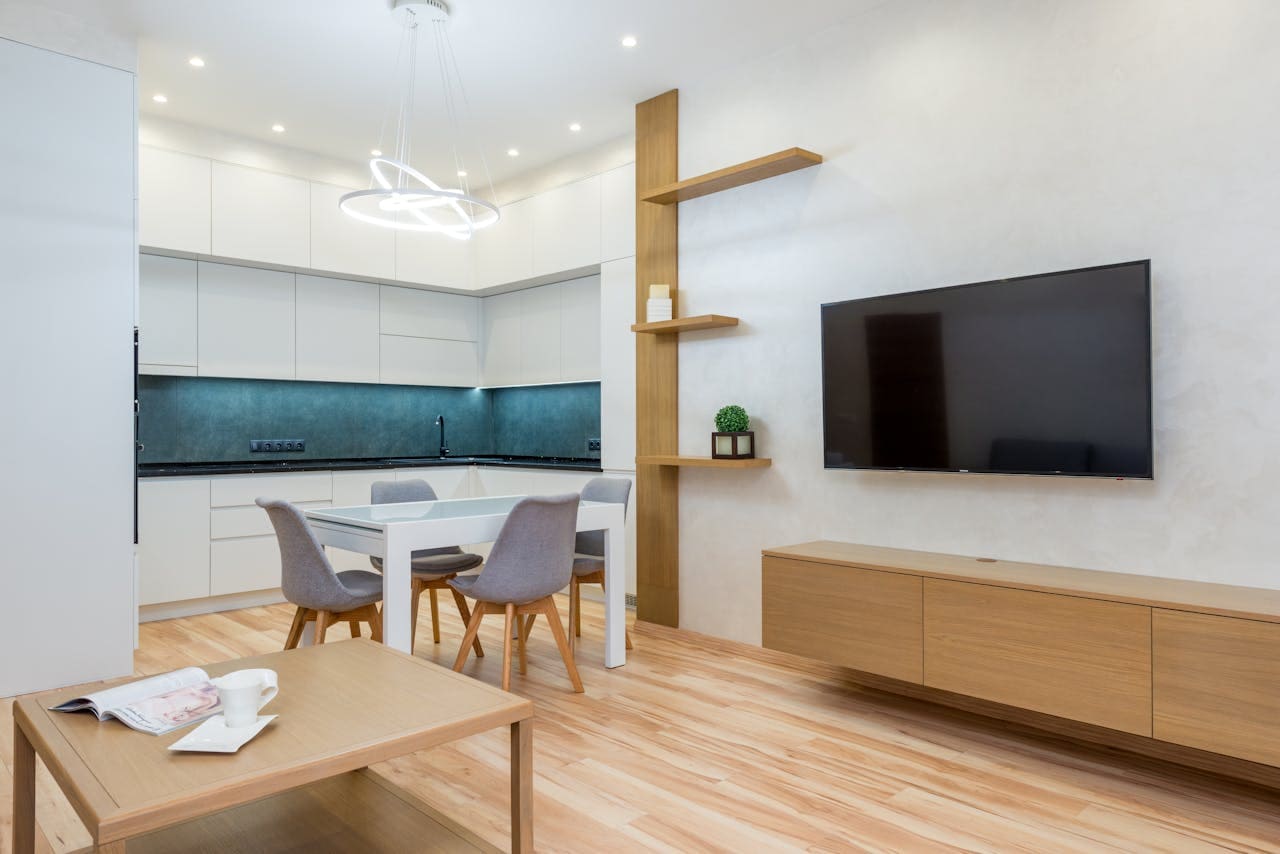
TCL TVs displaying a green screen can instantly ruin your viewing experience. Whether you’re streaming your favorite show or playing games, seeing a bright green tint instead of normal colors is both frustrating and concerning.
TCL TV green screen issues are typically caused by loose HDMI connections, incorrect picture settings, HDR compatibility problems, or faulty cables. The most effective solutions include reseating HDMI cables, adjusting color temperature settings, disabling HDR mode, performing a power reset, or updating the TV's firmware.

Reasons TCL TV Shows Green Screen
Green screen problems on TCL televisions stem from multiple interconnected factors that affect video signal processing.
HDMI connection issues represent the most common culprit, occurring when cables become loose, damaged, or incompatible with your TV’s specifications.

Amazon Fire TV Stick HD
Turn Any TV to a Smart TV. Stream Netflix, Prime Video & More. Alexa Voice Remote Included. Easy Plug & Play Setup.
Shop on AmazonModern 4K content requires high-bandwidth HDMI cables, and older or low-quality cables often struggle to transmit the complete color spectrum, resulting in green discoloration.
Picture settings misconfiguration frequently causes green tinting issues, particularly when color temperature, saturation, or gamma settings are incorrectly adjusted.
TCL TVs ship with various picture modes designed for different viewing environments, and inappropriate settings can emphasize green channels while suppressing red and blue components.
HDR (High Dynamic Range) compatibility problems commonly trigger green screen episodes, especially with streaming content. When your TCL TV attempts to process HDR signals but lacks proper codec support or encounters bandwidth limitations, the result often manifests as green static or complete green screen coverage.
Software glitches and firmware bugs can corrupt video processing algorithms, causing the TV’s internal systems to incorrectly interpret color data. These issues typically develop after system updates or when background apps consume excessive memory resources.
Hardware degradation in T-Con boards, main boards, or display panels can cause persistent green screen problems that worsen over time. Component failure often begins with intermittent green tinting before progressing to complete color loss.
“Display issues like green screens often indicate communication problems between your TV and source devices, with HDMI connections being the primary point of failure.”
Immediate Quick Fixes
When your TCL TV suddenly displays a green screen, several immediate solutions can restore normal viewing without extensive troubleshooting.
These quick fixes address the most frequent underlying causes and often resolve the issue within minutes.
Power cycling your TCL TV provides the most effective first-line solution. Unplug your TV from the power outlet and wait exactly 60 seconds before reconnecting. This process clears temporary memory corruption, resets video processing circuits, and eliminates software glitches that cause color distortion.
The waiting period allows internal capacitors to discharge completely, ensuring a thorough system reset.
HDMI cable reseating resolves connection-related green screen problems. Disconnect all HDMI cables from your TV and connected devices, inspect the connectors for damage or corrosion, then firmly reconnect each cable ensuring complete insertion. Loose connections create intermittent signal loss that the TV interprets as missing color channels, often resulting in green tinting.
Input source switching can quickly identify whether the problem originates from your TV or connected devices. Use your remote to cycle through different input sources (HDMI 1, HDMI 2, etc.) and observe whether the green screen persists across all inputs.
If only one input shows green coloring, the issue likely involves that specific device or cable rather than your TV.
Quick restart sequence for TCL Roku TVs: Press Home five times, Up once, Rewind twice, and Fast Forward twice using your remote. This hidden command forces a system restart without requiring power disconnection, often clearing temporary glitches that cause display problems.
For streaming app-specific green screens, exit the problematic application completely and restart it. Press the Home button, highlight the affected app, press the * (Star) button, and select “Remove channel” or “Close app,” then reinstall or reopen the application.
Advanced Troubleshooting
When basic fixes fail to resolve green screen issues, advanced troubleshooting methods target deeper system problems requiring more comprehensive intervention.
These solutions address firmware corruption, hardware conflicts, and complex configuration issues.
HDR disable method often resolves green screen problems with 4K streaming content. Navigate to Settings > Picture > Expert Settings and disable HDR10, HDR10+, and Dolby Vision options.
Many TCL TVs struggle with HDR processing when bandwidth limitations exist, causing green artifacts during content playback. After disabling HDR, restart your TV and test problematic content again.
Picture settings reset eliminates configuration-related green tinting. Access Settings > Picture > Expert Settings > Reset Picture Settings to restore factory defaults.
Custom picture adjustments, particularly color temperature and gamma corrections, can create green bias in displayed content. Following the reset, gradually readjust settings while monitoring for green discoloration recurrence.
HDMI handshake reset resolves communication errors between your TCL TV and connected devices. Turn off all connected devices, unplug HDMI cables for 30 seconds, then reconnect cables and power on devices in sequence: TV first, then source devices.
This process reestablishes proper HDCP (High-bandwidth Digital Content Protection) communication and eliminates compatibility conflicts.
Cache clearing for smart TV platforms removes corrupted temporary files that affect video processing.
For TCL Android/Google TV: Navigate to Settings > Apps > See All Apps, select problematic streaming apps, and choose “Clear Cache” followed by “Clear Data.” For TCL Roku TV: Go to Settings > System > Advanced System Settings > Network Connection Reset.
Firmware update installation addresses known bugs and compatibility issues causing green screen problems.
Check for updates manually: Settings > System > System Update (Roku) or Settings > Device Preferences > About > System Update (Android/Google TV). Install available updates and perform a complete power cycle afterward.
Factory reset procedure provides the most comprehensive solution for persistent green screen issues. Before proceeding, document your settings and sign out of accounts. Navigate to Settings > System > Factory Reset and follow prompts. This process eliminates all software conflicts but requires complete reconfiguration of your TV settings.
“Persistent green screen issues often require systematic elimination of potential causes, starting with connections and progressing through software solutions.”
Hardware-Related Solutions
Hardware problems causing green screen issues require physical intervention and component-level troubleshooting. These solutions address cable quality, port functionality, and internal component integrity that software fixes cannot resolve.
HDMI cable replacement becomes necessary when standard troubleshooting fails to resolve green screen problems.
Older HDMI cables lack bandwidth capacity for 4K HDR content, causing color channel dropouts that manifest as green screens. Replace suspect cables with High-Speed HDMI cables rated for 18Gbps bandwidth to ensure proper 4K signal transmission.
HDMI port testing identifies faulty input connections that cause intermittent green screen episodes. Connect your source device to different HDMI ports on your TCL TV and observe whether the green screen problem persists.
If specific ports consistently display green tinting while others function normally, internal port circuitry may require professional repair.
Component cable inspection reveals physical damage that causes signal degradation. Examine HDMI cables for kinks, excessive bending, or connector damage that impedes proper signal transmission. Cable stress points near connectors frequently develop internal wire breaks that create intermittent connection issues.
T-Con board assessment becomes relevant when green screens appear uniformly across the entire display regardless of input source.
The Timing Control board processes video signals for display panel presentation, and component failure often produces consistent color distortion. Professional diagnosis typically requires specialized equipment to identify T-Con board malfunctions.
Display panel evaluation addresses green screen problems that persist through all troubleshooting attempts. Internal panel defects, particularly in LED backlighting or color filter arrays, can create persistent green tinting that no software solution can correct.
Panel replacement generally proves more expensive than TV replacement for older models.
Ventilation and cooling improvements can prevent overheating-related green screen issues. Ensure adequate airflow around your TV, clean dust from vents, and verify internal fans operate properly.
Overheating components often malfunction intermittently, creating temporary green screen episodes that resolve after cooling periods.
Premium 4K HDMI Cable – Upgrading to high-quality HDMI cables can resolve green screen issues caused by bandwidth limitations or poor signal transmission.
Prevention and Maintenance
Implementing preventive measures significantly reduces the likelihood of green screen problems and maintains optimal display performance over time.
These strategies address environmental factors, usage patterns, and maintenance routines that preserve video signal integrity.
Regular connection maintenance prevents degradation-related green screen issues. Monthly inspection and cleaning of HDMI ports using compressed air removes dust accumulation that causes connection instability.
Gentle connector cleaning with isopropyl alcohol eliminates corrosion that impedes signal transmission.
Environmental control protects your TCL TV from conditions that promote component failure. Maintain room humidity between 30-50% to prevent connector corrosion while avoiding excessive dryness that creates static electricity. Position your TV away from direct sunlight and heat sources that accelerate component aging.
Firmware monitoring ensures your TCL TV receives timely updates that prevent known green screen bugs. Enable automatic updates when available, or check monthly for new firmware releases. Manufacturers frequently release patches addressing display compatibility issues with streaming services and gaming consoles.
Cable management practices extend HDMI cable lifespan and prevent signal degradation. Avoid sharp bends exceeding the manufacturer’s minimum bend radius, secure cables to prevent stress on connectors, and route cables away from power sources that create electromagnetic interference.
Usage pattern optimization reduces system stress that contributes to green screen development. Power down your TV completely weekly rather than leaving it in standby mode continuously. This practice allows internal components to cool completely and clears accumulated temporary data that can cause processing glitches.
Streaming quality management prevents bandwidth-related green screen issues. Monitor your internet connection speed during peak usage times and consider upgrading if speeds consistently fall below 25 Mbps for 4K content.
Use wired Ethernet connections when possible for more stable data transmission than Wi-Fi.
“Proactive maintenance and proper usage habits significantly extend TV lifespan while preventing common display issues like green screens.”
TCL 4K UHD Smart TV – Consider upgrading to newer TCL models with improved HDR processing and enhanced color accuracy if your current TV experiences persistent green screen problems.
Video Credit: The Conch Tech / YouTube
Frequently Asked Questions
Why does my TCL TV show green screen only with certain apps?
App-specific green screens typically indicate compatibility issues between streaming services and your TV’s video processing capabilities. Different apps use varying compression algorithms and HDR standards that may exceed your TV’s processing capacity or trigger software conflicts.
Delete and reinstall problematic apps to clear corrupted data that causes green screen glitches. Check for app updates through your TV’s app store, as developers frequently release patches addressing display compatibility issues. If problems persist, contact the app developer’s support team for device-specific troubleshooting assistance.
Consider downgrading video quality settings within the app if green screens occur primarily with 4K or HDR content. Many streaming services allow manual quality selection that can bypass processing limitations causing green display issues.
Can HDMI cable quality cause green screen problems?
Yes, HDMI cable quality significantly impacts color reproduction and can directly cause green screen issues. Low-quality or damaged cables often cannot transmit the full bandwidth required for modern 4K HDR content, resulting in missing color channels that appear as green tinting.
Cables rated below High-Speed specifications (18Gbps) frequently struggle with 4K content transmission, particularly HDR signals that require substantial bandwidth. Physical cable damage, including internal wire breaks or connector corrosion, creates intermittent signal loss that TVs interpret as color channel failures.
Replace suspect HDMI cables with certified High-Speed versions designed for 4K content transmission. Quality cables include proper shielding that prevents electromagnetic interference and gold-plated connectors that resist corrosion, ensuring stable long-term performance.
How do I know if green screen is a hardware or software issue?
Hardware-related green screens typically persist across all input sources and appear immediately upon TV startup, while software issues often affect specific apps or input sources. Perform systematic testing by switching between different HDMI inputs, built-in apps, and broadcast television to identify problem scope.
Software-related green screens usually respond to power cycling, app restarts, or firmware updates, while hardware problems require physical repairs or component replacement. Green screens that worsen over time or appear alongside other display artifacts often indicate hardware degradation requiring professional diagnosis.
Factory reset provides definitive software problem identification – if green screens persist after complete system restoration, hardware failure becomes the likely cause requiring professional repair evaluation.
What should I do if green screen appears during gaming?
Gaming-related green screens often result from HDMI bandwidth limitations or console compatibility issues with your TCL TV’s video processing. Modern gaming consoles output high-bandwidth 4K signals that older TVs struggle to process correctly, particularly with HDR gaming content.
Disable HDR mode in your TV’s picture settings and reduce console output resolution to 1080p to test whether bandwidth limitations cause the green screen. Many gaming-related display issues resolve when system demands fall within TV processing capabilities.
Update both your TV’s firmware and gaming console software to ensure compatibility with latest video standards. Console manufacturers frequently release updates addressing display compatibility issues with specific TV brands and models.
Is green screen fixable or does it mean my TV is broken?
Most green screen issues are fixable through software solutions, settings adjustments, or cable replacement rather than indicating complete TV failure. Hardware-related green screens affecting the entire display regardless of input source typically require professional repair but don’t necessarily mean total device failure.
Professional diagnosis can determine whether green screen problems result from repairable components like T-Con boards or main boards versus unrepairable display panel defects. Repair cost considerations should factor TV age and replacement cost when deciding between repair and replacement options.
Persistent green screens accompanied by other symptoms like power cycling issues, audio problems, or physical display damage often indicate multiple component failures that make replacement more economical than repair.
Sources:
- Smart TVs – Fix TCL TV Green Screen Issue
- MiniTool – 5 Ways to Fix the TV Green Screen Issue
- Reddit – TCL Roku TV stuck on green screen while streaming
- Roku Community – TCL Roku TV Amazon Prime/Netflix glitched green screen
Read More:
- TCL TV Inputs Not Working (Complete Troubleshooting Guide)
- Why TCL TV Is So Slow (Complete Performance Guide)
- Why TCL TVs Are Cheap? (How They Keep TV Prices Low)