
You’re halfway through a project, and suddenly your laptop’s built-in mouse won’t respond. Your cursor stays frozen, clicks don’t register, and you’re stuck reaching for your phone to Google what just happened.
When your built-in mouse on laptop not working, the issue is usually caused by accidentally disabling the touchpad with a function key shortcut, outdated or corrupted pointing device drivers, interference from an external USB mouse, or physical debris blocking the sensor surface, and you can fix most of these problems yourself in under ten minutes using basic Windows settings, a quick driver reinstall in Device Manager, or a simple cleaning with a microfiber cloth, without needing professional repair or expensive replacement parts.
This guide walks you through quick diagnostic checks, step-by-step software fixes, and practical hardware troubleshooting, so you can restore full cursor control and get back to work without wasting hours or money.

Best Laptop Stand (with 360° Base)
Keep Your Laptop Cooler & More Comfortable with 360° Rotating Base. Improve Airflow & Reduce Heat. Adjustable Height & Viewing Angle.
Shop on Amazon
Key Takeaways
- A built-in mouse on laptop not working is usually caused by accidental touchpad disabling, outdated drivers, external mouse conflicts, or physical debris—most fixable in under ten minutes without professional help.
- Press your laptop’s dedicated Fn function key combination (like Fn + F5 or Fn + F6) to toggle the touchpad back on, as accidental touchpad disable is the most common cause of trackpad failures.
- Check Device Manager for yellow warning icons or error codes under ‘Mice and other pointing devices,’ then update or reinstall your pointing device driver to resolve software conflicts from Windows updates.
- Disable the ‘Leave touchpad on when a mouse is connected’ setting in Windows Touchpad Settings or your OEM utility app (Dell, HP, Lenovo) to prevent external mice from automatically blocking your built-in trackpad.
- Clean your touchpad with a microfiber cloth and 70% isopropyl alcohol to remove oils and grime that block capacitive sensors, and test in Safe Mode if the issue persists to identify conflicting third-party software.
- If your touchpad worked before a Windows update, roll back the driver in Device Manager to restore the previous stable version and prevent automatic re-updates for 35 days.
Common Causes of Built-In Mouse Malfunctions
Accidental Touchpad Disable
Most modern laptops include a dedicated function key combination (usually Fn + F5, Fn + F6, or Fn + F9) that toggles the touchpad on and off. You might’ve brushed this combo while typing, shutting down your trackpad entirely. Some models show a tiny LED indicator near the touchpad when it’s disabled, but many don’t give any visual cue at all.
According to HP’s official support documentation, accidental function-key disables account for a significant portion of trackpad support tickets. Look for a small touchpad icon printed on one of your F-keys, that’s your toggle. Press Fn plus that key once and watch your cursor spring back to life.
Driver and Software Issues
Your touchpad relies on a pointing device driver to translate finger movements into cursor actions. When Windows Update pushes a new generic driver, or when malware scanning tools interfere with system processes, your trackpad driver can corrupt, conflict, or simply stop loading at startup.
“My trackpad died overnight after a Windows update. Device Manager showed a yellow exclamation mark next to ‘HID-compliant mouse.’ Rolling back the driver fixed it instantly.” via r/techsupport
Yellow warning icons in Device Manager under “Mice and other pointing devices” signal driver conflicts. Error codes like Code 10 (device cannot start) or Code 28 (driver not installed) point directly to software, not hardware, failures.
External Device Conflicts
Plugging in a USB mouse often tells Windows to disable the built-in touchpad automatically, especially if your manufacturer’s settings prioritize external input. Some OEM utilities (like Dell Touchpad Settings or Lenovo Vantage) include an “disable internal touchpad when external mouse is connected” checkbox that you may have enabled months ago and forgotten.
Even after you unplug the external mouse, the setting can stick, leaving your trackpad locked. Checking your mouse settings panel or OEM utility app usually reveals this toggle buried in an advanced tab.
Physical Damage or Dirt
Oil, crumbs, and dust build up on the touchpad surface, especially around the edges. This grime blocks capacitive touch detection, creating dead zones or making the entire pad unresponsive. Spills, even minor ones, can seep under the glass and short out the flex cable connecting the trackpad to your motherboard.
In rare cases, internal battery swelling pushes upward against the trackpad assembly from below, physically preventing clicks or warping the sensor. If your laptop’s base feels bulged or the trackpad sits higher than normal, power down immediately and check your battery health.
Quick Fixes and Basic Troubleshooting Steps
Restarting and Resetting Settings
A simple reboot clears temporary software glitches and reloads all device drivers from scratch. Before you restart, try a quick EC (Embedded Controller) reset: shut down your laptop, unplug the charger, hold the power button for 15 seconds, then plug back in and power on. This power cycle resets low-level hardware controllers that manage touchpad communication.
If you’re seeing a frozen cursor but can still use a keyboard, press Windows + X, arrow down to Shut down or sign out, and hit Enter to force a clean restart without touching the mouse.
Locating and Enabling the Touchpad Key
Look at your top row of function keys for an icon that resembles a trackpad or a rectangle with a finger. Common combinations include:
- Fn + F5 (Lenovo, Asus)
- Fn + F6 (HP)
- Fn + F7 (Dell)
- Fn + F9 (Acer)
Press the combo once. Some laptops display an on-screen notification confirming the touchpad is enabled: others give no feedback at all. Wait three seconds and move your finger across the pad to test.
Checking Touchpad and Mouse Settings
Open Settings → Devices → Touchpad (or Bluetooth & devices → Touchpad in Windows 11). Make sure the Touchpad toggle is switched On. Scroll down and disable “Leave touchpad on when a mouse is connected” if you want your trackpad to work alongside external mice.
For precision settings, click Additional settings or search for Mouse settings in the Start menu, then navigate to the Device Settings tab. Look for a button labeled Enable Device or Enable Touchpad, if it’s grayed out or says “Disable,” your trackpad is already active.
Cleaning the Touchpad
Power off your laptop completely. Dampen a microfiber cloth with a tiny amount of isopropyl alcohol (70% or higher) and gently wipe the touchpad surface in circular motions. Avoid soaking the cloth, excess liquid can drip into the seams.
For stubborn grime around the edges, use a soft toothbrush dipped in alcohol to scrub lightly. Let the surface air-dry for two minutes before powering back on. A clean microfiber cloth pack costs a few dollars and prevents scratches while lifting oils that block capacitive sensors.

Advanced Solutions for Persistent Problems
Updating or Reinstalling Drivers
Press Windows + X and select Device Manager. Expand Mice and other pointing devices, right-click your touchpad entry (often labeled “HID-compliant mouse,” “Synaptics,” “Precision Touchpad,” or your laptop brand), and choose Update driver. Select Search automatically for drivers and let Windows pull the latest version from its catalog.
If that fails, right-click again and choose Uninstall device. Check the box for Delete the driver software (if present), confirm, then restart your laptop. Windows will reinstall a fresh driver on boot. For OEM-specific drivers, visit your manufacturer’s support site, Dell, HP, Lenovo, and download the touchpad driver package manually.
Rolling Back Driver Updates
If your touchpad stopped working immediately after a Windows update, right-click the device in Device Manager, select Properties, switch to the Driver tab, and click Roll Back Driver (this button is only active if a previous version exists). Confirm and restart.
“Rolling back my Synaptics driver to the factory version from 2023 fixed the two-finger scroll that broke after the February 2026 update.” via Microsoft Community
This technique preserves the older, stable driver while blocking automatic Windows re-updates for 35 days.
Using Scan for Hardware Changes
Sometimes Windows loses track of your touchpad entirely. In Device Manager, click Action → Scan for hardware changes. Windows will re-enumerate all connected devices and reinstall missing drivers. Watch the device list refresh, your touchpad should reappear under “Mice and other pointing devices.”
If you see a yellow triangle or the device is listed under Other devices, repeat the scan, then manually update the driver.
Testing in Safe Mode
Restart your laptop and tap F8 repeatedly (or hold Shift while clicking Restart in Windows 11, then navigate to Troubleshoot → Advanced options → Startup Settings → Restart → press 4 for Safe Mode). Safe Mode loads only essential drivers, bypassing third-party software that might block your touchpad.
If the trackpad works in Safe Mode, the culprit is a conflicting app, antivirus suites, gaming peripheral software, or gesture control utilities are common offenders. Uninstall recent programs one by one until the touchpad returns in normal mode.
Troubleshooting External and Wireless Mice
Wired Mouse Not Detected
Plug a basic USB wired mouse into a different USB port. If it works immediately but your touchpad doesn’t, the issue is isolated to the trackpad hardware or driver. If neither input responds, you may have a broader USB controller or motherboard problem, run the built-in Hardware and Devices troubleshooter by typing msdt.exe -id DeviceDiagnostic into the Run dialog (Windows + R).

Wireless and Bluetooth Mouse Issues
If your Bluetooth mouse connects fine but the built-in touchpad remains dead, open Settings → Bluetooth & devices → Touchpad and confirm the touchpad toggle is On. Some laptops disable the internal pad when any external pointer is paired, even if it’s powered off.
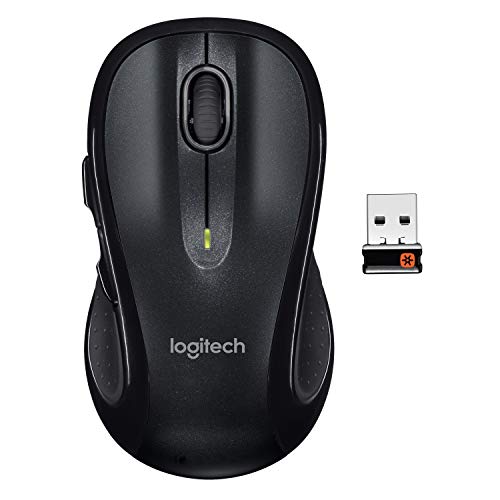
For a reliable wireless backup, consider a Logitech M510 wireless mouse, it uses a USB receiver instead of Bluetooth, bypassing pairing issues entirely while you troubleshoot your trackpad.
Switching Between Touchpad and External Mouse
To allow simultaneous use, open Mouse settings → Additional mouse options → Device Settings tab, and uncheck Disable internal pointing device when external USB pointing device is attached. This lets you switch seamlessly between your trackpad and a plug-in mouse without toggling settings each time.
Check your laptop manufacturer’s utility app (Dell Touchpad Settings, HP Support Assistant, Lenovo Vantage) for similar “auto-disable” options, these OEM tools often override Windows defaults.
Frequently Asked Questions
Why is the built-in mouse on my laptop not working?
Your built-in touchpad may not be working due to accidental disabling via a function key (like Fn + F5), outdated drivers, external USB mouse interference, or physical debris on the sensor. Most issues can be fixed in under ten minutes with basic Windows settings adjustments or driver reinstalls.
How do I re-enable my laptop’s touchpad after it stops responding?
Look for a touchpad icon on your function keys (usually F5–F9) and press Fn plus that key once. Then check Settings → Devices → Touchpad to ensure the toggle is On. If the touchpad still doesn’t work, restart your laptop or try an EC reset by holding the power button for 15 seconds after unplugging.
Can an external mouse cause my built-in touchpad to stop working?
Yes. Some manufacturers set laptops to automatically disable the internal touchpad when an external USB mouse is connected. Check your mouse settings or OEM utility app (Dell, HP, Lenovo) for an “auto-disable” option and uncheck it to allow both devices to work simultaneously.
What does a yellow exclamation mark in Device Manager mean for my touchpad?
A yellow warning icon signals a driver conflict or missing driver. Go to Device Manager, right-click the pointing device, select Update driver, and let Windows search for the latest version. If that fails, uninstall the device and restart to force a fresh driver installation.
How should I clean a dirty or unresponsive touchpad safely?
Power off completely, dampen a microfiber cloth with isopropyl alcohol (70%+), and gently wipe the touchpad in circular motions. For stubborn grime, use a soft toothbrush. Let it air-dry for two minutes before powering back on to restore full sensor responsiveness.
What should I do if my touchpad stopped working after a Windows update?
Open Device Manager, find your touchpad driver, go to the Driver tab, and click Roll Back Driver to restore the previous stable version. This blocks automatic re-updates for 35 days, giving you time to troubleshoot without forced updates disrupting your system.
Read More:
- Trackpad Laptop Not Working? Here’s the 7 Simple and Quick DIY Fixes
- Button on Laptop Keyboard Not Working (Here’s the Quick DIY Fixes)
- Audio Jack on Laptop Not Working (Symptoms and Quick DIY Fixes that Works)
- Light on Keyboard Not Working (Here’s the Quick and Simple DIY Fixes)
- Audio on Laptop Not Working (Causes and Quick Fixes Explained)
- Arrow Keys on Laptop Not Working (Causes, Diagnostic and Quick Fixes)
- Acer Touch Screen Laptop Not Working (Here the Quick DIY Fixes that Works)