
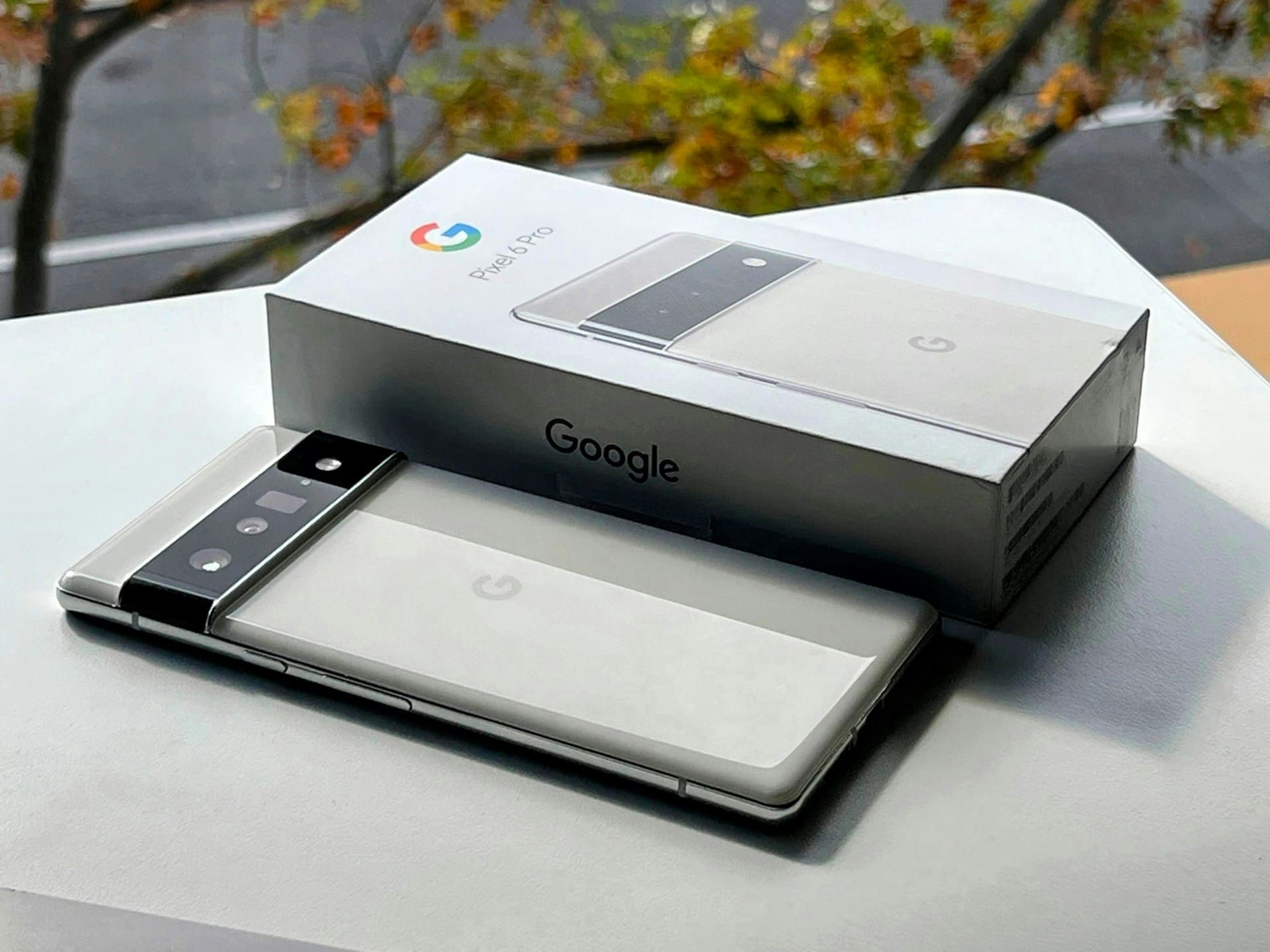
If your Google Pixel Bluetooth is not working, the problem often lies in basic connection issues like Bluetooth being turned off, devices not paired correctly, or temporary software glitches. Restarting your phone and toggling Bluetooth off and on can resolve most common glitches quickly.
Sometimes, Bluetooth troubles result from deeper software bugs or compatibility problems with specific devices. Knowing the right troubleshooting steps saves you time and gets your devices communicating smoothly again.
You’ll find practical solutions that address pairing failures, connection drops, and troubleshooting across various Pixel models. Fixing these issues is straightforward when you understand what to check and adjust.

Identifying Google Pixel Bluetooth Issues
Bluetooth problems on your Google Pixel can prevent you from connecting to essential devices like headphones, car systems, or smartwatches. Recognizing specific symptoms, understanding which models and Android versions are affected, and knowing the common types of Bluetooth issues can help you troubleshoot effectively.
Common Symptoms and Error Messages
You might notice your Pixel’s Bluetooth turning off unexpectedly or failing to detect paired devices. Common error messages include “Bluetooth failed to connect” or “Unable to pair with device.”
Audio may cut out or stutter during playback, or your phone may show devices as connected, but no audio routes correctly. Sometimes, Bluetooth devices will repeatedly disconnect, or pairing attempts fail without explanation.
These symptoms often correlate with cache corruption, interference from other wireless signals, or software glitches. Being aware of these signs helps you pinpoint when the problem lies with your Pixel’s Bluetooth system.
Affected Pixel Models and Android Versions
Bluetooth issues have been reported across several Pixel devices, with notable mentions among the Pixel 8, Pixel 8 Pro, Pixel 9, Pixel 9 Pro, Pixel 9 Pro XL, and Pixel 9 Pro Fold. Many users experienced problems shortly after upgrading to Android 15.
The Bluetooth connectivity issues tend to emerge after system upgrades or due to hardware-specific quirks on newer models. Even older models like the Pixel 10 and Pixel 10 Pro have had similar Bluetooth anomalies.
If your Pixel matches these models or recently updated its software, your Bluetooth problems may be related to known compatibility or software stability issues.
Types of Bluetooth Problems (Pairing, Connectivity, Audio Issues)
Bluetooth issues fall into three primary categories:
- Pairing problems: Your device won’t recognize or establish a connection with Bluetooth accessories, often requiring repeated attempts or device resets.
- Connectivity failures: Devices pair but frequently disconnect or fail to maintain a stable connection, causing interruptions during use.
- Audio problems: Audio stutters, cuts out, or is delayed even when the device remains connected.
Understanding which type of problem affects your device directs you toward appropriate solutions, such as clearing the Bluetooth cache, resetting network settings, or re-pairing devices systematically. For techniques and detailed fixes, explore guidance on Bluetooth connectivity issues on Google Pixel.
Primary Causes of Bluetooth Not Working on Google Pixel
Bluetooth problems on your Google Pixel often stem from specific technical issues related to the device’s software, hardware compatibility, and environmental factors. Understanding these causes will help you identify why your Bluetooth connection may be unstable or unresponsive.
Software Bugs and System Updates
Software bugs are a common culprit when your Pixel’s Bluetooth fails to work correctly. These bugs may appear after a system update or when software components conflict with existing settings.
System updates, including those in Android 16, can sometimes introduce glitches that interfere with Bluetooth services, causing pairing failures or inability to turn on Bluetooth. If the Bluetooth function suddenly stops working, it may be due to corrupted cached data or unoptimized processes running in the background.
Restarting your device or clearing the Bluetooth cache can resolve temporary bugs. Keeping your device updated with the latest software version ensures that patches for known Bluetooth issues are installed, improving overall connection stability.
Bluetooth Compatibility and Codec Conflicts
Your Pixel’s Bluetooth connection relies on both devices supporting compatible Bluetooth versions and audio codecs. If you attempt to pair with an older Bluetooth device that uses outdated protocols or does not support modern audio codecs, your connection may fail or produce poor audio quality.
Codec conflicts can cause audio delay, stuttering, or complete dropout during playback. For example, mismatched codec support between your Pixel running Android 16 and wireless earbuds can degrade sound performance.
You can check for compatibility issues by trying to connect different Bluetooth devices or updating the firmware of peripherals, if available.
Interference and Environmental Factors
Wireless interference significantly impacts Bluetooth performance on your Pixel. Bluetooth operates on the 2.4 GHz frequency, which is also used by Wi-Fi routers, microwave ovens, and many other devices.
When multiple wireless signals overlap, your Bluetooth connection can slow down, become unstable, or drop entirely. Environmental barriers like walls or furniture also reduce effective Bluetooth range and signal strength.
Keeping your Bluetooth device within 30 feet of your Pixel and minimizing obstacles improves connection reliability. Avoid crowded wireless environments whenever possible to reduce interference and maintain steady connectivity.
For more detailed troubleshooting, refer to verified solutions to fix Bluetooth problems on Pixel phones.
Step-By-Step Solutions to Fix Google Pixel Bluetooth Issues
Bluetooth problems on your Google Pixel can often be resolved by managing settings, reconnecting devices, clearing caches, or isolating software conflicts. You will need to adjust Bluetooth through the settings, refresh device connections, and troubleshoot with more targeted steps as needed.
Toggle and Reset Bluetooth Settings
Start by turning Bluetooth off and then on again through the Quick Settings panel or the Settings app under Connected devices. This simple toggle can refresh connections.
If toggling does not help, go to Settings > System > Reset options and select Reset Wi-Fi, mobile & Bluetooth. This resets all network-related settings without erasing your data, often fixing persistent Bluetooth faults by clearing out corrupt connection data.
Restart your Pixel after the reset for changes to take effect. Avoid skipping this restart, as it fully reloads Bluetooth drivers and services.
Forget, Re-Pair, and Test Connected Devices
Open Settings > Connected devices > Previously connected devices. Find the problematic Bluetooth device and tap Forget.
After removing the device, turn Bluetooth off and on, then pair the device again from scratch. Fresh pairing helps clear issues related to device recognition or corrupted pairing profiles.
Test the re-paired device’s connection by sending audio or files. This confirms whether the problem was with device pairing or connection stability.
If issues persist, try pairing with a different Bluetooth device to isolate if the Pixel or the accessory is at fault.
Clear Bluetooth Cache and Data
Cached data can accumulate errors that interfere with Bluetooth. Clear this by going to Settings > Apps > See all apps > Show system.
Find the Bluetooth app or Bluetooth Share service. Tap Storage & cache, then select Clear Cache and Clear Storage (this may be called Clear Data).
Clearing cache removes temporary files; clearing storage resets Bluetooth settings without affecting other system data. Afterward, reboot your device.
This process often improves connection reliability and can fix pairing or audio stuttering problems.
Boot in Safe Mode and Diagnose App Conflicts
Some third-party apps can interfere with Bluetooth. Boot your Pixel into Safe Mode by pressing and holding the power button, then tap and hold Power off until the Safe Mode prompt appears.
Confirm to reboot in Safe Mode. In this mode, Bluetooth runs without third-party app interference.
Test if Bluetooth works properly. If Bluetooth functions correctly in Safe Mode, uninstall recently installed or updated apps that might conflict with Bluetooth.
Exit Safe Mode by restarting your Pixel normally.
This method helps identify software conflicts causing Bluetooth failures without complex diagnostics.
Advanced Bluetooth Troubleshooting and Optimization
Resolving persistent Bluetooth issues on your Google Pixel sometimes requires deeper technical steps. These include resetting your device, adjusting advanced audio settings, and specific checks with accessories like wireless earbuds and Android Auto.
You also need to know when it’s time to reach out for official help.
Factory Reset and Backup Options
If basic troubleshooting fails and Bluetooth is still not working, performing a factory reset on your Pixel can eliminate software conflicts or corrupted settings causing the problem. Before doing a factory data reset, back up your important content using Google Backup or Nearby Share to prevent data loss.
To reset, go to Settings > System > Reset options > Erase all data (factory reset). This wipes all data and restores your device to default software conditions.
After reset, set up your phone fresh and test Bluetooth connection to paired devices thoroughly. This often resolves stubborn Bluetooth glitches when previous attempts haven’t worked.
Managing Codec Selection and LE Audio Settings
Your Bluetooth audio quality and stability depend on supported codecs and Bluetooth Low Energy (LE) Audio settings. Some Pixel models let you control codec preferences in developer options.
Using incompatible codecs with wireless earbuds like Pixel Buds can cause audio stuttering or connection drops. To access codecs, enable Developer Options by tapping the build number repeatedly in About phone, then navigate to Developer options > Bluetooth audio codec.
Try switching between SBC, AAC, or LDAC depending on your earbuds. Also, ensure LE Audio is enabled if your devices support it, which improves connection efficiency and battery life.
Troubleshooting with Wireless Earbuds and Android Auto
Bluetooth issues often appear when using wireless earbuds or Android Auto. For earbuds, confirm they’re fully charged and reset them if necessary.
Clear previous Bluetooth pairings on your Pixel and re-pair for a fresh connection. Also, update your earbuds’ firmware if updates are available.
For Android Auto, unstable Bluetooth connections may cause audio or control interruptions. Check that your Pixel and car system are updated and use a reliable USB cable for initial setup.
Disabling Bluetooth temporarily and reconnecting sometimes fixes pairing conflicts. Clear cache for the Android Auto app via Settings > Apps if problems persist.
Contacting Official Support
If you’ve exhausted troubleshooting steps including resets and codec adjustments but Bluetooth is still not working, it may indicate more complex hardware or software issues.
In these cases, contacting Google’s official support offers access to expert diagnostics.
You can reach Google Pixel support through their website or via the phone’s Support app.
Provide detailed information about your Bluetooth problem and the steps you’ve already taken.
If hardware issues are detected, you may qualify for warranty repair or replacement.
For additional guidance on fixing Bluetooth connection failures, see this comprehensive Pixel Bluetooth troubleshooting guide.