
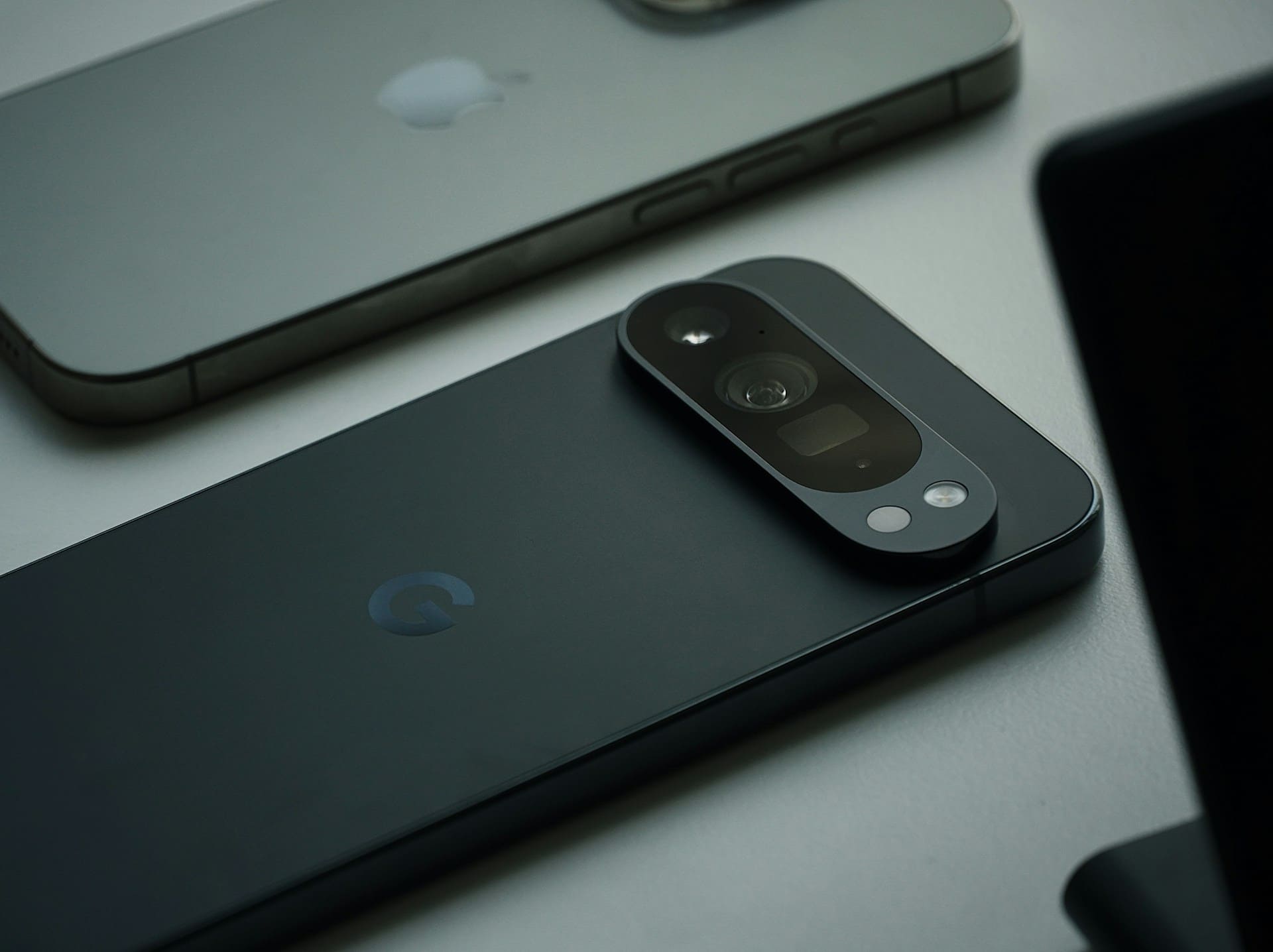
If your Google Pixel keeps freezing, it can disrupt your daily tasks and cause frustration. The most common reasons for freezing include too many apps running in the background, insufficient storage, or outdated software.
Addressing these issues often resolves the problem quickly and improves your phone’s performance. You might also experience freezing due to software bugs, which Google regularly fixes through updates.
Installing the latest updates can help prevent your device from becoming unresponsive. Taking steps like clearing storage, managing background apps, and keeping your device updated can significantly reduce freezing issues.
This article will guide you through the practical fixes to get your Pixel running smoothly again. For detailed help, you can also refer to the official Google Pixel freezing guide.

Primary Causes of Google Pixel Freezing
Your Google Pixel may freeze due to various software-related issues and storage limitations. Identifying these causes helps you target the problem effectively.
Common Software Glitches
Software glitches often cause your Pixel to freeze unexpectedly. These glitches can occur due to bugs in the operating system or conflicts between system processes.
For example, background tasks may crash or loop, consuming too many resources and causing the device to stall. Such issues frequently arise after updates that contain unresolved bugs, or from corrupted system files.
Restarting the phone might temporarily fix the problem. Persistent glitches usually require a software update or a system reset.
Keeping your device’s firmware stable and avoiding unstable beta versions reduces the chance of these freezes.
Insufficient Storage Space
When your Google Pixel’s internal storage is nearly full, freezing becomes more likely. Android relies on free space for temporary files and smooth operation.
Without adequate space, apps and system processes cannot perform optimally. You may notice slow response times or freezes if your available storage drops below 10-15%.
To prevent this, regularly delete unused apps, clear cache, and move media files to cloud storage. Monitoring your storage status in the settings helps you stay ahead of this issue.
Freeing up space also improves battery life and overall device speed.
Problematic Third-Party Apps
Some third-party apps, especially those not optimized for Pixel or Android 16, can cause freezing. Apps that run heavy background tasks or poorly manage memory often lead to performance drops.
If freezing happens after installing or updating an app, try uninstalling it to see if the problem resolves. Running your device in safe mode can isolate whether apps are the cause.
Regularly updating apps through Google Play ensures compatibility and reduces bugs that might crash the system. Only download apps from trusted developers to avoid instability.
Outdated System Software
An outdated system can be vulnerable to bugs and security flaws that lead to freezing. Google’s Pixel phones benefit from monthly updates that fix bugs and improve stability.
Delaying these updates increases the risk of unresolved software glitches causing random freezes. For instance, the December 2025 update addressed 33 bugs affecting various Pixel models, including freezing issues.
You should enable automatic updates or manually check for system updates in your phone’s settings to keep your Pixel running smoothly and securely.
Step-by-Step Solutions to Fix Freezing Issues
When your Google Pixel freezes, some key actions can quickly resolve software glitches or identify deeper problems. Restarting methods, ensuring your system and apps are up to date, and isolating issues by limiting app activity can systematically address freezing.
Force Restart Techniques
Sometimes your Google Pixel becomes completely unresponsive. When that happens, perform a force restart to reboot the device without losing your data.
To force restart most Google Pixel models, press and hold the power button and volume down button simultaneously for about 10-15 seconds until the screen goes black and the device restarts. This clears temporary glitches that may cause freezing.
If you have a Pixel 9 or later, the “two-button trick” remains effective. It addresses more persistent freezing by forcing a hardware reset.
Do not remove the battery unless you have a removable one, as modern Pixels do not support this.
Update Android and Apps
Freezing can stem from outdated software or apps conflicting with your system. Keeping your Android version and all apps current is critical.
Check for system updates by navigating to Settings > System > System update. Install any available updates immediately.
These often include bug fixes that resolve stability issues. Similarly, update apps through the Play Store by opening it, tapping your profile icon, and selecting Manage apps & device, then Update all.
This prevents app crashes caused by incompatibility, which can lead to freezing.
Safe Mode Troubleshooting
If freezing persists, boot your Pixel into safe mode to isolate whether third-party apps cause the issue. Safe mode disables all downloaded apps, running only essential system processes.
To enter safe mode, press and hold the power button until you see the “Power off” prompt. Then, long-press Power off until “Reboot to safe mode” appears.
Confirm and wait for the device to restart. Use your phone in this mode to see if freezing stops.
If it does, a recently installed or updated app is likely responsible. You can then uninstall suspicious apps one by one, restarting normally after each removal to identify the culprit.
Advanced Troubleshooting and Recovery
You can address persistent freezing issues by resetting your device, exploring recovery options, or seeking professional help if software fixes do not work. These steps target deeper system problems that basic troubleshooting can’t resolve.
Factory Reset Procedures
Performing a factory reset restores your Google Pixel to its original software state by erasing all personal data, apps, and settings. Before proceeding, back up important files like photos and contacts to cloud storage or a computer.
To start a factory reset:
- Go to Settings > System > Reset options.
- Select Erase all data (factory reset).
- Confirm your choice and wait for the process to complete.
This step eliminates potential software glitches caused by corrupted files or faulty apps but should be used only after trying less drastic options. Resetting without a backup means you’ll lose everything on the device.
System Recovery Options
If a factory reset doesn’t solve freezing, you can try recovery mode. This allows you to:
- Wipe the cache partition, which clears temporary system files that may cause freezing.
- Apply software updates manually through ADB if automatic updates fail.
To enter recovery mode:
- Power off your Pixel.
- Hold the Power and Volume Down buttons simultaneously until the bootloader screen appears.
- Use volume buttons to navigate to Recovery mode, then press Power to select.
These options help correct deeper software issues without erasing your data completely.
Seeking Professional Repair
When software-based solutions fail, hardware defects might be causing freezing. Issues with the battery, memory chip, or motherboard can cause your Pixel to freeze unpredictably.
Visit an authorized Google repair center or trusted technician who can:
- Diagnose hardware faults.
- Replace damaged components.
- Verify official software integrity.
Professional repair is critical if your phone freezes after a reset or during system recovery, as it indicates hardware may be the root cause. Attempting hardware fixes yourself can void warranties or worsen the problem.
For step-by-step instructions and additional troubleshooting, see Google’s guide on how to fix a Pixel phone that freezes.
Tips to Prevent Future Freezing Problems
Maintaining your Google Pixel’s performance requires consistent attention to software, storage, and app management. These areas are key to minimizing freezing incidents and keeping your device responsive.
Regular Software Maintenance
Keeping your Google Pixel’s software up to date is crucial. Updates contain important bug fixes and security patches that improve system stability.
Enable automatic updates or regularly check for new versions under Settings > System > System update. Restart your phone every few days to clear background processes and refresh system resources.
This simple action can prevent temporary glitches that cause freezing. You should also clear the cache partition periodically to remove corrupted temporary files.
This can be done through recovery mode without affecting your personal data. Avoid installing unofficial or modified software as it may introduce bugs.
Stick to apps and updates from verified sources to reduce compatibility issues.
Effective Storage Management
Freezing often occurs when storage is nearly full. Your Pixel needs space to run background operations smoothly.
Monitor your storage under Settings > Storage and aim to keep at least 10-15% free. Delete unnecessary files like old photos, videos, and downloads regularly.
Use Google Photos’ cloud backup feature to free local space without losing data. Uninstall apps you rarely use to reduce background activity and storage use.
Large apps especially should be reviewed and cleaned out periodically. Consider using the “Free up space” tool available on your Pixel for automated suggestions on files and apps to remove safely.
App Usage Best Practices
Running too many apps simultaneously taxes your phone’s CPU and RAM, leading to freezing. Close apps you’re not actively using by swiping them away in the Recents screen or forcing stop for problematic ones.
Restrict background activity for apps that drain system resources. Go to Settings > Apps > [app] > Battery > Background restriction.
Avoid using poorly optimized or outdated apps. Look for app updates, and if freezing correlates with a specific app, try uninstalling and reinstalling it.
Limit the use of heavy apps together, like games and video editors. This is especially important on older Pixel models with less RAM.
For more detailed troubleshooting steps, you can visit this guide for Google Pixel freezing.