
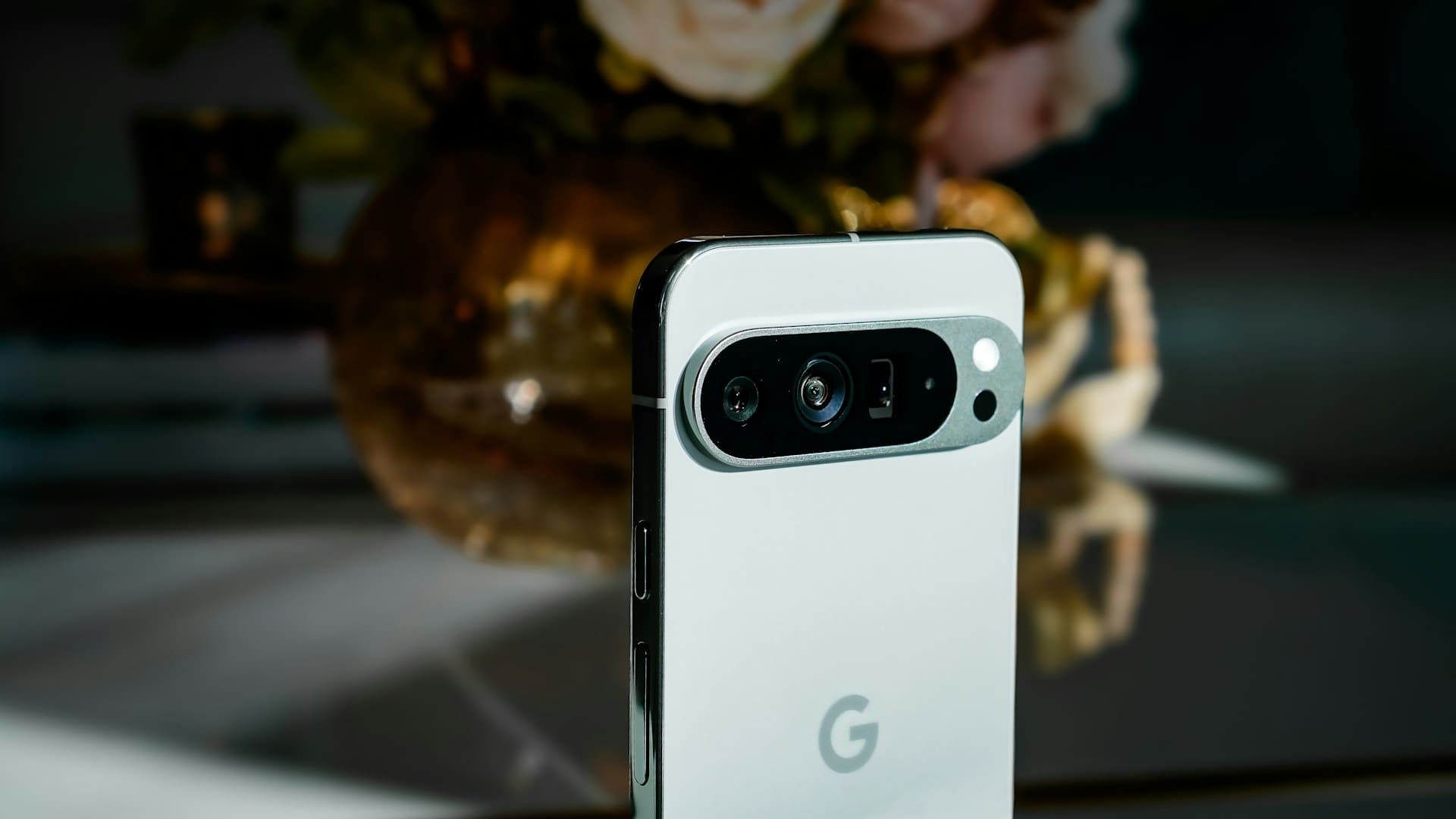
If you own a Google Pixel phone, you might encounter some common issues that affect performance, battery life, or camera functionality. The most frequent problems with Google Pixel phones involve software glitches, camera errors, and battery drain, often linked to recent updates like Android 16.
Knowing these challenges upfront can help you address them quickly and keep your device running smoothly. Your Pixel phone may also experience occasional glitches after major system updates, such as freezing or responsiveness issues.
While Google releases patches regularly to fix bugs, some problems like screen flicker or broken gestures remain reported by users. Understanding these known issues helps you troubleshoot effectively or know when to seek support for your Pixel device.

Critical Google Pixel Problems and Their Causes
Some common issues with Google Pixel phones affect key hardware and software components. These problems can hinder your device’s day-to-day usability and may require specific fixes or updates to resolve.
Understanding the causes helps you better address the challenges your phone might face.
Touchscreen and Unresponsiveness
If your Google Pixel phone’s touchscreen becomes unresponsive or intermittently reacts to touch, this often stems from software glitches or hardware defects. For Pixel models like the Pixel 6 and Pixel 8 series, some users report delayed or missed taps, especially after major Android updates.
Software-wise, the touchscreen driver or display firmware may need recalibration or patching through official updates. Physical factors like screen damage or dirt can also impair responsiveness.
To troubleshoot:
- Restart your phone to refresh system processes.
- Check for pending Android or Pixel-specific updates.
- Remove screen protectors that might interfere with touch sensitivity.
- Perform a factory reset only if software issues persist.
Note: Persistent unresponsiveness might require professional repair, particularly if caused by hardware failure.
Fingerprint Scanner Glitches
Fingerprint scanner problems are frequent on various Pixel phones, including Pixel 6, Pixel 8, and Pixel 8 Pro. Issues include slow recognition, failure to register your fingerprint, or security errors preventing unlock.
These glitches usually relate to sensor calibration errors or conflicts introduced during software upgrades like Android 16. Moisture, dirt, or greasy fingers can temporarily degrade scanner accuracy.
To improve scanner reliability:
- Re-register your fingerprints in clean, dry conditions.
- Keep your finger and the sensor area clean.
- Apply the latest security and system patches from Google.
- Disable adaptive unlocking features if they cause conflicts.
If the scanner consistently fails, hardware damage or sensor misalignment could be the root cause.
Frequent Restarts and Freezes
Experiencing unexpected restarts or system freezes on your Pixel phone interrupts your use and may indicate deeper software or hardware problems. Android 16 updates have reportedly caused such instability on some Pixel devices by conflicting with background processes or battery management.
Apps that are incompatible or poorly optimized can trigger freezes or reboot loops. A corrupted cache or storage errors might also be factors.
You can try these steps:
- Clear app caches and uninstall recently installed or suspicious apps.
- Boot into safe mode to isolate potential app conflicts.
- Use the built-in Google Pixel Help Community for device-specific advice.
- Keep your phone’s software current with patches targeting system stability.
In rare cases, frequent restarts might require a complete factory reset or hardware inspection, especially if caused by battery or motherboard faults.
Overheating Concerns
Overheating affects performance and battery life on Android phones like the Pixel 8 Pro and earlier models when your phone’s CPU or GPU is heavily taxed. Intensive gaming, prolonged video recording, or running multiple background apps can raise the device temperature significantly.
Thermal throttling occurs to protect your phone but may cause sluggishness or sudden shutdowns. Software problems or faulty sensors can sometimes exaggerate heat warnings.
To reduce overheating:
- Limit demanding apps and close background processes.
- Avoid charging during heavy use.
- Update your Pixel device since patches often include thermal management improvements.
- Remove phone cases that trap heat during usage.
If overheating persists despite these steps, it may point to hardware issues requiring professional support.
For ongoing fixes and patch details on Pixel bugs, refer to updates such as the December Pixel bug fix patch that Google releases regularly.
Display, Camera, and Charging Issues
When using Google Pixel devices like the Pixel 9 Pro, Pixel 9 Pro XL, or Pixel 9 Pro Fold, you may face specific problems with screen brightness, camera alignment, and wireless charging. Understanding these issues helps you troubleshoot or seek proper support quickly.
Screen Brightness and Visual Glitches
You might notice inconsistent screen brightness or occasional visual glitches on your Pixel 9 or Pixel 9 Pro. Some users report brightness not adjusting smoothly, especially in low-light conditions.
These irregularities can result from software calibration or a hardware-related screen fault. Another known glitch includes brief “snow” or static effects on the display, mostly on newer models like the Pixel 9 Pro.
This may happen intermittently without freezing your phone but disrupts your viewing experience. Ensuring your device is updated to the latest software version often remedies such visual issues.
If problems persist, disabling adaptive brightness and manually adjusting brightness levels can provide temporary relief. In cases where the screen continues to flicker or display artifacts, contacting Google support or requesting a warranty repair may be necessary.
Camera Tilt and Quality Problems
Certain Pixel 9 Pro XL units experience a slight tilt in the camera module, affecting photos and videos. This misalignment can cause issues like blurring or uneven focus, especially with the telephoto lens.
If your photos seem off-center or less sharp, this could be the cause. Besides hardware alignment, some users report inconsistent image processing when switching between lenses.
This affects the quality of zoomed shots or portrait mode. Google continuously rolls out updates targeting camera stability and quality improvements, so keeping your phone current is important.
For hardware concerns such as the tilt or physical defects, you should check if your device is covered under Google’s extended repair programs designed for Pixel 9 Pro models. These programs offer free fixes or replacements for affected units.
Wireless Charging and Pixel Stand Compatibility
Wireless charging issues are common with Pixel 9 series phones due to the transition in charging standards and hardware design. Your Pixel 9 Pro or Pixel 9 Pro Fold may charge slowly or intermittently on older or non-certified wireless chargers.
Google uses updated wireless charging protocols requiring Qi2-certified accessories for optimal performance. Using an older Qi1 charger or incompatible Pixel Stand may cause your device to stop charging or heat up excessively.
If you experience charging interruptions, try these steps:
- Use a Qi2-certified charging pad or Google’s official Pixel Stand.
- Remove thick cases that interfere with magnetic alignment.
- Re-seat your device on the charger or disconnect and reconnect power to the pad.
For faster charging and to avoid overheating, prefer wired charging with the included USB-C cable, especially during heavy phone usage. If problems continue despite these measures, contacting support or requesting a device exchange is advised.
For more details, see troubleshooting tips for in-vehicle and wireless charging for Pixel 10 and Pixel 9 models here.
Performance, Software, and Update-Related Issues
You might notice occasional slowdowns or glitches that affect how smoothly your Pixel device operates. These concerns primarily involve UI responsiveness, challenges tied to recent software updates, and specific problems reported after installing Android 16.
Frame Drops and UI Stutters
Some Pixel users experience frame drops and stuttering within the user interface, especially on older or heavily used devices. This can manifest as delayed animations, choppy scrolling, or lag when switching between apps.
These symptoms reduce the fluidity of routine interactions and may disrupt your overall experience. Although Google frequently optimizes performance with updates, factors such as background tasks or buggy apps may contribute to these issues.
If you notice consistent stutters, checking running apps and clearing caches can help. Ongoing frame drops often require patches from Google to improve UI smoothness.
Software Update Challenges
Installing software updates on Pixel phones sometimes leads to new software bugs or regressions rather than fixed bugs. There have been multiple reports of updates introducing fresh problems affecting audio, Bluetooth, battery performance, and connectivity.
For example, the December 2025 update fixed over 30 bugs but also brought some unexpected glitches. You may find features like gestures or display functions behaving inconsistently after applying an update.
Until Google releases follow-up patches, workarounds such as alternative gesture apps or temporary settings tweaks might be necessary.
Problems After Android 16 Update
The Android 16 update aimed to bring stability and new features to Pixel devices but has caused specific issues for many users, including Pixel 8 owners. Problems include always-on display flickering, broken one-handed mode gestures, and difficulties with new lock screen widgets.
Additionally, the Expanded dark mode feature introduced with Android 16 often behaves inconsistently, failing in major apps like Amazon. Face Unlock’s fast trigger can also prevent interaction with lock screen widgets, forcing you to disable it as a workaround.
If you’re facing these issues after updating, expect that fixes may arrive in subsequent updates, but temporary inconveniences will remain in the meantime. For more detailed reports, see Android 16 update issues affecting Pixel users.
Connectivity, SIM, and Network Challenges
Issues with connectivity, SIM cards, and mobile networks are common concerns for Google Pixel users. These problems may affect your ability to use Wi-Fi, cellular data, calls, and messaging.
Understanding specific causes and effective fixes can help you regain reliable service on your Pixel phone.
Wi-Fi and Network Connectivity
If your Google Pixel phone struggles to maintain Wi-Fi or mobile network connections, the cause can range from software bugs to carrier compatibility. Pixel models, especially the Pixel 7 and 8 series, have experienced intermittent signal drops and slow speeds following recent software updates.
To improve connectivity:
- Restart your device.
- Toggle airplane mode on and off.
- Forget and reconnect to your Wi-Fi network.
- Reset network settings via Settings > System > Reset options.
Disabling Adaptive Connectivity in Settings > Network & Connections may also resolve issues with frequent switching between 4G and 5G networks. Keep your phone updated, as Google regularly releases patches addressing network bugs.
For detailed troubleshooting, see this guide on fixing Pixel mobile connectivity.
SIM Card Issues
SIM card problems often manifest as “No Service,” failed calls, or inability to connect to mobile data. Your Pixel phone generally supports all major carriers, but specific models may not work on every 5G network.
Check compatibility with your carrier before troubleshooting. Common SIM-related fixes include:
- Removing and reinserting the SIM card to ensure proper placement.
- Trying a different SIM card to isolate whether the issue is hardware or carrier-based.
- Contacting your carrier if your SIM is damaged or defective.
If problems persist, resetting network settings or updating your Pixel’s firmware can help. In some cases, a SIM replacement or warranty service might be necessary for hardware faults.
For more on handling SIM issues, review tips for Google Pixel 7 and similar devices at How to Fix Connectivity Issues.
Troubleshooting Messaging and Calls
Dropped calls, delayed texts, and inconsistent signal strength can disrupt daily communication on your Pixel phone.
These problems are often related to software glitches, network mismatches, or carrier limitations.
If you experience persistent call or SMS failure, contact your carrier or consider a warranty replacement.
Some Pixel users have reported ongoing issues after the 2024 updates, so staying informed about patch releases can be important.
Learn more about solving these problems in this article about Pixel 9 and 9 Pro network connectivity issues.