
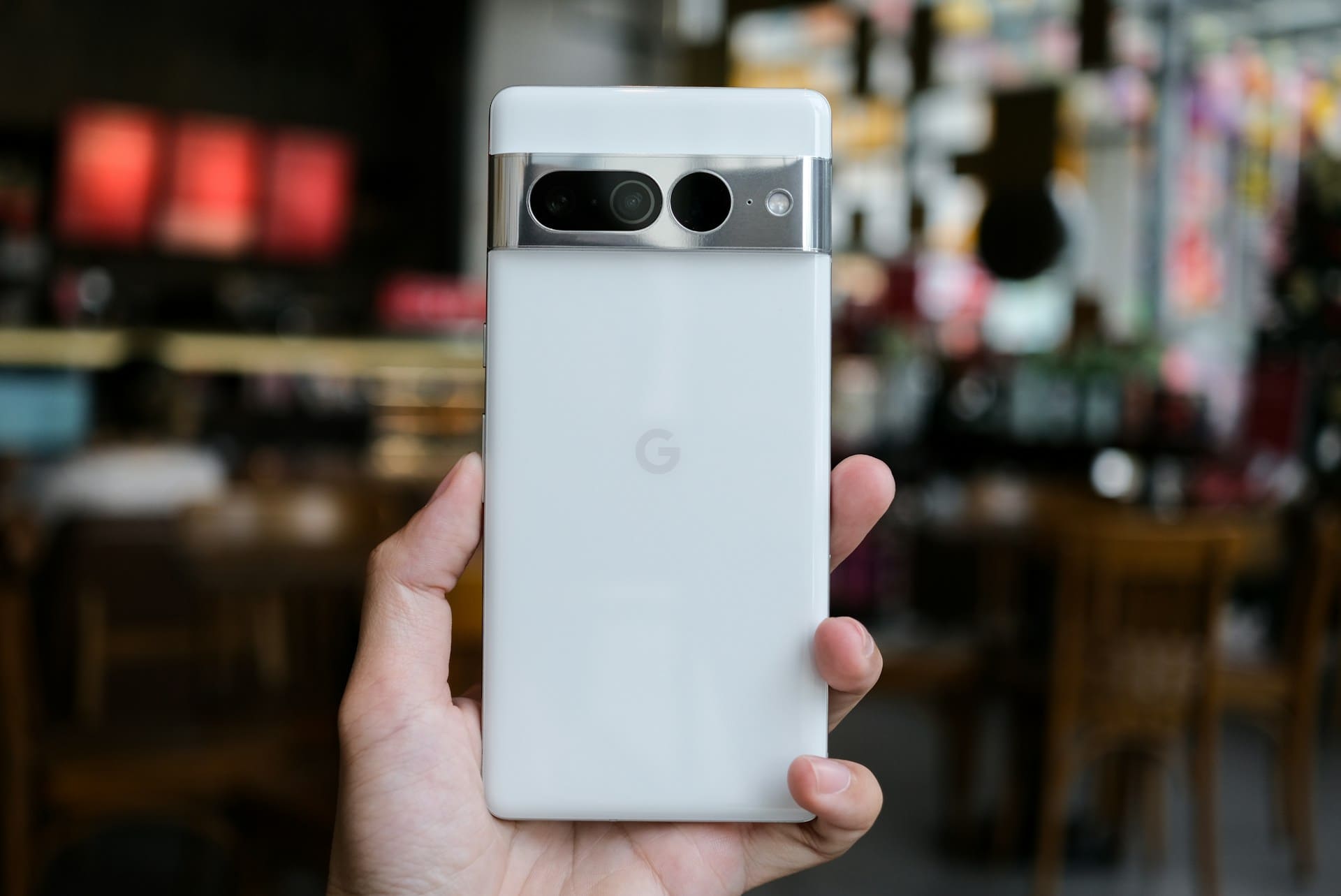
If your Google Pixel volume isn’t working, it could be due to software glitches, incorrect settings, or hardware issues. The quickest way to fix this is to check your volume settings, restart your device, and ensure no Bluetooth or headphone connections are interfering with the sound output.
Sometimes, system updates or background apps can cause audio problems, so keeping your phone updated and checking for app conflicts is important. If these steps don’t help, more advanced troubleshooting or repairs might be necessary.
This guide will walk you through clear and effective solutions to get your Pixel sound working properly again.

Diagnosing Google Pixel Volume Not Working
When your Google Pixel volume isn’t working properly, pinpointing the root cause involves careful examination of audio output paths, volume settings, and possible device hardware issues. You will need to test various sound sources and configurations to narrow down the problem accurately.
Identifying Audio Output Issues
Start by confirming where your Google Pixel is routing sound. The device can output audio through built-in speakers, wired headphones, Bluetooth accessories, or external audio devices.
If you hear no sound, check if the phone is mistakenly sending audio to a connected Bluetooth device or external equipment. To verify, disable Bluetooth temporarily and disconnect any wired headphones.
Play audio using different apps to see if the issue persists across all sound sources. Note if the problem is specific to calls, notifications, or media playback.
In some cases, software glitches cause the phone to output sound incorrectly, which a restart may fix. For more detailed troubleshooting steps, check a guide on Google Pixel no sound troubleshooting.
Checking Volume Levels and Settings
Next, examine the volume controls and system settings thoroughly. Use the physical volume buttons to raise the volume and confirm the on-screen slider responds accordingly.
If the slider moves but the sound stays low or silent, it indicates a software or hardware issue. Access your Pixel’s sound settings to review individual volume levels for media, calls, alarms, and notifications.
Often, low volume results from mistaken silencing or muted channels. Ensure you are not in Do Not Disturb mode or have enabled any audio-reducing settings such as adaptive sound or sound balancing.
Resetting sound preferences to default can help resolve conflicting configurations. Learning how to fix low volume on a Google Pixel can also provide practical tips.
Testing with Headphones and Bluetooth
Use headphones and Bluetooth devices to isolate the problem further. Plug in wired headphones to see if audio output is restored through them.
If sound plays correctly, your internal speakers may be at fault. Alternatively, connect your Bluetooth headphones or speakers and test volume control during playback.
Keep in mind recent updates might affect Bluetooth volume like the issue reported after the November update on Pixel 8 Pro. If Bluetooth audio volume controls are unresponsive, try unpairing and re-pairing the device or restarting your Pixel.
This test helps distinguish between hardware failure and software bugs related to wireless audio transmission. More on Bluetooth volume problems is available in discussions about Bluetooth volume controls broken on Pixel.
Recognizing Signs of Hardware Failure
Hardware faults often manifest as no sound or distorted audio even when settings appear correct. Distorted sound, crackling, or intermittent audio can indicate speaker damage or internal connection issues.
To detect hardware problems, try playing audio at various volumes and listen for changes. A complete absence of sound through the speakers but normal headphone output usually points to speaker failure.
Physical damage, water exposure, or manufacturing defects can cause these symptoms. If you suspect hardware malfunction, performing a factory reset is not likely to resolve it.
Instead, contacting official support or visiting a repair center is advisable. For temporary fixes or deeper insights, consult a comprehensive guide to fixing Google Pixel speaker issues.
Essential Software Troubleshooting Steps
Fixing volume issues on your Google Pixel often begins with software adjustments. You will need to verify system updates, check sound settings, and ensure no apps or modes interfere with the speaker functions.
Restarting and Updating the Google Pixel
First, restart your phone to clear temporary glitches that might affect sound. Press and hold the power button, then tap “Restart.”
This can resolve minor software hiccups quickly. Next, check for software updates by going to Settings > System > System update.
Installing the latest updates can fix bugs related to volume or sound output. Updates often include patches that improve audio performance and fix known issues.
Disabling Do Not Disturb and Safe Mode
Verify whether Do Not Disturb mode is active. This mode mutes notifications and could silence some audio outputs.
Swipe down the notification bar and ensure the icon for Do Not Disturb is off, or go to Settings > Sound > Do Not Disturb to toggle it off manually. Safe Mode disables third-party apps and lets you check if those apps cause the volume problem.
To enter Safe Mode, hold the power button, then tap and hold “Power off” until the Safe Mode prompt appears. If the volume works in Safe Mode, the problem likely comes from an app you installed.
Resetting App Preferences and Checking Media Volume
If certain media sounds remain low or silent despite volume adjustments, reset your app preferences. Go to Settings > Apps > Reset app preferences.
This action restores all app permissions, disabled apps, and notification restrictions without deleting data. Also, manually adjust your media volume.
Use the volume buttons, then tap the settings gear that appears to ensure media volume is set correctly. Some apps have independent volume controls that can override system settings, so confirm the media volume is not muted or too low within these apps.
Addressing Problems from Third-Party Apps
Third-party apps sometimes interfere with volume control or sound output. Identify problematic apps by observing if the issue started after installing new software.
Uninstall or disable suspect apps by going to Settings > Apps, selecting the app, and choosing “Uninstall” or “Disable.” You can also clear the app’s cache and data to fix corrupted settings.
If issues persist, consider reinstalling the affected apps or using Safe Mode to limit app interference until you find the cause. This method helps isolate apps that modify system sound behavior or conflict with your Pixel’s audio system.
For more detail on troubleshooting volume problems related to software, visit this guide on fixing low volume on Google Pixel.
Physical and Hardware Checks for Volume Issues
Before diving into software fixes, it’s essential to rule out physical problems with your device. Issues can stem from unresponsive volume buttons, blocked speaker openings, or accessories interfering with audio output.
Thorough inspection and cleaning often resolve common volume problems.
Inspecting and Cleaning Volume Buttons
Start by testing your volume buttons. Press each button several times and observe if the volume indicator on your screen responds accordingly.
If the volume doesn’t change or the buttons feel stuck, dirt or debris may be obstructing their function. Use a soft cloth or a small brush to clean around the edges of the volume buttons.
Avoid using sharp metal tools that could damage the buttons or the internal components. If cleaning doesn’t restore button responsiveness, hardware failure could be the cause, requiring professional repair or replacement.
Examining the Speaker Grilles and Headphone Jack
Debris buildup in your Pixel’s speaker grilles or headphone jack can muffle or block sound output entirely. Check the speaker grilles for lint, dust, or dirt that could be obstructing the sound.
To clean the speaker grilles, gently brush them with a soft-bristle toothbrush. For the headphone jack, use a toothpick or plastic cleaning tool carefully to avoid damaging internal contacts.
Avoid inserting metal objects that might cause permanent damage. If your headphones aren’t producing sound, verify they function properly on another device.
This helps determine if the issue lies with your headset or your phone’s audio jack.
Evaluating Phone Case or Accessories
Sometimes phone cases or accessories can physically block sound or interfere with volume controls. Remove your phone case and test the volume again to see if this resolves the issue.
Some charging accessories or mounting devices may cover or block the speakers. If you use Bluetooth or wired headphones, ensure they are fully disconnected to check if sound output returns to the phone’s internal speakers.
Testing your phone without accessories can help isolate the source of volume problems quickly and effectively.
Testing for Permanent Hardware Damage
Repeated physical stress, such as sitting with your phone in a tight pocket, can cause internal damage like a bent motherboard or broken speaker connections. Signs of permanent damage include unresponsive volume buttons, distorted audio, or complete silence despite checking settings and cleaning.
Temporary fixes might involve gently flexing the phone, but this is not a long-term solution. If hardware damage is suspected, replacing components like the speaker or motherboard often requires professional service or detailed repair guides specific to your Pixel model.
Advanced Fixes and Last Resort Solutions
When basic troubleshooting fails to resolve volume issues on your Google Pixel, deeper steps may be necessary. These include safeguarding your data before erasing the device and knowing when to seek professional help.
Handling these carefully ensures you don’t lose important information or worsen the problem.
Backing Up Data and Performing a Factory Reset
A factory reset restores your Google Pixel to its original settings, removing apps, data, and customization. This can fix persistent volume problems caused by software glitches or corrupted settings.
Before you proceed, back up your important data, including photos, contacts, and app data, to Google Drive or another secure location. To perform the reset, go to Settings > System > Reset options > Erase all data (factory reset).
Make sure your phone is charged or connected to power during the process. After the reset, you’ll need to set up your device as new.
This method often resolves volume issues that other fixes cannot. For detailed guidance, see how to perform a factory reset on your Pixel phone.
Contacting Google Support or Repair Services
If resetting your device does not fix the volume problem, it might be hardware-related. In that case, contacting Google Support is advisable.
You can reach out online or by phone to discuss symptoms and possible solutions directly with certified agents. Google may suggest advanced diagnostics or direct you to authorized repair centers.
If your Pixel is under warranty, repairs or replacements could be covered. Visit the Google Pixel Help forums for community advice or start a support request to get expert assistance.