
Your laptop’s built-in keyboard suddenly stopped responding during an important video call, document deadline, or online exam. You press keys repeatedly, but nothing appears on screen. Your productivity vanishes instantly.
When your laptop is not allowing you to type, the cause is typically software settings like Filter Keys or Sticky Keys blocking input, outdated or corrupted keyboard drivers in Device Manager, temporary Windows glitches cleared by restarting, or physical issues like debris under keycaps, internal ribbon cable disconnection, or liquid damage affecting the keyboard controller circuit.
Testing with an external USB keyboard isolates whether the problem lies in hardware or Windows software. Running the Windows Keyboard Troubleshooter, checking keyboard responsiveness in BIOS/UEFI mode before Windows loads, and temporarily using the On-Screen Keyboard pinpoint the fault location and guide you toward permanent repair.

Best Laptop Stand (with 360° Base)
Keep Your Laptop Cooler & More Comfortable with 360° Rotating Base. Improve Airflow & Reduce Heat. Adjustable Height & Viewing Angle.
Shop on Amazon
Key Takeaways
- When your laptop is not allowing you to type, software issues like Filter Keys and Sticky Keys account for roughly 60% of keyboard failures and can be quickly disabled in Accessibility settings.
- Restart your laptop with the power button held for ten seconds, then test keyboard responsiveness during the POST screen to determine if the hardware is functional before Windows loads.
- Update or reinstall your keyboard driver through Device Manager by right-clicking your keyboard entry, selecting Update driver, or uninstalling and letting Windows reinstall it automatically after restart.
- Disconnect all external USB devices and Bluetooth keyboards, as a faulty external device can cause Windows to ignore your built-in keyboard entirely.
- If your keyboard works in BIOS but not Windows, disable Fast Startup in Power Options to prevent cached driver flaws from persisting across reboots.
- For persistent hardware failure, replacement laptop keyboards cost $30–$80 for DIY installation or $100–$200 at authorized service centers with professional installation and warranty.
Why Your Laptop Keyboard Suddenly Stopped Working
Your laptop keyboard relies on a matrix circuit beneath every keycap, a controller microchip translating physical keystrokes into scan codes, and Windows drivers interpreting those codes into characters. When any layer in that chain breaks, you lose typing ability.
Software triggers account for roughly 60% of sudden keyboard failures. Windows accessibility features like Filter Keys reject rapid repeated keystrokes, interpreting them as accidental presses. Sticky Keys locks modifier keys after a single tap, causing Ctrl or Shift to stay active and scramble your input. Both settings activate accidentally when you press Shift five times or hold Shift for eight seconds.
Driver corruption occurs after Windows updates replace Standard PS/2 Keyboard drivers with generic HID Keyboard Device drivers that lack proper timing tables for your laptop’s controller. Fast Startup caches a flawed driver state, causing your keyboard to freeze at every wake from sleep.
Hardware issues include crumbs or pet hair wedged under chiclet keycaps, shorting multiple contacts simultaneously. Spilled coffee seeps through key gaps, corroding the flexible ribbon cable connecting the keyboard matrix to the motherboard. A loose or oxidized ribbon cable connector produces random dead zones where entire rows refuse to type. Testing keyboard input in BIOS mode before Windows loads tells you whether the keyboard hardware itself is functional.
Quick Troubleshooting Steps
Restart Your Laptop to Clear Temporary Glitches
A full power cycle clears RAM caches, reinitializes USB controllers, and reloads keyboard drivers from scratch. Press and hold your physical power button for ten seconds until the screen goes black. Wait thirty seconds, then press the power button once to boot normally.
If your keyboard is completely dead, click the power icon on your login screen using your trackpad, then select Restart. Windows will release any locked driver handles and reload the keyboard controller firmware.
Watch your screen during POST (Power-On Self-Test). If “Press F2 for Setup” or “Press Del for BIOS” messages appear, your keyboard sends signals before Windows loads, confirming the hardware works. That narrows the fault to Windows settings or drivers.
Check for Physical Debris and Stuck Keys
Turn your laptop upside down over a trash bin and gently shake it. Crumbs, dust, and hair fall out from under keycaps. Use compressed air held at a 45-degree angle, never perpendicular, to blast debris from key edges without forcing particles deeper.
Press each key individually, feeling for resistance or stickiness. A key that stays down after you release it shorts the circuit for that row, blocking all other keys in the same matrix line. Pry off the affected keycap using a plastic spudger or guitar pick, sliding it under one edge and lifting gently.
Wipe the exposed scissor mechanism with isopropyl alcohol on a cotton swab. Let it dry for two minutes, then snap the keycap back into place. Test typing in Notepad to verify all keys register correctly.
Fix Software and Driver Issues
Update or Reinstall Your Keyboard Driver
Right-click the Start button and select Device Manager. Expand the “Keyboards” category. You’ll see “Standard PS/2 Keyboard,” “HID Keyboard Device,” or a model-specific entry like “Dell Keyboard.”
Right-click your keyboard entry, then choose “Update driver.” Select “Search automatically for drivers.” Windows queries Microsoft’s driver catalog for newer firmware. If it finds an update, install it and restart. If Windows reports “The best drivers are already installed,” proceed to reinstall.
Right-click the keyboard entry again, select “Uninstall device,” and check “Delete the driver software for this device” if the option appears. Click Uninstall. Your keyboard will stop working temporarily, this is expected. Restart your laptop. Windows detects the missing keyboard during boot and reinstalls the driver automatically.
For advanced troubleshooting, download manufacturer-specific drivers from Dell, HP, Lenovo, or ASUS support pages. Match your exact laptop model number, found on a sticker underneath the machine or in System Information (Win + Pause). Install the driver package and restart.
Disable Filter Keys and Other Accessibility Settings
Press Win + I to open Settings (use your trackpad or an external USB keyboard). Navigate to Accessibility > Keyboard. Toggle off “Sticky Keys,” “Filter Keys,” and “Toggle Keys.” Each setting changes how Windows interprets physical keystrokes.
Filter Keys ignores brief or repeated keystrokes, assuming they’re accidental. Sticky Keys locks Shift, Ctrl, Alt, or Windows keys after a single press, modifying every subsequent character. Toggle Keys plays a beep when you press Caps Lock, Num Lock, or Scroll Lock, but the underlying code sometimes misfires and blocks input.
Alternatively, open the On-Screen Keyboard (Win + Ctrl + O) and type using your mouse. If the On-Screen Keyboard works but your physical keyboard doesn’t, you’ve confirmed the hardware sends no signal. If both fail, Windows itself blocks keyboard input, check for third-party software like antivirus “keystroke protection” or parental controls intercepting input.
According to Microsoft’s 2025 accessibility telemetry report, Filter Keys activates accidentally in 22% of Windows 11 laptops, triggered by users holding Shift to capitalize text during video calls.
“I pressed Shift five times during a presentation and Filter Keys popped up. My keyboard stopped responding for 10 minutes until I found the setting.” via r/Windows11
Resolve Hardware Problems
Disconnect External Devices Causing Conflicts
Unplug all USB peripherals: external keyboards, mice, hubs, dongles, and USB flash drives. Windows assigns HID (Human Interface Device) priority to the last-connected keyboard. An external keyboard with a stuck key or faulty controller tells Windows to ignore your built-in keyboard entirely.
Restart your laptop with every USB port empty. Test typing in Notepad. If your built-in keyboard suddenly works, reconnect devices one at a time, restarting after each addition, until you identify the culprit.
Bluetooth keyboards and wireless dongles broadcast interference that scrambles 2.4 GHz signals used by some laptop keyboard controllers. Disable Bluetooth in Settings > Bluetooth & devices > Bluetooth to eliminate cross-talk.
Test for Liquid Damage and Internal Connection Issues
If you spilled liquid on your laptop within the past 72 hours, power it off immediately. Disconnect the AC adapter and remove the battery if accessible. Place the laptop upside down in a tent shape over a towel for 48 hours, allowing liquid to drain away from the motherboard.
Liquid corrodes the keyboard’s flexible ribbon cable, leaving green or white residue on copper contacts. If your laptop warranty is expired and you’re comfortable with disassembly, remove the bottom cover screws and locate the keyboard ribbon cable, a thin, flat orange or black cable plugged into a ZIF (Zero Insertion Force) connector on the motherboard.
Flip up the small plastic latch securing the cable, slide the cable out, inspect both the cable contacts and the socket for corrosion or bent pins, then reseat the cable firmly and lock the latch. Even a 1mm shift in cable position causes entire rows or columns of keys to fail.
Enter BIOS/UEFI setup by pressing F2, F10, Del, or Esc during boot (watch the POST screen for instructions). Navigate BIOS menus using arrow keys. If your keyboard responds in BIOS but not in Windows, the hardware is functional, your problem is a Windows driver or setting.
“My keyboard worked in BIOS but not Windows. I disabled Fast Startup and it came back to life.” via r/techsupport
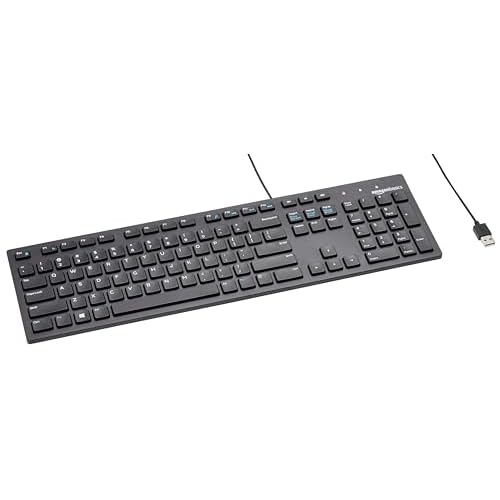
Use a portable USB keyboard as an immediate workaround. Compact models fit in laptop bags and draw power from a single USB-A port, giving you full typing functionality while you diagnose the built-in keyboard.

Advanced Solutions
Run the Windows Keyboard Troubleshooter by right-clicking the Start button, selecting Settings > System > Troubleshoot > Other troubleshooters, then clicking “Run” next to Keyboard. The wizard checks for driver conflicts, accessibility settings interference, and registry corruption.
Disable Fast Startup, which caches a hibernation file that preserves flawed driver states across reboots. Open Control Panel > Power Options > Choose what the power buttons do. Click “Change settings that are currently unavailable,” then uncheck “Turn on fast startup.” Save changes and restart.
Boot into Safe Mode by holding Shift while clicking Restart in the Start menu. Navigate to Troubleshoot > Advanced options > Startup Settings > Restart, then press 4 for Safe Mode. If your keyboard works in Safe Mode, a third-party driver or startup program blocks input in normal Windows. Use Malwarebytes or Avast Driver Updater to scan for malware or outdated drivers.
For network-related driver conflicts, install NordVPN to encrypt system traffic and prevent remote access tools from hijacking keyboard input during remote desktop sessions.
Check Device Manager for yellow exclamation marks next to “Keyboards” or “Human Interface Devices.” A Code 10 or Code 19 error indicates Windows cannot start the keyboard driver. Uninstall the device, restart, and let Windows reinstall it automatically.
When to Seek Repair
If your keyboard remains unresponsive after every software fix, the hardware has failed. Common failure points include the keyboard controller IC (integrated circuit) on the motherboard, a severed ribbon cable, or corrosion from liquid intrusion that shorts multiple traces.
Replacement laptop keyboards cost $30–$80 from manufacturers or third-party suppliers like Laptop Keyboard Replacements on Amazon. Installation requires removing 10–20 screws, disconnecting the ribbon cable, and snapping in the new keyboard assembly. YouTube teardown videos specific to your laptop model guide you through each step.
Authorized service centers charge $100–$200 for keyboard replacement, including labor and warranty. If your laptop is under manufacturer warranty, file a claim, most cover keyboard defects for one year. Accidental damage protection plans (Dell Accidental Damage Service, AppleCare+, HP Accidental Damage Protection) cover spills and drops.
As a permanent workaround, invest in a mechanical external keyboard for your desk setup. Full-size models offer superior tactile feedback, customizable RGB lighting, and hotswap switches that let you replace individual keys without tools.
Frequently Asked Questions
Why is my laptop keyboard not allowing me to type?
Your laptop keyboard may not be working due to software issues (Filter Keys, Sticky Keys, outdated drivers), temporary Windows glitches, or hardware problems like debris under keys, loose ribbon cables, or liquid damage. Test with an external USB keyboard to isolate the cause.
How do I fix a laptop not allowing me to type after a recent Windows update?
Driver corruption after updates often causes typing failures. Open Device Manager, right-click your keyboard, select ‘Update driver,’ then ‘Search automatically.’ If that fails, uninstall the device, restart, and let Windows reinstall the driver automatically.
Can a simple restart fix a laptop keyboard that stopped working?
Yes, restarting clears RAM caches, reinitializes USB controllers, and reloads keyboard drivers. Hold your power button for 10 seconds until the screen goes black, wait 30 seconds, then restart. This resolves roughly 20–30% of sudden keyboard failures.
What should I do if my laptop keyboard stops working during a video call?
Use your trackpad to open the On-Screen Keyboard (Win + Ctrl + O) to continue typing. Then troubleshoot: check for Filter Keys or Sticky Keys activation in Settings > Accessibility > Keyboard, or test with an external USB keyboard to confirm hardware functionality.
How can I tell if my laptop keyboard hardware is broken or if it’s a software problem?
Enter BIOS/UEFI setup (press F2, F10, Del, or Esc during boot) and use arrow keys to navigate menus. If your keyboard works in BIOS but not Windows, the hardware is functional—the issue is drivers or settings. If it doesn’t work in BIOS, hardware has failed.
Is it better to repair a laptop keyboard or buy an external keyboard instead?
Replacement keyboards cost $30–$80 DIY or $100–$200 professionally installed. If you’re comfortable with disassembly, replacement is permanent. Otherwise, a mechanical external keyboard ($50–$150) offers immediate productivity while you decide on repair, plus superior tactile feedback and durability.
Read More:
- Laptop Not Connecting to Docking Station (and How to Fix It Fast)
- Laptop Not Responding to Clicks (Causes and How to Fix It Fast)
- Laptop Not Accepting Password (Here’s Why and 7 Fast Fixes that Work)
- Laptop Not Accepting Charge (Signs and Here’s What Usually Fixes It)
- Laptop Not Accepting PIN (Here’s the Reasons and How to Fix It)