
Last updated on October 11th, 2026 at 10:38 pm
Your MacBook Pro’s keyboard is failing mid-sentence, and you’ve already missed three deadlines because your spacebar or “E” key refuses to register. You’re not alone, thousands of MacBook Pro owners face selective key failures daily, especially on 2015–2019 Butterfly mechanism models.
When MacBook Pro keyboard keys stop working, the cause is typically dust or debris trapped under the keycap (hardware) or corrupted keyboard preference files in macOS (software). You can fix 70% of cases by cleaning keys with compressed air at a 75-degree angle, resetting the SMC, and deleting com.apple.keyboardtype.plist from ~/Library/Preferences.

Best Wireless Keyboard and Mouse Combo
Logitech Comfortable Full-Size Keyboard with Palm Rest. Reliable 2.4GHz Wireless Connection up to 10m. Long Battery Life for Everyday Productivity.
Shop on AmazonThis guide walks you through proven troubleshooting steps I’ve used as an Apple Certified Mac Technician to restore dead keys, from mechanical cleaning to software resets, without voiding your warranty or damaging fragile scissor switches.

Key Takeaways
- MacBook Pro keyboard keys stop working primarily due to dust trapped under keycaps (Butterfly mechanism) or corrupted macOS keyboard driver files, with 70% of cases solvable through cleaning and software resets.
- Clean your keyboard with compressed air at a 75-degree angle to blow debris laterally out from under keys, avoiding downward sprays that force particles deeper into the switch mechanism.
- Reset the SMC and NVRAM/PRAM on your MacBook Pro to resolve phantom key presses and clear keyboard layout cache, using different procedures for Apple Silicon versus Intel models.
- Use System Settings > Accessibility > Keyboard Viewer to diagnose whether MacBook Pro keyboard issues are hardware or software—if the virtual key highlights when pressed, the problem is software-related.
- Check if your 2015–2019 MacBook Pro qualifies for Apple’s free Keyboard Service Program top-case replacement before paying for out-of-warranty repairs costing $200–$600.
- If multiple keys fail after troubleshooting, you may have flex cable damage or liquid intrusion requiring professional Genius Bar diagnostics, or consider using an external mechanical keyboard for immediate productivity.
Why MacBook Pro Keyboard Keys Stop Working
Hardware Issues: Dust, Debris, and Butterfly Mechanism Problems
The Butterfly keyboard mechanism (2015–2019 MacBook Pro models) is notorious for key failure. Apple’s ultra-thin design reduces key travel to 0.5mm, leaving almost no clearance for dust or crumbs. A single grain of sand wedged under the keycap can jam the silicon dome switch.
You’ll notice sticky keys, double-typing, or complete non-response. The 2019+ Magic Keyboard (scissor switch) improves reliability with 1mm travel and better debris resistance, but it’s not immune. Physical obstructions remain the #1 cause of selective key failure across all MacBook Pro generations.
According to Apple’s 2019 Keyboard Service Program, certain models qualify for free top-case replacement due to widespread Butterfly mechanism defects. Check your serial number eligibility before attempting repairs.
Software Glitches and macOS Updates
macOS updates occasionally corrupt keyboard driver files, causing keys to stop registering even when physically intact. The most common culprit is com.apple.keyboardtype.plist, which stores keyboard layout and input method preferences.
You can verify software issues by opening System Settings > Accessibility > Keyboard > Keyboard Viewer. If the on-screen key highlights when you press the physical key, your hardware works, the problem is software. If nothing highlights, suspect hardware failure.
Background processes like third-party keyboard remapping tools (Karabiner, BetterTouchTool) can conflict with macOS input handlers. Disable these temporarily to isolate the issue.
Quick Fixes to Try First
Restart Your MacBook Pro
A simple restart clears cached keyboard input buffers and reloads macOS keyboard drivers. Hold the Power button for 10 seconds to force shutdown, wait 30 seconds, then power on. Test your keys immediately after login, before launching any apps.
If keys work after restart but fail later, a background process is interfering. Check Activity Monitor > CPU for processes named KeyboardServicesAgent or third-party input managers consuming excessive resources.
Clean Your Keyboard Properly
Apple recommends cleaning MacBook Pro keyboards with compressed air at a 75-degree angle to blow debris laterally out from under keycaps. Never spray directly downward, you’ll force particles deeper into the switch mechanism.
Step-by-step cleaning process:
- Power off your MacBook Pro completely
- Hold the laptop at 75 degrees (nearly vertical)
- Spray compressed air left-to-right across each row
- Rotate 180 degrees and repeat right-to-left
- Focus 2-3 short bursts on non-responsive keys
For stubborn sticky residue, lightly dampen a lint-free cloth with 70% isopropyl alcohol and wipe keycap surfaces. Never apply liquid directly to keys, excess alcohol seeping into switches causes permanent damage.
Advanced Software Troubleshooting Methods
Reset the SMC and NVRAM/PRAM
The System Management Controller (SMC) governs low-level keyboard input detection. Resetting it resolves phantom key presses and input lag.
For Apple Silicon MacBooks (M1/M2/M3): Shut down, wait 30 seconds, then power on. SMC resets automatically.
For Intel MacBooks: Shut down, press Shift + Control + Option + Power simultaneously for 10 seconds, release all keys, then power on normally.
Next, reset NVRAM to clear keyboard layout cache. Restart and immediately hold Command + Option + P + R until you hear the startup chime twice (Intel) or see the Apple logo appear and disappear twice (Apple Silicon).
Check for Accessibility Settings Conflicts
Navigate to System Settings > Accessibility > Keyboard and verify these settings:
- Sticky Keys: Off
- Slow Keys: Off
- Key Repeat Rate: Normal (mid-range slider)
Enable Keyboard Viewer (visible under Input Sources in menu bar) to test which keys register. Press each non-working key while watching the on-screen keyboard. If the virtual key highlights, delete ~/Library/Preferences/com.apple.keyboardtype.plist in Finder (press Shift + Command + G, paste path, move file to Trash), then restart.
Hardware Solutions for Persistent Keyboard Issues
If software fixes fail, you’re dealing with mechanical failure. For Butterfly keyboards, carefully pry the keycap using a plastic spudger (never metal tools). Lift from the top edge at a 15-degree angle to release four fragile clips.
Inspect the exposed switch for visible debris or bent metal contacts. Use a rocket air blower (safer than compressed air cans) to dislodge particles without moisture contamination. Apply one drop of 99% isopropyl alcohol to a cotton swab, gently clean the switch housing, then let it dry for 15 minutes before reattaching the keycap.

Never remove more than one keycap at a time, the Butterfly mechanism’s butterfly clip orientation varies by key. Photograph each keycap before removal.
For users unable to perform delicate repairs, an external mechanical keyboard provides immediate productivity restoration while you schedule professional service. Consider this your daily driver if your MacBook Pro’s top-case replacement estimate exceeds $400.
When to Contact Apple Support or Visit the Genius Bar
If multiple keys fail after cleaning and software resets, you’ve likely experienced flex cable damage or liquid intrusion. Apple’s diagnostic tools at the Genius Bar detect corrosion invisible to the naked eye.
Check if your MacBook Pro qualifies for Apple’s Keyboard Service Program, 2015 to 2019 models with Butterfly keyboards receive free top-case replacements up to 4 years after purchase.
Out-of-warranty top-case replacements cost $200–$600 depending on model. Before paying, request a senior technician inspection, some Genius Bar staff miss debris that can be blown out in 30 seconds.
Using Your MacBook Pro While Keyboard Keys Are Broken
Enable System Settings > Accessibility > Keyboard > Accessibility Keyboard to display an on-screen keyboard with predictive text. Pair a Bluetooth keyboard for zero-latency typing, Apple Magic Keyboard works instantly without drivers.
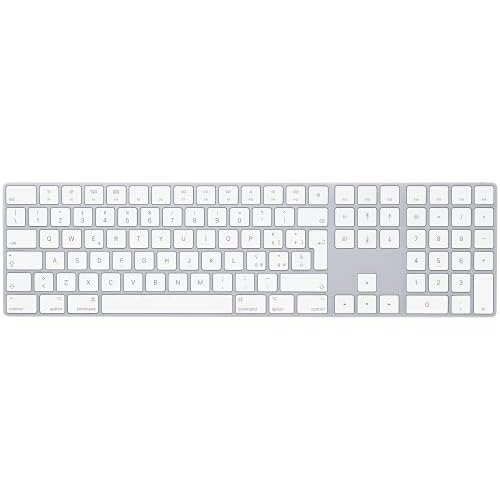
For single dead keys, remap them using System Settings > Keyboard > Keyboard Shortcuts > Modifier Keys. Reassign rarely-used keys like Caps Lock to replace a broken letter key temporarily.
Remote workers should consider a USB-C docking station with full-size keyboard integration, this transforms your MacBook Pro into a desktop workstation while awaiting repair.
Frequently Asked Questions
Why are MacBook Pro keyboard keys not working?
MacBook Pro keyboard keys stop working due to dust or debris trapped under keycaps (especially in 2015–2019 Butterfly models) or corrupted software files like com.apple.keyboardtype.plist. The ultra-thin 0.5mm key travel leaves minimal clearance, allowing particles to jam switches. Software glitches and conflicting keyboard apps can also cause non-response.
How do I fix MacBook Pro keyboard keys with compressed air?
Power off your MacBook Pro and hold it at a 75-degree angle. Spray compressed air left-to-right across each row, then rotate 180 degrees and repeat right-to-left. Focus 2-3 short bursts on non-responsive keys. Never spray directly downward, as this forces debris deeper into the switch mechanism.
What software troubleshooting fixes MacBook Pro keyboard problems?
Reset the SMC: On Apple Silicon, shut down and power on (automatic reset). On Intel, press Shift + Control + Option + Power for 10 seconds. Reset NVRAM by restarting and holding Command + Option + P + R until startup chime sounds twice. Delete com.apple.keyboardtype.plist from ~/Library/Preferences and restart.
How much does MacBook Pro keyboard replacement cost?
Out-of-warranty top-case replacements cost $200–$600 depending on model. However, 2015–2019 MacBook Pro models with Butterfly keyboards qualify for Apple’s free Keyboard Service Program up to 4 years after purchase. Check your serial number eligibility first.
Can I use my MacBook Pro with broken keyboard keys?
Yes. Enable System Settings > Accessibility > Keyboard > Accessibility Keyboard for an on-screen keyboard with predictive text. Pair a Bluetooth Magic Keyboard for zero-latency typing without drivers. Use a USB-C docking station with a full-size keyboard to transform your MacBook into a desktop workstation while awaiting repair.
Is MacBook Pro Butterfly keyboard failure a known issue?
Yes. The Butterfly mechanism (2015–2019 models) is notorious for selective key failures due to its ultra-thin 0.5mm design with minimal debris resistance. Apple’s 2019 Keyboard Service Program addresses widespread defects with free top-case replacements. The 2019+ Magic Keyboard with 1mm scissor switches improves reliability significantly.
Read More:
- MacBook Keyboard Typing Wrong Characters (Fast Diagnostic Fixes)
- MacBook Keyboard Double Typing (Common Causes and How to Fix It)
- MacBook Keyboard Not Working After Sleep (Here’s How to Fix It in Minutes)
- MacBook Keyboard Not Working After Update (Causes and Proven Fixes)
- MacBook Keyboard Backlight Not Working (Here’s the Expert Fixes)