
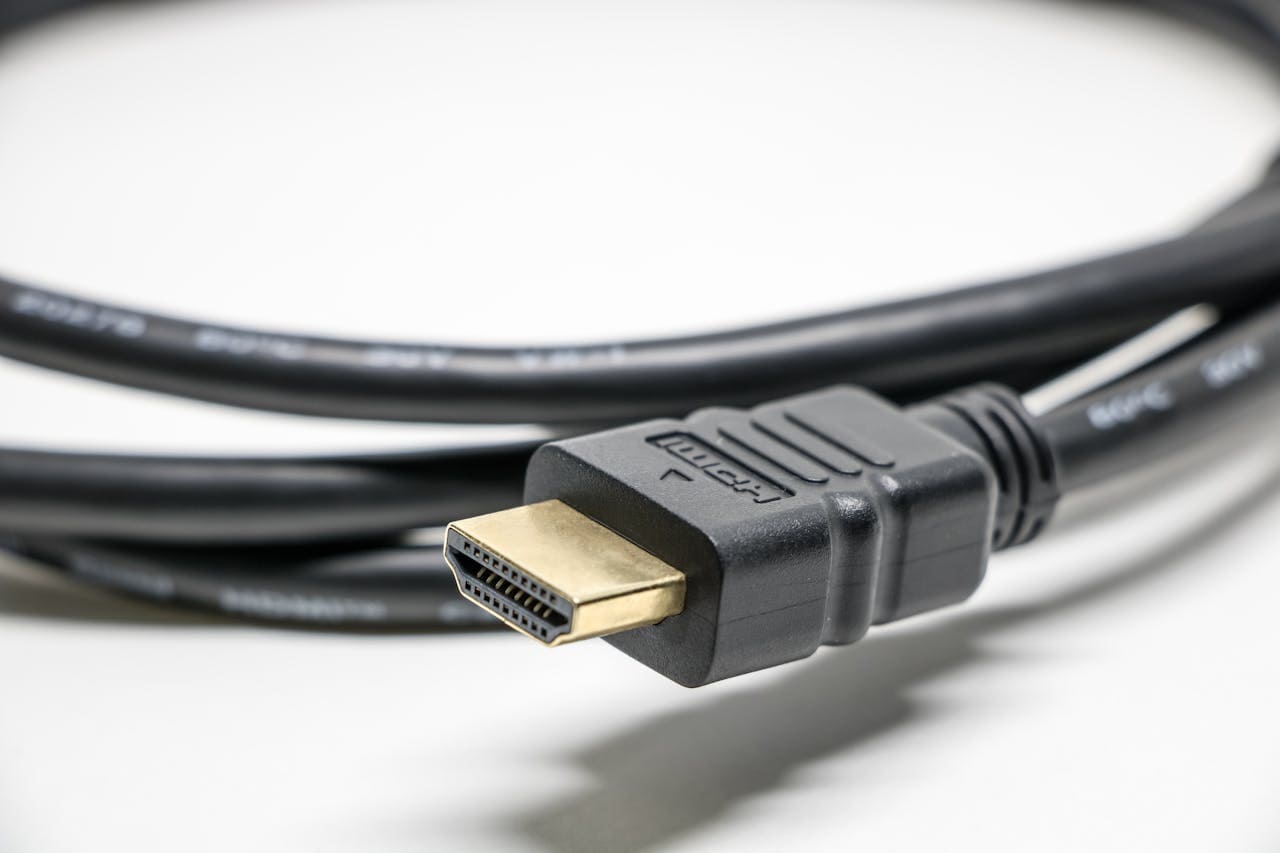
If your Samsung TV is not connecting to HDMI, the issue usually stems from loose cables, outdated firmware, or incorrect settings. Ensuring the HDMI cables are secure, updating your TV’s software, and adjusting input settings often resolves most connection problems. This straightforward approach can help you get back to watching your favorite content without delay.
Sometimes the problem lies with the HDMI ports themselves or compatibility issues between devices. Testing different HDMI ports or using a high-quality cable can identify where the fault is. You may also want to power cycle your TV and connected devices to reset the HDMI handshake.
Understanding these common causes saves you time and frustration. By following simple troubleshooting steps, you can quickly determine whether the problem is with your TV, the cable, or the connected device, making the fix much easier to handle. For detailed guidance, see this comprehensive Samsung TV HDMI troubleshooting guide.

Amazon Fire TV Stick HD
Turn Any TV to a Smart TV. Stream Netflix, Prime Video & More. Alexa Voice Remote Included. Easy Plug & Play Setup.
Shop on Amazon
Diagnosing Why Your Samsung TV Is Not Connecting to HDMI
If your Samsung TV is not connecting to HDMI, understanding the root causes can help you tackle the problem efficiently. The issues often involve connection faults, hardware compatibility, or recognition problems between the TV and external devices.
Identifying Common HDMI Connection Problems
Begin by checking the basics: ensure your external device is powered on and the HDMI cable is firmly connected to both the TV’s HDMI port and the device’s output. Loose or improperly seated connections are a frequent cause of failure.
Next, verify that you’ve selected the correct HDMI input on your Samsung TV. If the input source doesn’t match the connected port, the TV won’t recognize the signal.
Power cycling both your TV and HDMI device can clear temporary glitches. Unplug both devices, wait about a minute, then reconnect and power them on.
Recognizing HDMI Port and Cable Issues
Inspect your HDMI cable for visible damage like fraying or bends, which can interrupt signal transmission. Not all HDMI cables are created equal; using a certified cable suitable for your device’s resolution and features is essential.
Try switching to a different HDMI port on your Samsung TV. A faulty port might cause the TV to reject the connection even if the cable and device are fine.
If switching cables and ports doesn’t help, test the same HDMI device on another TV or monitor to isolate whether the problem is with your Samsung TV HDMI ports or the external device.
Assessing Device Compatibility
Ensure the external device you’re connecting supports the HDMI standards and resolutions your Samsung TV expects. Older devices might use outdated HDMI versions that the TV cannot fully recognize, leading to signal issues.
Compatibility problems can also arise when using adapters or converters between HDMI and other connections like VGA or DVI. Verify that any adapters are properly rated and functioning.
Updating your Samsung TV’s firmware can improve compatibility with newer devices and fix bugs related to HDMI recognition, so check for and install any available updates regularly.
Understanding HDMI Not Working Symptoms
When an HDMI connection fails, symptoms vary. Common signs include a “No Signal” message, a black screen, or an error notification about unsupported input.
Audio might work while video does not, or you may have a flickering picture. These indicate an unstable connection or a bandwidth problem on the HDMI cable.
If the TV intermittently loses the HDMI signal, electromagnetic interference or simultaneous use of other nearby devices can be factors.
Using built-in tools like the Samsung TV HDMI self-test can help you pinpoint if the issue lies with the HDMI cable or the TV itself.
Essential Troubleshooting Steps for HDMI Problems
When your Samsung TV fails to connect via HDMI, the issue often lies with the cable, device, or settings rather than the TV itself. Systematically checking each connection and setting can quickly identify the root cause and get your external device displaying properly again.
Checking HDMI Cable and Connections
Start by physically inspecting your HDMI cable for visible damage like fraying, bends, or kinks. A faulty HDMI cable is a common cause of no signal or intermittent connection problems. Make sure the cable is fully seated in both the TV’s HDMI port and the external device’s HDMI output.
If your setup allows, unplug and reconnect the cable to ensure a firm, stable connection. Loose connections often disrupt the signal and cause the “No Signal” message on your TV. Avoid using HDMI adapters or splitters during this test, as they may introduce additional points of failure.
Testing with a different, known working HDMI cable is a reliable way to rule out cable faults. This helps confirm if the problem is the cable or elsewhere in your setup.
Testing Different HDMI Ports and Cables
Your Samsung TV likely has multiple HDMI ports. If one port isn’t recognizing the device, switch the HDMI cable to another port. Sometimes, a single port can develop internal faults or accumulate dust that blocks a clean connection.
Select the corresponding HDMI input on your TV after switching ports. If the device works on another port, the original port may need professional repair or cleaning.
Repeat the step with different HDMI cables to verify if the issue is consistent. This process helps isolate whether the problem is the cable, the port, or the device itself.
Tip: Label your HDMI ports to keep track of which ones work best with your devices.
Verifying Input Source Settings
Even if connections are perfect, your TV cannot display the signal unless the correct input source is selected. Use your remote and press the Input or Source button.
Navigate through the list of input sources and select the HDMI port linked to your external device. Confirming the correct input is essential, as the TV does not automatically switch inputs when a device is connected.
If your device uses multiple HDMI ports, check each input source in turn. Some Samsung models allow input names to be customized, which can help you quickly recognize which source corresponds to which device.
Power Cycling TV and Devices
Temporary software glitches may prevent your TV or external devices from communicating over HDMI. To clear these errors, perform a full power cycle.
Turn off your TV and the connected device using their power buttons, then unplug both from the electrical outlet. Wait at least 60 seconds to allow any residual power to dissipate.
Plug the devices back in and power them on. This restart can refresh the HDMI handshake process, resolving minor signal detection issues without complicated settings changes or hardware swaps.
Power cycling is a straightforward step that often resolves connectivity problems related to HDMI ports and devices.
Advanced Solutions for Persistent HDMI Issues
When basic troubleshooting doesn’t resolve HDMI problems on your Samsung TV, more targeted adjustments and system updates can help. These solutions focus on your TV’s internal software, specific HDMI settings, and device management features to restore reliable connectivity.
Updating TV Firmware and Software
Keeping your TV’s firmware up to date is critical for addressing HDMI compatibility and performance issues. Samsung regularly releases firmware updates that fix bugs, improve HDMI handshake, and enhance device interoperability.
To update your TV firmware:
- Connect your TV to the internet via Wi-Fi or Ethernet.
- Press the Home button on your remote.
- Go to Settings > Support > Software Update.
- Select Update Now if an update is available.
- Wait for the download and installation to complete.
- Restart your TV and test your HDMI connections.
If your TV can’t connect online, you can manually update firmware using a USB drive downloaded from Samsung’s official support website. Ensuring your software is current resolves many hidden compatibility and stability issues.
Adjusting HDMI Settings and UHD Color
Some HDMI problems stem from how your TV processes incoming signals. Activating or fine-tuning specific settings can improve picture quality and fix detection issues.
Focus on these adjustments:
| Setting | Location | Purpose |
|---|---|---|
| HDMI UHD Color | Settings > General > External Device Manager > HDMI UHD Color | Enables wider color range for 4K and HDR content |
| Input Signal Plus | Settings > General > External Device Manager | Boosts signal strength for high-bandwidth devices |
| HDMI Black Level | Settings > General > External Device Manager | Adjusts black level to fix contrast or picture problems |
| HDMI Mode | Settings > General > External Device Manager | Switches between Standard and Game modes based on usage |
Enable HDMI UHD Color for the port connected to your 4K or HDR device. Adjust Input Signal Plus if you notice flickering or signal dropouts. Changing Black Level and Mode settings can refine visual output or reduce input lag.
Enabling or Disabling HDMI-CEC
HDMI-CEC, known as Anynet+ on Samsung TVs, allows devices to communicate and control each other via HDMI. This feature can simplify your setup but sometimes causes connectivity conflicts or HDMI port detection failures.
Try these steps regarding HDMI-CEC:
- Locate Settings > General > External Device Manager > Anynet+ (HDMI-CEC).
- Toggle the feature off if you experience intermittent HDMI issues.
- Test your HDMI devices with HDMI-CEC disabled.
- If disabling resolves the problem, you can keep it off or selectively re-enable it to see what works best.
If you rely on HDMI-CEC for device control, ensure all connected devices support it and have it enabled correctly. Misconfiguration or device incompatibility can disrupt HDMI signal flow.
Performing a Factory Reset
If updates and setting tweaks fail, performing a factory reset can clear software glitches affecting HDMI ports. This resets your TV to its original state, erasing personalized settings but often resolving persistent connection issues.
To perform a factory reset:
- Open Settings > General > Reset.
- Enter your security PIN (default is 0000 if unchanged).
- Confirm the reset and wait for the TV to reboot.
- Set up your TV again, including firmware updates.
- Reconfigure HDMI-related settings and test your connections.
Backing up your current settings or noting important configurations before this step can save setup time later. A factory reset removes system conflicts that may underlie HDMI detection or signal problems.
When to Seek Further Assistance and Prevent Future HDMI Problems
It’s important to know when troubleshooting on your own is no longer enough and when professional help is required. You also need to understand how issues with external devices can affect your HDMI connection and what steps you can take to avoid recurring problems.
Determining the Need for Samsung Support
If you have tried reconnecting cables, changing HDMI ports, using new cables, and confirming your external device is powered on, yet the HDMI connection still fails, it may be time to contact Samsung support. Persistent problems—such as specific HDMI ports not functioning despite swapping cables and devices—often indicate a hardware fault that requires professional repair or replacement.
Look for signs like physical damage to ports, consistent “no signal” messages, or your TV not recognizing any HDMI input after multiple resets. Samsung’s support can guide you through diagnostics or schedule service if necessary. Document your troubleshooting steps to speed up the process when you reach out.
Resolving Issues with External Devices
Some HDMI issues originate from the connected device rather than the TV itself. Verify your external device is fully powered on and functioning by testing it with another TV or monitor. Resetting or updating the firmware of gaming consoles, Blu-ray players, or streaming boxes can remedy compatibility problems.
Also, check that the source input matches the HDMI port in use on your TV. Loose or damaged HDMI cables often cause signal interruptions, so try swapping cables or ports. If multiple devices experience HDMI connection failures with your TV, the issue is likely with the TV; otherwise, contact the device manufacturer for further support.
Tips to Prevent HDMI Issues
To minimize future HDMI problems, regularly check that cables are securely connected and replace any worn or damaged cables with high-quality, high-speed HDMI versions. Keep your Samsung TV’s firmware updated to ensure compatibility with the latest hardware revisions.
Avoid constantly unplugging and reconnecting cables, as this can wear out ports. Use cable management to prevent tension on cords. When possible, power off devices before connecting or disconnecting HDMI cables to avoid signal interference. Following these practices will maintain stable HDMI connections and reduce the risk of recurring failures.
For more detailed guidance, refer to the Samsung HDMI ports troubleshooting guide.