
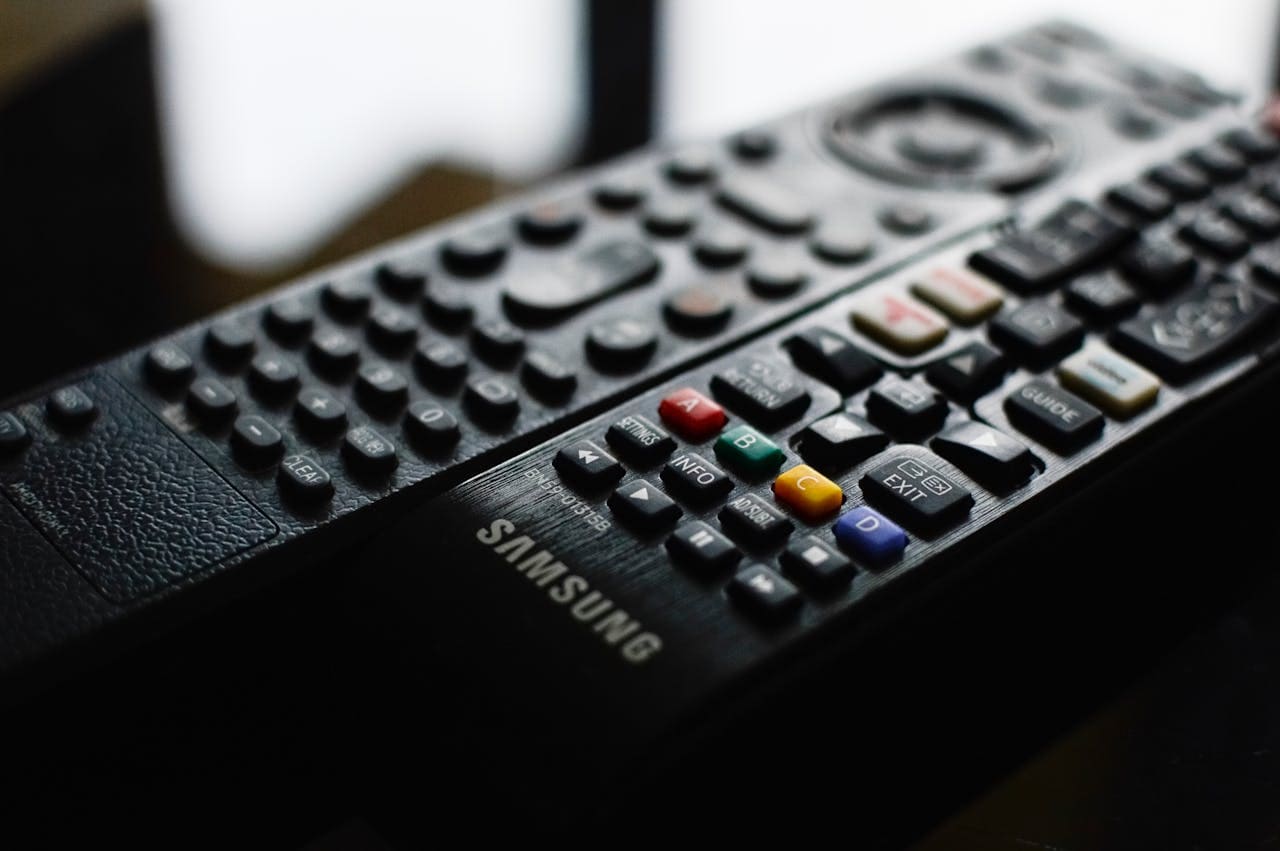
If your Samsung TV won’t turn on, the issue often relates to power supply problems, remote control faults, or internal hardware malfunctions. You can usually fix this by checking the power connection, testing the physical power button, and resetting the TV through a simple power cycle. Understanding the behavior of the standby light can help you pinpoint the cause quickly.
Sometimes the red standby light is solid, flashing, or off, each indicating different issues. You might need to replace remote batteries, unplug external devices, or bypass surge protectors to rule out simple faults. If these basic steps don’t work, the problem could be hardware-related, requiring professional support.
Getting your TV back on doesn’t have to be complicated. This guide walks you through practical troubleshooting steps to identify and solve the common reasons your Samsung TV won’t power up, helping you avoid unnecessary repairs and enjoy your viewing again sooner. For detailed instructions, see this Samsung TV Won’t Turn On troubleshooting guide.

Amazon Fire TV Stick HD
Turn Any TV to a Smart TV. Stream Netflix, Prime Video & More. Alexa Voice Remote Included. Easy Plug & Play Setup.
Shop on Amazon
Why Your Samsung TV Not Turn On
When your Samsung TV doesn’t power up, it’s important to identify what the TV’s behavior and indicators reveal. Power issues can stem from different sources, including hardware, software, or external connections. Knowing how to read your TV’s signals and symptoms helps you focus on the right troubleshooting steps.
Understanding the Red Standby Light
The red standby light on your Samsung TV is a key diagnostic tool. When lit steadily, it means the TV is receiving power but isn’t fully turning on. A solid red light often suggests an issue with the remote, firmware glitches, or internal components preventing a full startup.
If the light blinks, it indicates specific error codes. For example, two blinks can relate to power board problems, while three blinks point to internal hardware failure. No light at all usually means the TV isn’t getting power from the outlet or the power board is damaged.
Pay attention to how the red standby light behaves—its patterns guide you to the possible root cause and next steps. This understanding helps you avoid unnecessary repairs or replacements.
Common Causes of Power Issues
Power failures often come from simple, fixable sources. Start by checking your power outlet with another device to ensure it functions correctly. Loose or damaged power cords are a frequent culprit and can easily be tested or replaced.
Internal hardware faults like a failing power supply board, capacitors, or backlight can cause your Samsung TV to stay off. A clicking noise or no standby light often points to these components.
Remote control problems can also create the illusion that the TV won’t turn on. Test the physical power button on the TV itself; if it works, the remote might need new batteries or pairing. Firmware crashes can similarly prevent the TV from booting, requiring a reset or update.
Interpreting TV Power Indicators
Your Samsung TV provides multiple signs about its status beyond the red standby light. The power button on the TV, remote response, screen behavior, and any noises give clues on the issue.
For example:
| Indicator | Possible Meaning |
|---|---|
| No red light, no sound | No power or power board failure |
| Solid red light, no screen | Firmware or remote problem |
| Blinking red light | Specific hardware fault (check blink code) |
| TV clicks on but turns off soon | Power supply or capacitor failure |
| Screen is black but TV responds | Backlight or T-Con board failure |
Use these indicators to narrow the problem down to power source, remote control, firmware, or hardware. Troubleshooting becomes more efficient when you interpret these signals correctly. This approach can save you time and money before calling for professional help.
Learn more on diagnosing the red standby light and power indicators from detailed guides like this one on how to troubleshoot Samsung TV that will not turn on.
Essential Steps to Restore Power
Ensuring your Samsung TV receives consistent and adequate power is crucial. Start by verifying every component in the power delivery chain, from the outlet to specialized connection devices, to pinpoint interruptions that prevent your TV from turning on.
Checking the Power Outlet and Cord
Begin with the power outlet where your TV plugs in. Test this outlet by connecting another device, like a lamp or phone charger. If that device doesn’t work, try a different outlet in the same room—not one controlled by a wall switch, as those can be accidentally turned off.
Next, examine your power cord closely for visible damage such as fraying, exposed wires, or bent pins. Ensure the cord is firmly connected to both the TV and the outlet. Gently wiggle the cord at both ends; if the standby light flickers during this, the cord or its connection is faulty. Replacing the cord or securing the connection often fixes the problem.
Eliminating Surge Protector Problems
Surge protectors can degrade over time, sometimes limiting the voltage your TV receives. Check if the surge protector’s indicator light is on, confirming it’s functioning properly.
To eliminate this variable, unplug your TV from the surge protector and plug it directly into a known working wall outlet. If your TV powers on this way, the surge protector is likely the cause. Replace the surge protector to prevent future issues and ensure stable power to your TV.
Evaluating the One Connect Box and Invisible Connection Cable
If your Samsung setup includes a One Connect Box, inspect the cable connecting it to the TV, often called the invisible connection cable due to its slim and discreet design. Ensure this cable is fully seated and free from kinks or damage.
Check the One Connect Box’s own power supply and standby light. If the box isn’t powered or its light is off, unplug it for 60 seconds and then reconnect to reset its internal components. Testing different HDMI ports or disconnecting all external devices connected to the One Connect Box can rule out device conflicts causing power problems.
Remote Control and Input Troubleshooting
Remote issues often mimic power problems, so verifying your Samsung remote’s functionality and input response is essential. You’ll want to confirm the remote is sending signals, reset any stuck inputs, and ensure your smart remote is properly paired or replaced if faulty.
Testing and Resetting the Samsung Remote
Start by testing if your remote is transmitting signals. Use your phone’s camera pointed at the remote’s infrared sensor, then press any button on the remote while watching the camera screen. If you see a flashing light, the remote is sending signals. No flash means the remote may be faulty or out of batteries.
To reset the remote:
- Remove the batteries.
- Press and hold the power button on the remote for 15 seconds.
- Reinsert fresh batteries, ensuring correct polarity.
- Test again.
This process clears minor glitches. Additionally, check the remote’s buttons for physical sticking or damage, which can impair input. Always use fresh batteries rather than old spares from drawers.
Dealing With Unresponsive Buttons
If buttons on the Samsung smart remote or the physical TV controls don’t respond, start by unplugging the TV for a minute to reset internal firmware. While unplugged, press and hold the TV’s power button for about 10 seconds, then reconnect power.
Clean the remote’s button contacts if needed. Dirt or corrosion on contacts can prevent proper button recognition. You can use a cotton swab lightly moistened with rubbing alcohol to clean contacts carefully.
If your remote is Bluetooth-enabled, unresponsive buttons may indicate pairing issues. Try removing the batteries, restarting the TV by unplugging it, then reinsert batteries and pair again.
Pairing and Replacing the Remote Control
For Samsung smart remotes with Bluetooth, pairing is crucial. Hold the Return and Play/Pause buttons simultaneously for 3 seconds to initiate pairing. Wait for the confirmation message on the TV screen.
If pairing fails, replace the batteries and try again. Should problems persist, you can reset the remote by removing batteries and holding the power button for 15 seconds before battery replacement.
If none of these steps work and the physical TV power button functions normally, your remote is likely defective. You can replace it with an official Samsung remote or a compatible universal remote programmed for your model.
For temporary control, use the SmartThings app on your mobile device by connecting to the same Wi-Fi network as your TV. This app acts as a remote and can help confirm if the problem lies with your physical remote.
For detailed assistance with Samsung remotes and TV responsiveness, refer to How To Fix Samsung TV Not Turning On: (12 Solutions That Work) and guides about remote issues.
Resolving Screen, Device, and Advanced Issues
When your Samsung TV won’t turn on, the problem may involve more than just power. Issues like a black screen, interference from connected devices, or deeper hardware faults require targeted troubleshooting steps to identify and fix the root cause.
Addressing a Samsung TV Black Screen
If your TV powers on but the screen remains black, first check the backlight. Shine a flashlight closely at the screen—if you see faint images, the backlight is likely faulty and needs repair or replacement.
Next, disconnect all external devices to rule out input conflicts. Sometimes a stuck HDMI connection or incorrect source setting causes the black screen. Use the TV’s physical buttons to cycle sources or access the menu.
Updating or reinstalling firmware via USB can fix software glitches causing display issues. This involves downloading the correct firmware from Samsung’s website and using a USB drive to run the update offline.
Troubleshooting External Devices
External devices such as cable boxes, gaming consoles, or streaming sticks often affect your TV’s ability to turn on or display correctly. Start by unplugging all devices and then turning on the TV with only the power cord connected.
Reconnect devices one at a time to isolate the faulty device or cable. Check for damaged HDMI cables or ports and try alternate ports or cables when available.
Sometimes, external devices go into standby modes or suffer firmware issues that interfere with the TV’s startup process. Power cycle these devices by unplugging them for at least 30 seconds before reconnecting.
Contacting Samsung Support for Further Help
If basic troubleshooting fails, contacting Samsung Support is the next step. They can guide you through advanced resets, such as factory resets via the service menu, or recommend authorized repair centers.
Before calling, have your TV model number and purchase details ready. Samsung Support may also provide software updates, diagnostic tools, or remote assistance to resolve complex firmware or hardware problems.
If your TV is under warranty, repairs or replacement parts may be covered, potentially saving you significant costs. For persistent issues like unresponsive power boards or internal hardware failures, professional service is usually required.
For more details on resolving Samsung TV power and screen issues, visit this Samsung TV troubleshooting guide.