Razer Keyboard Keys Not Working (Pro Fixes for Synapse and Switch Failures)
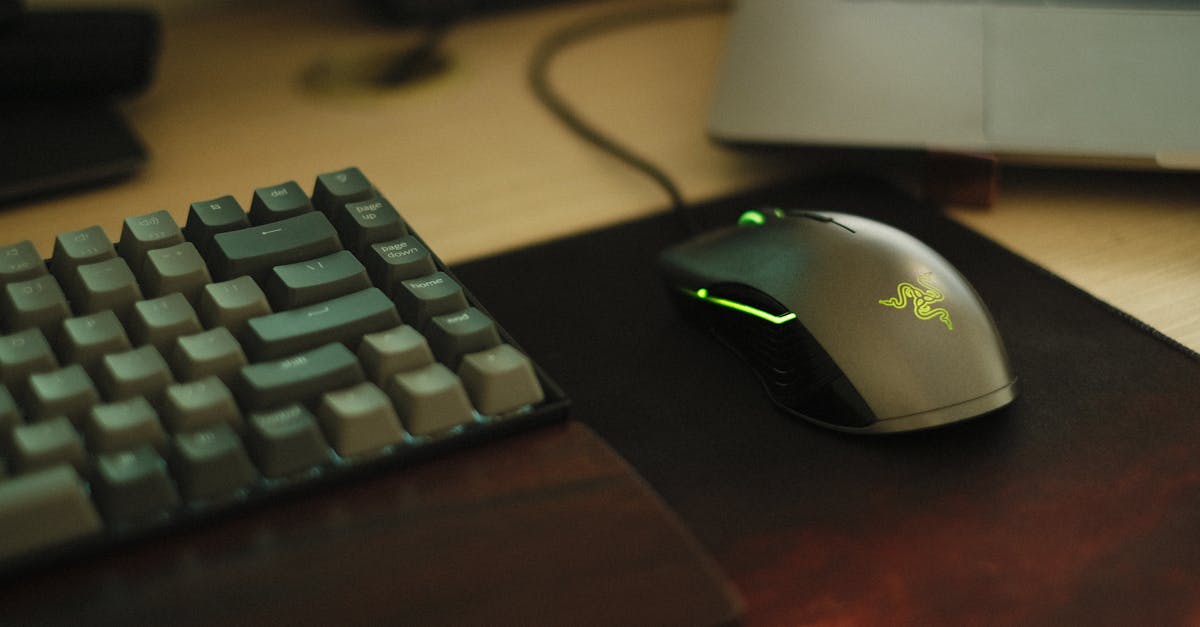
Fix Razer keyboard keys not working with software resets, physical cleaning, and firmware updates. Most issues resolve without cost.

Fix Razer keyboard keys not working with software resets, physical cleaning, and firmware updates. Most issues resolve without cost.
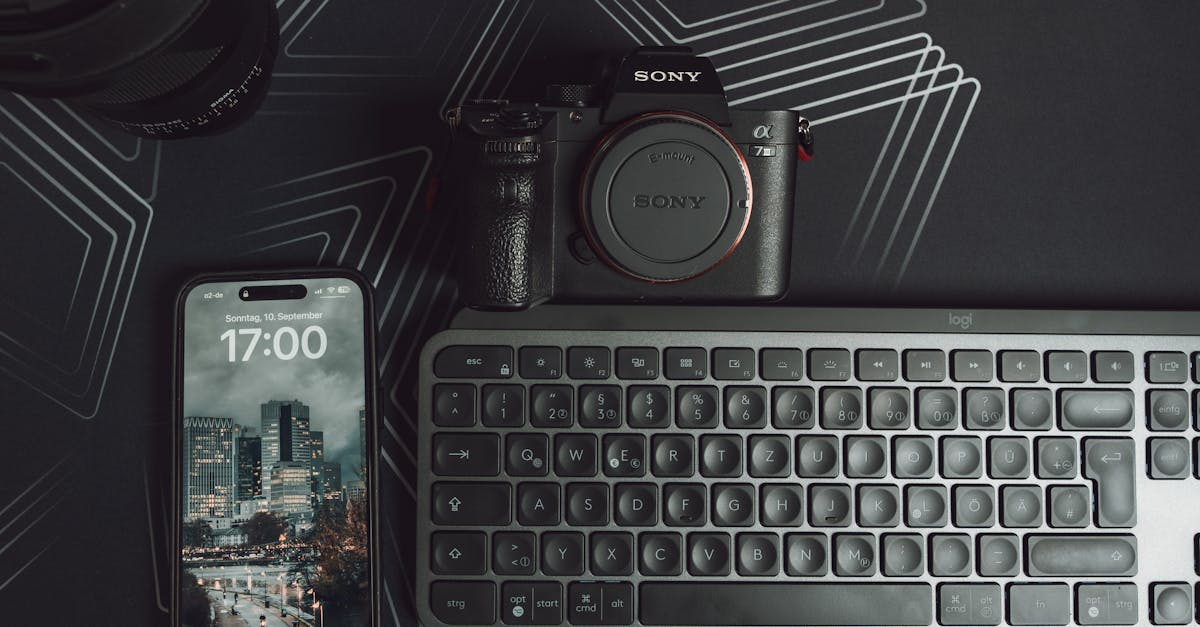
Fix Logitech keyboard double typing in minutes. Learn hardware cleaning, G HUB debounce settings, and firmware updates to stop key chatter fast.
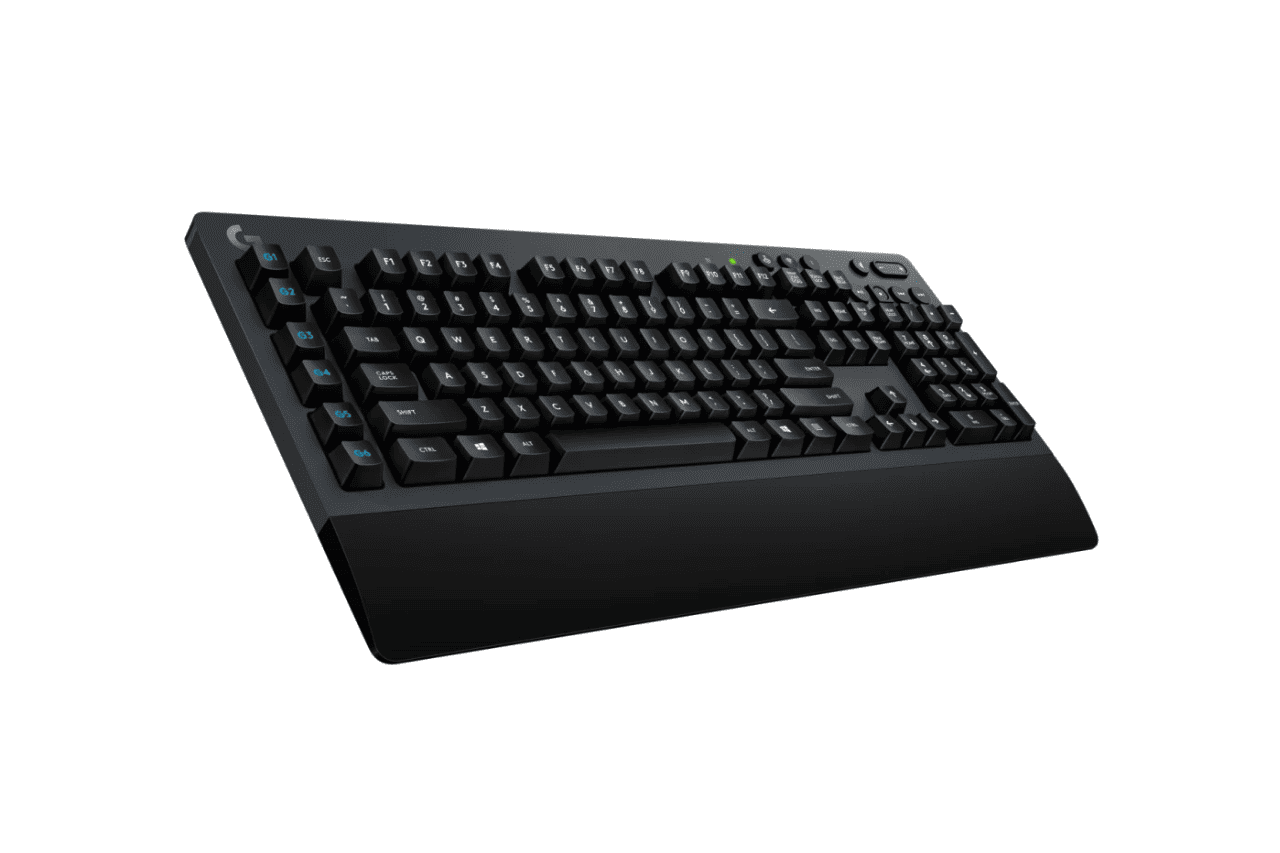
Fix Logitech G613 double typing with proven solutions: clean switches, adjust settings, or try software fixes. 60–75% success rate without repair.
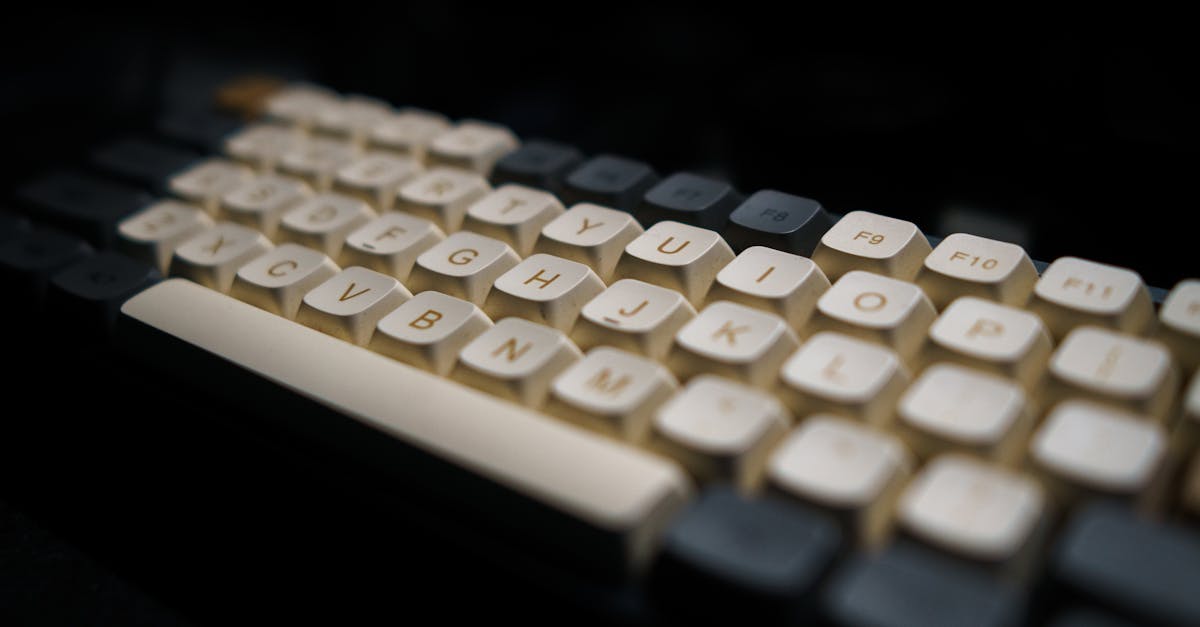
Fix Keychron keyboard double typing with firmware adjustments, cleaning, and software tweaks. Step-by-step guide covers all solutions.
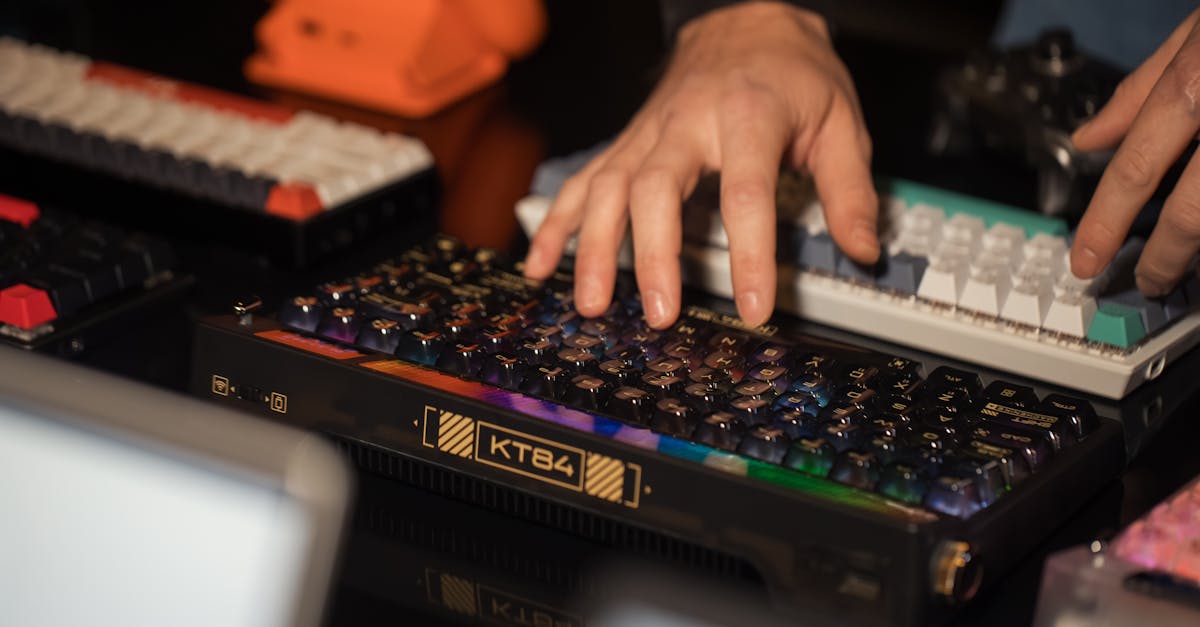
Fix mechanical keyboard double typing with cleaning, debounce adjustments, and software tools. Expert solutions for key chatter in 2026.
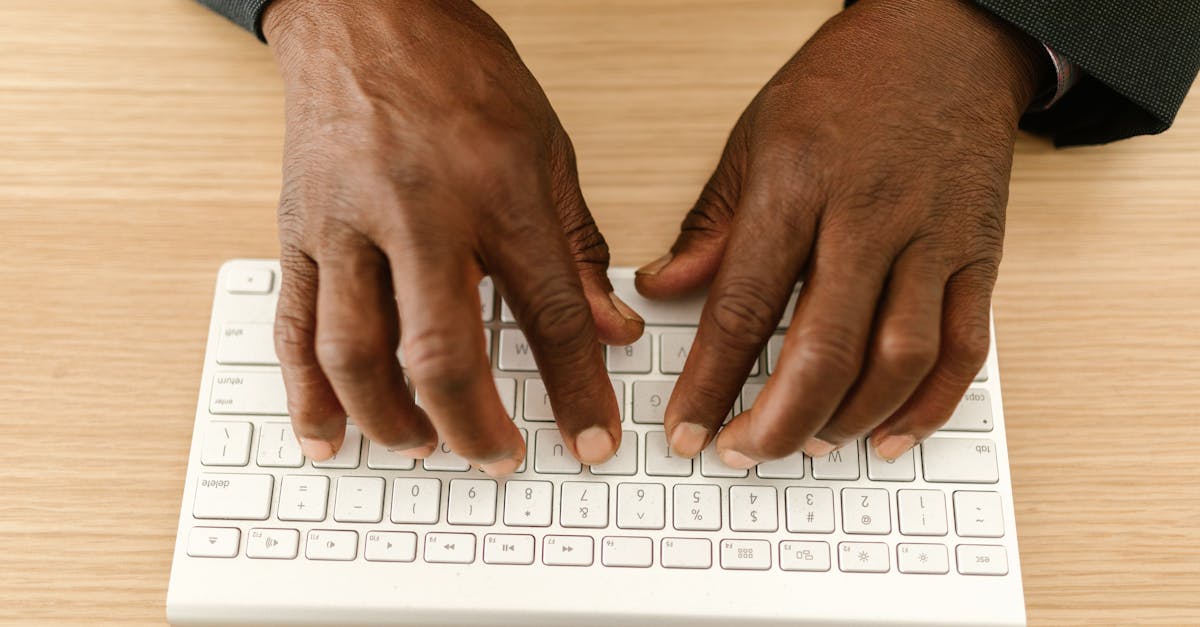
Fix keyboard double typing in minutes: clean your switches, adjust repeat settings, and try free software—no replacement needed for most cases.

Fix a laptop keyboard not working with simple troubleshooting steps. Test in BIOS, update drivers, and check for hardware issues quickly.

Fix Lenovo ThinkPad keyboard not working with 5 proven steps—from static reset to driver updates. Most issues resolve for free.
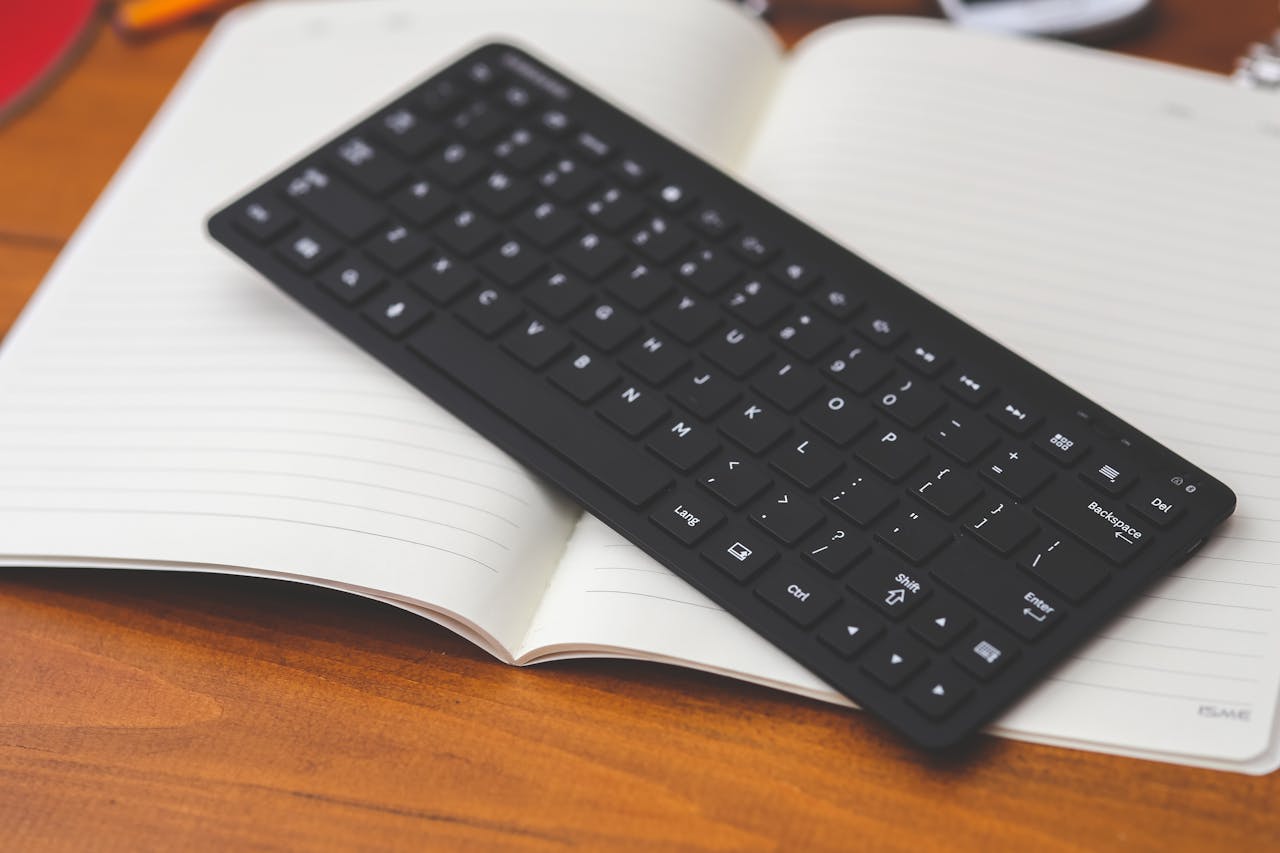
HP wireless keyboard not working? Try 7 proven fixes: replace batteries, reconnect USB receiver, re-pair Bluetooth, update drivers & more. Get typing again fast.

Fix on-screen keyboard not working in Windows 10/11. Enable services, run SFC scans, and resolve hardware conflicts with step-by-step solutions.