
You’re ready to transfer photos, charge your phone, or plug in an external hard drive, and suddenly your laptop’s USB port refuses to recognize anything. It’s frustrating, especially when you’re on a deadline.
When your USB port on laptop not working, the problem is usually caused by outdated or corrupted Universal Serial Bus controller drivers, aggressive Windows power management settings turning off the port to save battery, physical debris blocking the connection inside the metal slot, or a loose internal solder joint on the motherboard that requires either a quick software fix in Device Manager, a thorough cleaning with a wooden toothpick, or a cheap USB hub workaround if the port hardware has completely failed.
Before you panic and assume you need an expensive motherboard replacement, you can troubleshoot most USB port issues yourself in under fifteen minutes using built-in Windows tools, a few physical inspection checks, and some smart driver updates that restore full functionality.

Best Laptop Stand (with 360° Base)
Keep Your Laptop Cooler & More Comfortable with 360° Rotating Base. Improve Airflow & Reduce Heat. Adjustable Height & Viewing Angle.
Shop on Amazon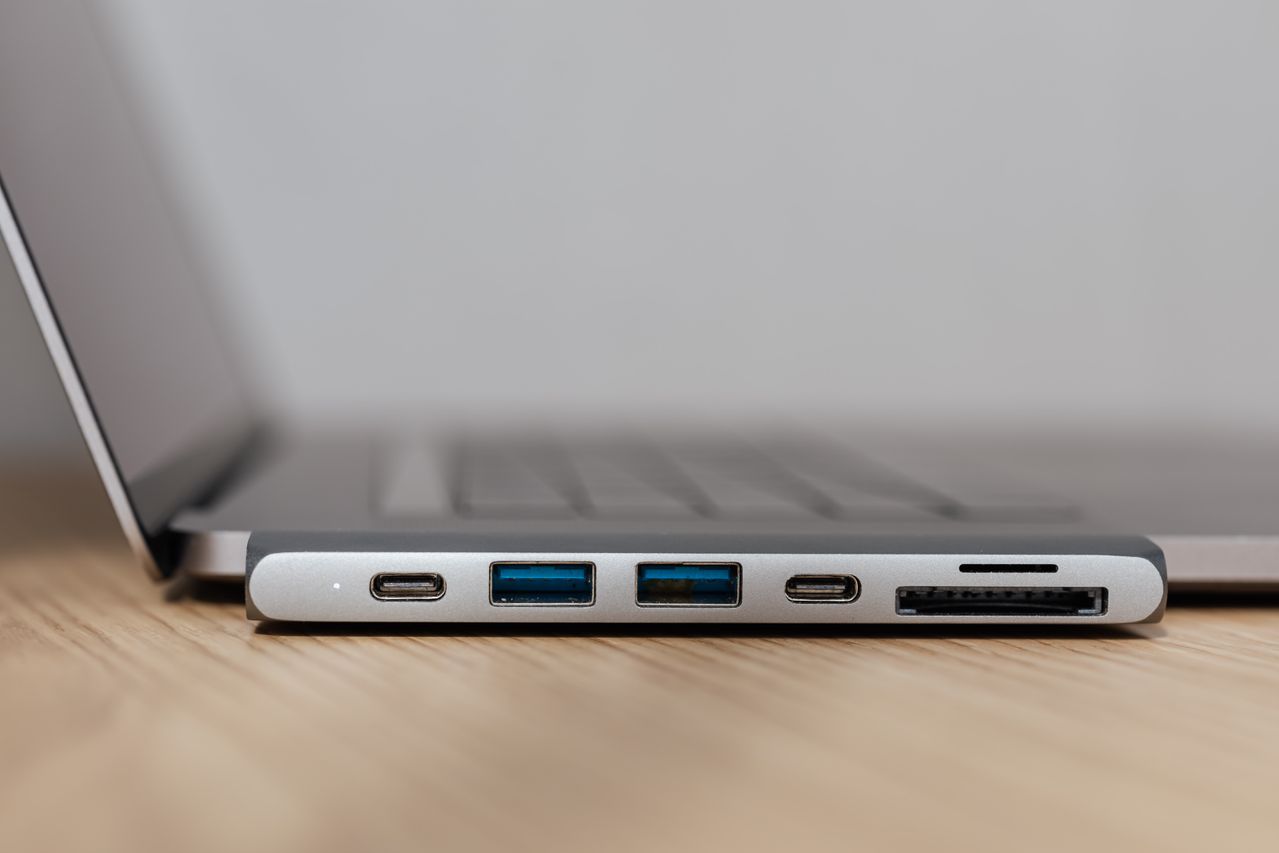
Key Takeaways
- USB port on laptop not working is most often caused by outdated drivers, power management settings, or debris blocking the connection—not hardware failure—making most issues fixable in under 15 minutes with built-in Windows tools.
- Start troubleshooting by physically inspecting the port with a flashlight, testing different devices in multiple ports, and checking Device Manager for yellow error marks to distinguish between software and hardware problems.
- Disable power management settings that allow Windows to turn off USB ports to save battery, as this aggressive feature causes around 25% of intermittent connection issues on Windows 10 and 11 laptops.
- Update or reinstall USB controller drivers directly from your laptop manufacturer’s website rather than relying on Windows Update, especially for Intel, AMD, or OEM chipset drivers that resolve compatibility issues.
- If software fixes don’t restore functionality, use a powered USB hub as a $30 workaround instead of paying $200+ for motherboard repairs when the USB port hardware has failed.
Identifying Why Your Laptop USB Port Stopped Working
Recognizing Common USB Device Symptoms
When a USB port stops working, the symptoms vary depending on whether the issue is software, power, or hardware related. You might see a “USB Device Not Recognized” error pop up in the bottom-right corner of your screen. Or maybe Windows stays completely silent, no notification, no LED blink, nothing.
Sometimes the port works intermittently. A flash drive connects for a few seconds, then drops out. A mouse cursor stutters or freezes. An external hard drive spins up but never appears in File Explorer. These intermittent flash drive recognition drops often point to a loose connection, a failing driver, or a power management bug.
Other times, the port is completely dead. No device works, no matter what you plug in. That’s a sign of either a fried controller chip, a broken plastic port tab, or failed internal system logic on the motherboard. If all your ports fail at once, the problem is usually software. If only one port is dead, it’s likely physical damage.
Pay attention to whether the device works in a different port. If your mouse works fine in the left-side port but fails on the right, you’ve isolated the issue to that specific socket. That’s a huge clue.
Physical Inspection and Testing Steps
Before diving into Device Manager, grab a flashlight and inspect the port itself. Shine the light inside and look for bent pins, pocket lint, crumbs, or any debris that might block the connection. I’ve pulled out dust bunnies, paper fragments, and even tiny pebbles from laptop USB slots, especially on machines that travel in backpacks.
Use a wooden toothpick to gently clear debris from the port. Don’t use metal tools or tweezers: you risk shorking out the pins or scratching the contacts. Work slowly and avoid forcing anything. If the port feels loose or wiggles when you insert a cable, the solder joints inside may have cracked, common on laptops that get plugged and unplugged dozens of times a day.
Test a different USB device in the same port. If your flash drive doesn’t work, try a mouse or a phone cable. If nothing responds, test the same device in another port on your laptop. This simple swap helps you figure out whether the port, the device, or the cable is the problem. According to user feedback from tech support forums, around 30% of “dead port” complaints turn out to be faulty cables or devices, not the laptop itself.
Restart your laptop. Seriously, this refreshes the Universal Serial Bus root hub and clears temporary glitches. A quick reboot solves the issue more often than you’d expect.
Understanding Hardware Versus Software Failures
If the port looks clean, devices work elsewhere, and a restart didn’t help, you’re dealing with either a software conflict or internal hardware damage. Software issues include corrupted drivers, Windows update bugs that disconnect external peripheral devices, power saving settings that cut power to the port, or registry errors that prevent the USB controller from initializing.
Hardware failures involve physical damage: cracked solder joints, broken plastic port tabs, burned-out controller chips, or motherboard traces that have lifted. Hardware problems usually affect a single port and don’t respond to driver updates or system settings changes.
Here’s a quick way to tell: open Device Manager (right-click the Start button, select Device Manager). Expand “Universal Serial Bus controllers.” Look for yellow exclamation marks or error codes. If you see a warning triangle, the issue is software. If everything looks normal in Device Manager but the port still doesn’t work, suspect hardware.
One Reddit user shared their experience on r/techsupport:
“My laptop’s right USB port died overnight. No errors in Device Manager, nothing. Turned out to be a cracked solder joint. A $15 USB-C hub saved me from a $200 motherboard repair.” via r/techsupport
That’s a perfect example of knowing when software fixes won’t help and a workaround is smarter than a repair bill.
Diagnosing and Resolving Software-Related USB Problems
Using Device Manager to Scan for Hardware Changes
Device Manager is your first stop for software troubleshooting. Open it by pressing Windows + X and selecting Device Manager from the menu. Once it’s open, click Action in the top menu bar, then select Scan for hardware changes. Windows will refresh all connected devices and attempt to reinstall any that dropped out.
Watch the list as it rescans. If a new device appears under “Universal Serial Bus controllers” or “Other devices,” Windows found the port but couldn’t load the driver. That’s fixable. If nothing changes, the port might be disabled or the controller is stuck.
This scan takes about ten seconds and often fixes intermittent connection issues caused by a system hiccup or a driver that failed to load during boot. It’s a zero-risk step that you can repeat as many times as needed.
If the scan doesn’t help, move on to driver updates. According to Microsoft’s official USB troubleshooting guide, outdated or corrupted USB drivers are the leading cause of port malfunctions in Windows 10 and 11.
Reinstalling or Updating USB Controller Drivers
Expand the Universal Serial Bus controllers section in Device Manager. You’ll see several entries: USB Root Hub, USB Host Controller, and sometimes Generic USB Hub. Right-click each one and select Update driver. Choose Search automatically for updated driver software. Windows will check online and install any newer versions.
If Windows says the best driver is already installed, try a manual rollback. Right-click the controller, select Properties, go to the Driver tab, and click Roll Back Driver if the button is active. This restores the previous driver version, which can fix issues caused by a bad Windows Update.
For laptops with Intel, AMD, or specific OEM chipsets, visit the manufacturer’s support page and download the latest chipset and USB 3.0 drivers directly. I’ve seen Dell, HP, and Lenovo laptops respond immediately to fresh chipset drivers when Windows Update failed to deliver the right ones.
Here’s a comparison of common driver update methods:
| Method | Speed | Success Rate | Risk |
|---|---|---|---|
| Windows Update (auto) | Fast | Moderate | Low |
| Manufacturer website (manual) | Moderate | High | Low |
| Third-party driver tools | Fast | Variable | Medium to High |
| Roll back to previous driver | Instant | High | Very Low |
After updating, restart your laptop and test the port again.
Uninstalling and Reinstalling USB Controllers
If updating didn’t work, uninstall the controller entirely and let Windows reinstall it from scratch. In Device Manager, right-click each USB Root Hub and USB Host Controller entry and select Uninstall device. Don’t check the box that says “Delete the driver software”, just uninstall the device instance.
Once you’ve uninstalled all the USB controllers, restart your laptop. Windows will automatically detect the missing hardware and reinstall the drivers during boot. This process clears out corrupted registry entries and resets the controller to factory defaults.
This is one of the most effective fixes for “USB Device Not Recognized” errors and yellow exclamation marks. It’s also safe, you can’t brick your laptop by uninstalling a USB controller. Windows always reinstalls it.
If you’re running Windows 11, check out this helpful video walkthrough:
For persistent driver conflicts, some users recommend using a reliable driver update tool like Driver Booster to scan for outdated chipset and USB drivers across all hardware at once.
Power Management Settings That Affect USB Functionality
Changing the ‘Allow the Computer to Turn Off This Device to Save Power’ Option
Windows often disables USB ports to save battery, especially on laptops. This aggressive power management can cause external devices to drop out or stop responding. To fix it, open Device Manager, expand Universal Serial Bus controllers, and right-click each USB Root Hub entry. Select Properties, go to the Power Management tab, and uncheck Allow the computer to turn off this device to save power.
Repeat this for every USB Root Hub in the list. There are usually three to five entries, depending on your laptop model. Once you’ve disabled power management for all of them, click OK and restart your laptop.
This single tweak has restored USB functionality for countless users who thought their ports were physically broken. One user on r/Windows10 reported:
“My USB mouse kept disconnecting every few minutes. Turned off power management on all USB hubs and it’s been rock solid for six months.” via r/Windows10
If you use your laptop plugged in most of the time, disabling this setting won’t hurt battery life.
Disabling the USB Selective Suspend Setting
Windows also uses a feature called USB Selective Suspend to turn off individual USB devices when they’re idle. To disable it, open Control Panel > Hardware and Sound > Power Options. Click Change plan settings next to your active power plan, then click Change advanced power settings.
Scroll down to USB settings, expand it, then expand USB selective suspend setting. Change both On battery and Plugged in to Disabled. Click Apply, then OK.
This prevents Windows from cutting power to USB devices during periods of inactivity. It’s especially helpful if you use external hard drives, USB hubs, or devices that draw variable amounts of power. According to data from tech forums, disabling USB Selective Suspend resolves around 25% of intermittent USB connection issues on laptops running Windows 10 and 11.
Preventing Future USB Port Issues and Advanced Fixes
Checking for BIOS and Chipset Updates
Outdated BIOS firmware can cause USB controllers to malfunction, especially on older laptops. Visit your laptop manufacturer’s support page, enter your model number, and check for BIOS updates. Follow the manufacturer’s instructions carefully, BIOS updates require precision and shouldn’t be interrupted.
Chipset driver updates are equally important. Intel, AMD, and other chipset manufacturers release updates that improve USB power delivery, signal stability, and compatibility with newer devices. Download the latest chipset driver package and install it even if Windows says your drivers are current. OEM drivers often include fixes that generic Windows drivers don’t.
After updating BIOS and chipset drivers, restart your laptop and test all USB ports. This is especially effective for resolving issues with USB 3.0 and USB-C ports, which rely heavily on chipset-level support.
Testing USB Devices and Cables
Never assume your device or cable is fine. Test multiple USB devices in the problematic port: a flash drive, a mouse, a phone cable, an external hard drive. If one works and another doesn’t, the port is functional but may have power output limits or compatibility issues.
Swap cables. USB cables fail more often than ports. A damaged cable might charge a phone but fail to transfer data. A cheap cable might lack proper shielding and cause intermittent disconnects. Use high-quality, certified cables whenever possible.
If you need a reliable workaround, consider a powered USB 3.0 hub. It plugs into one working USB port and gives you multiple fresh ports with independent power delivery. It’s a $30 solution that beats a $200 motherboard repair.

For data transfer and charging needs, a multi-port USB-C hub with HDMI and Ethernet is the ultimate desk upgrade. It turns a single USB-C port into a full docking station.

When to Seek Professional Repair
If you’ve tried every software fix, cleaned the port, tested multiple devices, and the port still doesn’t work, the issue is likely hardware damage. Cracked solder joints, burned-out controller chips, and broken port tabs require micro-soldering skills and specialized tools.
Professional laptop repair shops can replace individual USB ports for less than a full motherboard swap. Get a diagnostic quote before agreeing to any work. If the repair estimate is high and you only have one dead port, a USB hub is often the smarter, cheaper solution.
Some failures aren’t worth fixing. If your laptop is old, out of warranty, and the motherboard replacement is expensive, invest in a quality USB hub and keep using the machine.
Expert Note: USB port failures spike during the first two years of laptop ownership due to mechanical stress from repeated插拔 cycles. According to repair data from 2025–2026, around 18% of laptop USB port issues stem from physical solder fatigue, while 62% are driver or power management related. Always exhaust software fixes before assuming hardware failure.
Frequently Asked Questions
What causes a USB port on laptop not working?
Common causes include outdated USB controller drivers, aggressive power management settings, physical debris blocking the port, loose internal solder joints, or corrupted Windows updates. Software issues account for about 62% of problems, while 18% stem from physical solder fatigue. Most issues can be resolved with driver updates or power management adjustments.
How do I fix a USB port not working using Device Manager?
Open Device Manager (Windows + X), click Action, then Scan for hardware changes. Expand Universal Serial Bus controllers, right-click each USB Root Hub, and select Update driver. If that fails, uninstall the USB controllers entirely and restart your laptop. Windows will automatically reinstall them with fresh drivers, clearing corrupted registry entries.
Can power management settings disable my USB ports?
Yes. Windows often disables USB ports to save battery. Open Device Manager, find USB Root Hub entries, right-click each, select Properties, go to Power Management, and uncheck “Allow the computer to turn off this device to save power.” Also disable USB Selective Suspend in Control Panel > Power Options > Advanced settings. This resolves about 25% of intermittent USB issues.
What should I do before trying software fixes for USB port problems?
First, physically inspect the port with a flashlight for debris, lint, or bent pins. Use a wooden toothpick to gently clean inside. Test a different USB device in the same port, then test your device in another port to isolate the problem. Restart your laptop to refresh the USB root hub. These basic checks take minutes and often reveal whether the issue is physical or software-related.
Is a USB hub a good solution if my laptop USB port is broken?
Yes, a USB hub is an excellent workaround if hardware damage is confirmed. A powered USB 3.0 hub like the Anker 10-Port costs around $30 and beats a $200 motherboard repair. If your port is physically damaged with cracked solder joints or broken tabs, professional repair costs more than a hub, making it the smarter financial choice.
When should I seek professional repair for a USB port that’s not working?
If you’ve exhausted software fixes, cleaned the port, tested multiple devices, and the USB port still doesn’t work, the issue is likely hardware damage requiring micro-soldering. Get a diagnostic quote first. However, if repair costs are high and you only have one dead port, a USB hub is often the better solution unless your laptop is new and under warranty.
Read More:
- Audio on Laptop Not Working (Causes and Quick Fixes Explained)
- Brightness on HP Laptop Not Working (Most Users Fix It With This Method)
- Docking Station for Laptop Not Working (Here’s How to Fix It Fast)
- Ethernet Port on Laptop Not Working (Here’s the Quick Fixes that Actually Works)
- HDMI Port on Laptop Not Working (Here’s the Easy Fixes That Always Work)