
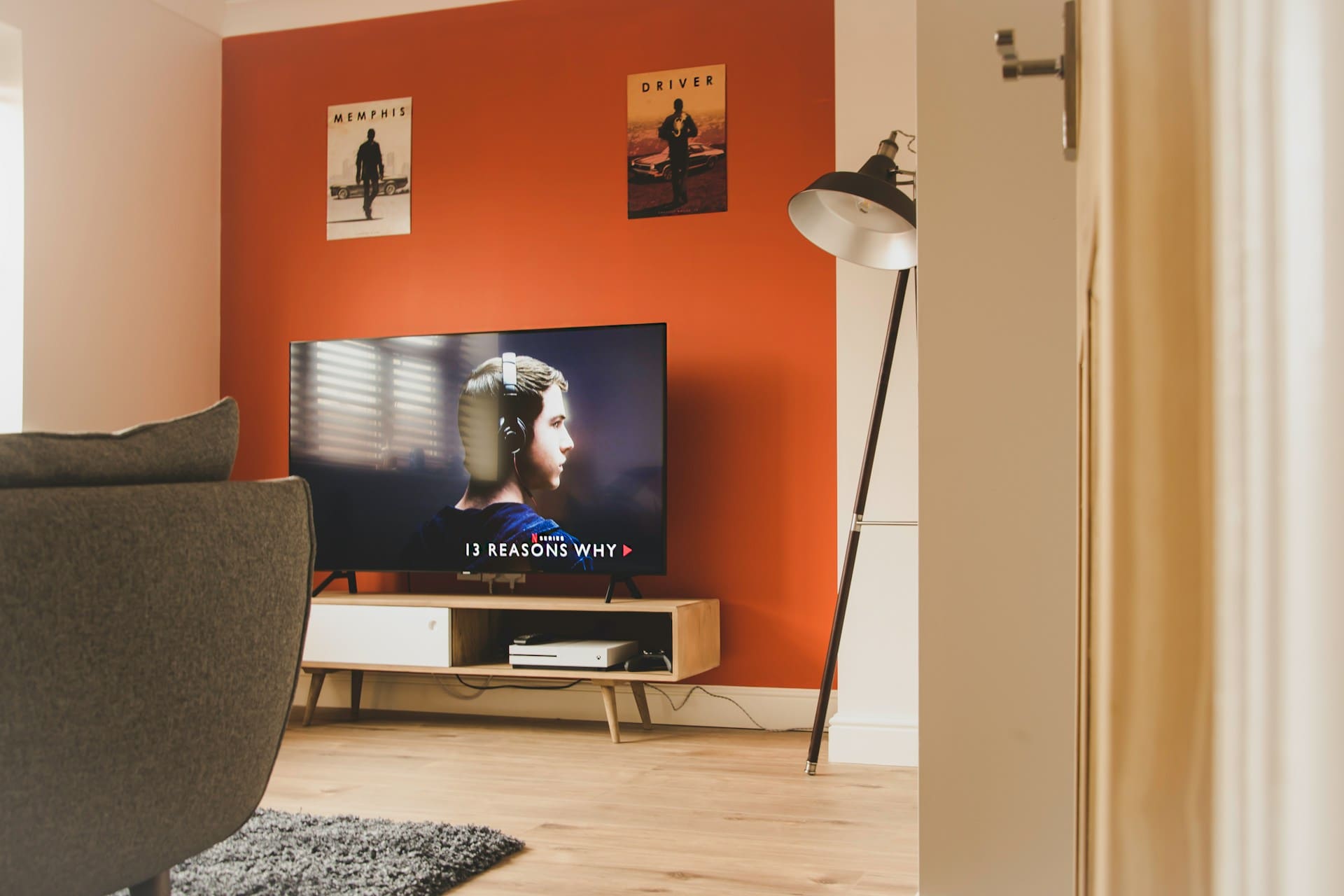
If your Samsung TV is not downloading apps, the issue often comes down to one or more common factors like a poor internet connection, insufficient storage space, or outdated software. To fix this, you need to ensure your TV is connected to a stable network, has enough free storage, and runs the latest firmware version.
Sometimes, the problem could also be related to your Samsung account or temporary glitches that a simple restart can resolve. Addressing these elements will usually get your apps downloading and working properly again without much hassle.
By understanding these key points and following straightforward troubleshooting steps, you can restore your Samsung TV’s app functionality quickly. This article will guide you through the most effective solutions to get your apps downloading again smoothly.

Amazon Fire TV Stick HD
Turn Any TV to a Smart TV. Stream Netflix, Prime Video & More. Alexa Voice Remote Included. Easy Plug & Play Setup.
Shop on Amazon
Identifying Common Causes for Samsung TV App Download Issues
When your Samsung TV won’t download apps, the problem often stems from specific technical factors related to your network setup, account status, storage availability, or system software. Addressing these areas sharply reduces the chance of failure and ensures smooth app installations.
Internet Connectivity Problems
Your Samsung TV requires a stable internet connection to download apps from the Galaxy Store. If the network is slow or unstable, the app download may stall or fail completely. Check that your TV is connected to the correct Wi-Fi network and that the signal strength is strong.
Restart your router if needed and test the connection via your TV’s network settings. Wired Ethernet connections tend to be more reliable than Wi-Fi for downloading large files. Also, avoid peak network congestion times or multiple devices consuming bandwidth simultaneously.
If DNS or IP configuration issues arise, resetting your network settings on the TV can help. Ensuring a consistent internet connection is the first step to resolving download problems on your Samsung Smart TV.
Samsung Account Verification Errors
Your Samsung account links your TV to the app store and verifies access permissions. Issues can occur if your account is not properly signed in, has expired, or has authentication errors.
Sign out of your Samsung account through the Apps menu, then sign back in to refresh your session. Double-check your login credentials and reset your password if you suspect a security problem.
Sometimes region mismatches between your account and app availability cause download blocks. Samsung apps like Sling TV or Hulu only download if you are logged into a region where the app is supported.
Verifying your Samsung account status is essential to ensure proper authorization for app downloads and access.
Insufficient Storage Space
Samsung TVs typically offer limited internal storage, roughly 8GB total, with about 5GB available for apps and data. If you run low on free space, new apps will not download or install properly.
Navigate to your TV’s Settings and open the Device Care or Manage Storage section. Here, you can view the storage breakdown and delete any unused or irrelevant apps to free space.
Regularly clearing cache or unnecessary files can also improve download success. Storage issues are a frequent cause of app problems, so maintaining at least 500MB to 1GB of free space is advisable.
Keeping an eye on storage helps prevent interruptions during app downloading on your Samsung Smart TV.
Software Update Requirements
Outdated software hinders app functionality and installation on Samsung TVs. Samsung frequently releases firmware and Tizen OS updates to fix bugs, improve stability, and support newer app versions.
Go to Settings > Support > Software Update and check for any available updates. Installing these updates will often resolve issues preventing app downloads.
Some apps require minimum software versions to run, so regular updates are crucial. If you avoid updates, you risk losing access to new apps and features.
Keeping your Samsung TV firmware current ensures compatibility with the latest apps and smooth download processes.
Effective Troubleshooting Steps for Download Failures
To fix app download issues on your Samsung TV, focus on ensuring a stable network connection, clearing space, and refreshing the system. Each measure addresses common causes of stalls or errors during app installation and helps restore normal function.
Check Network Status and Reconnect
Your Samsung TV needs a stable internet connection for accessing the app store and downloading apps. Start by going to Settings > Connection > Network Status to run a connectivity test. If the test shows high latency, packet loss, or intermittent drops, your network is likely the problem.
Try switching your TV to a 5 GHz Wi-Fi band instead of 2.4 GHz for a more stable connection. If possible, use a wired Ethernet connection to eliminate Wi-Fi interference. You can also reset your router or connect your TV temporarily to a mobile hotspot to check if your usual network is causing the issue.
Adjusting DNS settings manually in Network Status > IP Settings > DNS Setting can resolve store access problems caused by faulty ISP resolvers.
Power Cycle and Restart Procedures
A simple power cycle refreshes your Samsung TV’s processes and clears minor glitches blocking app downloads. Hold the remote’s power button for about 5 seconds until the screen turns off and the Samsung logo reappears. This forces the TV to shut down and restart all running modules.
After a forced restart, try to download the app again. If issues persist, consider fully unplugging the TV from power for 1–2 minutes to clear cache and memory more deeply.
Performing a cold boot often resolves problems caused by temporary software or network stalls without affecting your settings. Regularly powering off in this controlled way can help maintain smoother app performance.
Clear Cache and Manage Storage
Limited internal storage is a frequent cause of failed app downloads on Samsung TVs. Navigate to Home > Apps > Settings > Manage Storage to see how much free space is available. Aim to keep at least 300–500 MB of free storage to ensure smooth installs.
Delete apps you rarely use by selecting them and choosing “Delete.” Clearing app data for large apps helps recover additional space without removing the app itself.
Avoid trying to install too many apps if your model has small internal memory. USB drives cannot expand app storage, so keeping a lean set of core apps is necessary.
Verify App Store Access
Your Samsung account and Smart Hub settings directly affect access to the app store. Ensure you are signed in to your Samsung account at Settings > General & Privacy > System Manager > Samsung Account. Being logged out can prevent the app catalog from loading fully.
If the app list appears blank or stuck on a loading spinner, reset the Smart Hub via Settings > Support > Device Care > Self Diagnosis > Reset Smart Hub. This clears corrupt data and refreshes the store, but you will need to sign back into apps afterward.
Also, confirm your TV’s region settings match where you are located, as regional mismatches block access to certain apps. Check Settings > General > System Manager > Location to verify this.
Advanced Solutions and Reset Options
If basic troubleshooting hasn’t resolved your Samsung TV’s app download issues, there are more technical steps focused on resetting core functions and managing network settings. These steps address problems with the Smart Hub system, software glitches, and regional restrictions that might block app access.
Reset Smart Hub
Resetting the Smart Hub can resolve many issues related to app downloads and operation on your Samsung Smart TV. This action clears all stored data such as app preferences, Samsung account details, and downloaded apps. It basically restores the Smart Hub to its original state, often fixing errors caused by corrupted files or system misconfigurations.
To reset the Smart Hub:
- Go to Settings > Support > Self Diagnosis.
- Select Reset Smart Hub.
- Enter your TV’s PIN (default is usually 0000).
- Confirm the reset.
After resetting, you’ll need to log back into your Samsung account and reinstall your apps. This step often restores functionality when apps refuse to download or function properly.
Factory Reset Your TV
If resetting the Smart Hub doesn’t work, performing a full factory reset brings your Samsung Smart TV back to its original out-of-the-box condition. This wipes all settings, apps, and accounts, so be prepared to set up the TV from scratch afterward.
To perform a factory reset:
- Navigate to Settings > General > Reset.
- Enter the PIN (default 0000).
- Confirm the reset process.
Factory resets resolve persistent software issues and bugs that prevent app installation but also delete all your personal data and customizations on the TV. Use this as a last resort after exhausting other troubleshooting measures.
Managing VPN and Regional Restrictions
Your Samsung TV may fail to download certain apps due to VPN interference or regional restrictions. Many streaming apps only support specific countries, so if you use a VPN or your TV is registered in an unsupported region, app downloads can be blocked or apps might be missing.
To address this:
- Disable any active VPN or proxy servers.
- Check if your TV’s region matches the app’s availability area.
- Change your TV region setting if necessary, but note that this may require a factory reset.
Understanding how your network and region affect app access is critical. Adjusting these settings often restores your ability to download and use streaming apps normally. For more details on resetting and managing your TV’s apps, see the guide to Samsung TV not downloading apps.
When to Contact Samsung Support or Consider Alternatives
If your Samsung TV consistently fails to download apps despite troubleshooting, it’s important to identify the right next steps. You may need specialized assistance tailored to your TV model and software version or explore other devices that offer wider app compatibility.
Contacting Samsung Support
When basic fixes like restarting your TV, checking the network, or updating the software don’t resolve app download issues, contacting Samsung Support becomes a practical choice. Samsung technicians can access specific diagnostics for your model and help with complex problems related to your TV’s hardware or firmware.
You should reach out if your TV shows persistent error messages, or if updates cannot install properly. Samsung Support can guide you through advanced resets or provide repair options if a hardware fault is to blame. Have your TV model number, software version, and account details ready to speed up the process and get precise advice.
Exploring Compatible Streaming Devices
If your Samsung TV has limited app availability or struggles with downloads due to age or software restrictions, a compatible streaming device can be a good alternative. Devices such as Roku, Amazon Fire TV, or Chromecast often support a broader range of streaming apps and tend to update more frequently.
Using an external streaming device allows you to bypass Samsung TV software issues entirely, giving you access to newer apps and better performance. Setup is typically straightforward: just connect the device to your TV’s HDMI port and follow the on-screen instructions. This approach keeps your viewing experience current without needing to replace the TV itself.
For more detailed troubleshooting and options, explore resources on Samsung TV app issues and fixes.