
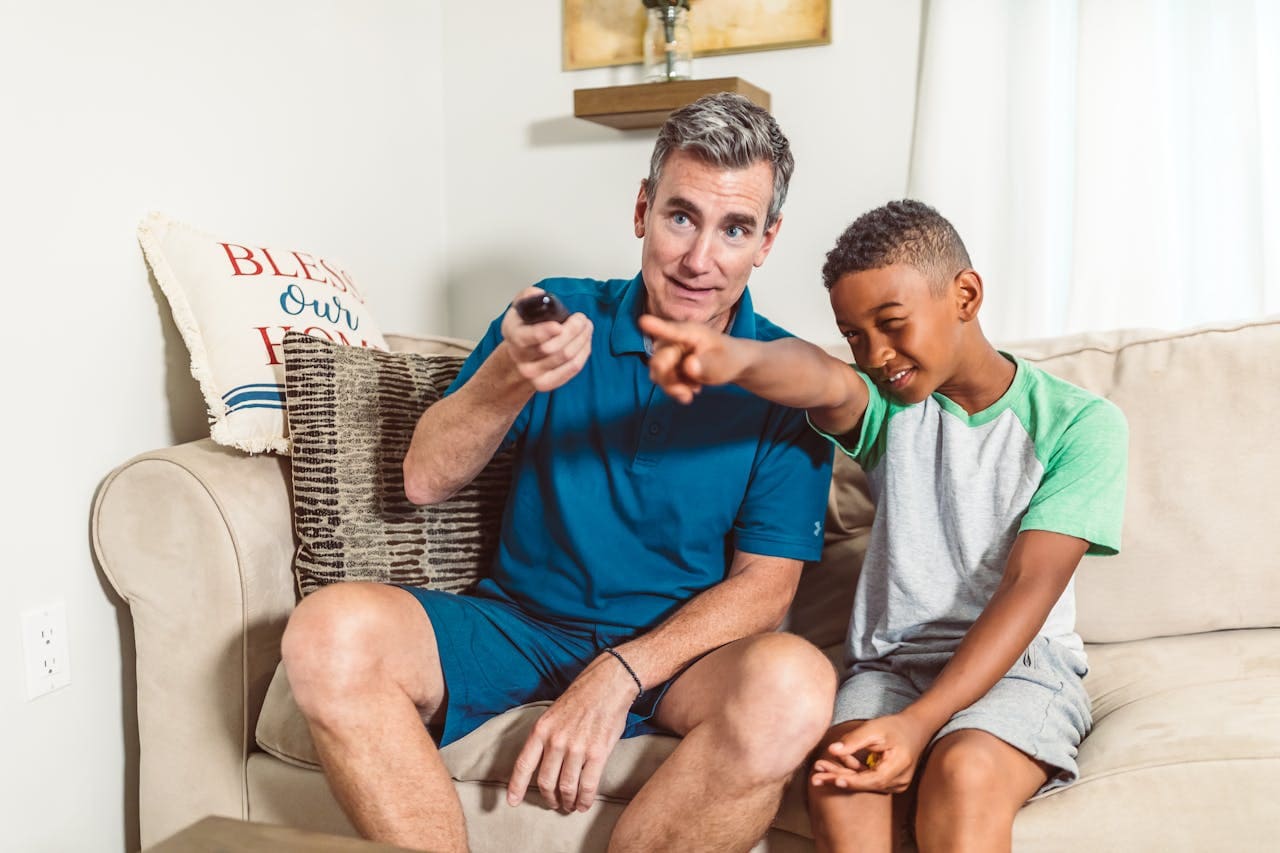
If your Samsung TV remote is not working, the most common causes include dead or improperly seated batteries, pairing issues, or interference from other devices. Resetting the remote, checking the batteries, and re-pairing it with the TV often resolves the problem quickly.
Sometimes the remote might send no signal due to an IR sensor obstruction or software glitches. In other cases, the remote could malfunction because of stuck buttons or compatibility issues with connected devices.
Understanding these potential issues helps you troubleshoot effectively without needing immediate professional help. This guide will walk you through practical steps to get your Samsung TV remote functioning again. For detailed troubleshooting, see this Samsung remote troubleshooting guide.

Amazon Fire TV Stick HD
Turn Any TV to a Smart TV. Stream Netflix, Prime Video & More. Alexa Voice Remote Included. Easy Plug & Play Setup.
Shop on Amazon
Common Causes for Samsung TV Remote Not Working
If your Samsung TV remote stops working, the reasons often relate to simple hardware issues, software problems, or environmental factors affecting signal transmission. Understanding these specific causes helps you identify the right fix quickly and avoid unnecessary replacements or repairs.
Battery Issues and Power Problems
The most frequent cause of a Samsung TV remote not working is weak or dead batteries. Batteries typically last between 3 to 6 months depending on usage. If your remote responds inconsistently or not at all, start by checking if the batteries are properly installed with correct polarity.
Replacing old batteries is often the quickest fix. Sometimes battery contacts get dirty or corroded, which can interfere with power flow. Cleaning the contact points inside the battery compartment can restore function.
If after replacing batteries your remote still won’t power on, it’s possible the remote control itself or internal power circuits are faulty. Testing with another set of batteries or a different remote can help confirm this.
Software Glitches or Outdated Firmware
Your Samsung TV remote’s communication with the TV depends on both devices’ software functioning correctly. Glitches or bugs can cause pairing errors or unresponsiveness.
Performing a reset on your remote by removing the batteries and pressing the power button for several seconds drains excess charge and clears minor glitches. Also, re-pairing your Samsung smart remote with the TV ensures a fresh connection.
Outdated TV firmware can cause compatibility issues with your remote, especially after smart TV updates. Keeping your TV software current by checking for updates in the settings menu ensures smoother communication and fixes known bugs related to remote control issues.
Signal Interference and Obstructions
Infrared (IR) signals from your Samsung TV remote need a clear path to the sensor on your TV. Physical obstructions like furniture, decorations, or even dirt on the remote’s IR emitter or TV sensor can block or weaken the signal.
Wireless devices such as Wi-Fi routers or other nearby electronics can interfere with remote signals, especially for Bluetooth-enabled Samsung remotes.
To troubleshoot, remove any objects between the remote and TV, clean the IR sensor area on both devices, and try operating the remote from different angles and distances to ensure no environmental factors are disrupting communication.
Damaged Remote or Sensor
Physical damage to your Samsung TV remote, such as dropped cases, cracked buttons, or internal component failure, can cause it to stop working completely or partially.
Similarly, the infrared sensor on your TV might fail due to dust accumulation, hardware defects, or connection issues inside the TV. You can test your remote’s IR signal with a digital camera or smartphone camera by looking for a flashing light from the remote’s emitter when buttons are pressed.
If either the remote or the sensor is damaged, cleaning may not help, and replacement is often required. Testing an alternate remote can confirm whether the problem lies with your remote or the TV sensor assembly.
For more troubleshooting methods, see this detailed guide on how to fix Samsung TV remote not working.
Troubleshooting Steps to Fix Your Samsung TV Remote
When your Samsung TV remote stops working, start by inspecting the basics such as batteries and the infrared sensor. Then move on to resetting and pairing the remote properly. Finally, power cycling the TV can often resolve underlying connectivity issues. These targeted steps address the most common causes efficiently and get your remote functioning again.
Check and Replace Remote Batteries
Begin by removing the batteries from your Samsung TV remote and inspecting them for corrosion or leakage. Use fresh, high-quality batteries and insert them correctly, matching the positive and negative terminals.
If your remote uses rechargeable batteries or a solar cell (common in newer Samsung Smart TV remotes), ensure it has sufficient charge before retesting. Weak or drained batteries are the most frequent reason for a remote not working.
Also, check the battery compartment for dirt or moisture that might hinder electrical contact. If the remote remains unresponsive after replacing or charging batteries, move on to testing the infrared sensor.
Test the Remote IR Sensor
To confirm if your Samsung TV remote is sending an infrared (IR) signal, you can use a phone or digital camera. Point the remote’s front at the camera lens and press the Power button or any other button.
Look at the camera screen for a flashing light coming from the remote’s sensor. If you do not see this light, the remote may have faulty hardware or dead batteries.
If the IR light appears but the TV still does not respond, ensure you are aiming directly at the Samsung TV logo or IR sensor window. Objects, bright lights, or distance can block IR signals. Testing with the TV’s physical buttons can help verify if the TV is functional independent of the remote.
Reset and Re-Pair the Remote
If you own a Samsung Smart TV with a smart remote (especially 2021 models or later), resetting the remote can fix connection glitches. Remove batteries and hold the Power button for 8 seconds, then reinsert batteries.
For solar remotes, press and hold the Return and Enter buttons for 10 seconds to reset. After that, pair the remote again by holding Return and Play/Pause simultaneously while standing within 1 foot of the TV until a confirmation message appears.
If pairing fails, unplug your Samsung TV for 30 seconds and try again. Persistent issues may require contacting Samsung support or replacing the remote.
Power Cycle the Samsung TV
Unplug your Samsung TV from the power outlet completely, including any connected One Connect Box. Leave it unplugged for about 30 seconds to 1 minute.
This power cycle clears temporary glitches in the TV’s hardware and software that may interfere with remote responsiveness.
After waiting, plug the TV and accessories back in. Turn on the TV using the physical power button on the unit itself—this confirms the TV is working independently of your remote.
Finally, test the remote again. If it remains unresponsive, retry pairing or check for other remote issues as described above.
Alternative Solutions and Remote Control Options
If your Samsung TV remote stops working, there are practical alternatives that allow you to continue using your TV without immediate replacement. You can use your smartphone as a remote, opt for a universal remote compatible with your TV, or seek professional assistance through Samsung support if the issue persists.
Using the SmartThings App as a Remote
You can use the Samsung SmartThings app on your smartphone to control your TV when your physical remote isn’t functioning. First, ensure your phone and TV are connected to the same Wi-Fi network. Download the SmartThings app from the app store and follow the pairing instructions within the app.
Once paired, the app lets you control power, volume, channels, and other functions similar to your original remote. The app also supports voice commands if your TV model supports Bixby or other virtual assistants. This option provides immediate control and can serve as a temporary or long-term solution depending on your needs. It’s particularly useful for smart TVs that integrate well with the SmartThings ecosystem. For more detailed guidance, see this Samsung SmartThings app remote control guide.
Setting Up a Universal Remote
A universal remote is a practical alternative if your original Samsung remote is broken or lost. Universal remotes are designed to work across multiple brands and devices, including Samsung TVs. When choosing one, verify it supports Samsung codes and functions specific to your TV model.
To set up, you usually enter a code specific to your Samsung TV brand, either by manual input or automatic search. Most universal remotes come with detailed instructions or code lists. Once programmed, you can control basic functions like power, volume, input switching, and menus. Higher-end models may support advanced features like smart TV navigation or voice commands, but check compatibility before purchase to avoid limitations.
Contacting Samsung Support or Replacing the Remote
If none of the alternative options work, or if you prefer the original remote functionality, contacting Samsung support is recommended. You can reach them via their official website or phone. Support can help diagnose whether the issue is with the remote or the TV itself.
Samsung offers options to purchase replacement remotes authorized for your TV model. Replacements are reliable and ensure full compatibility, including smart remote features. If your remote is under warranty, you may be eligible for a free replacement or repair. Samsung support can also guide you through troubleshooting steps you might have missed, ensuring a professional resolution. For details, visit the Samsung support page.
Prevention Tips and Maintaining Your Samsung TV Remote
To keep your Samsung TV remote functioning smoothly, focus on routine care, timely software updates, and proper usage habits. These steps help avoid common issues like weak signals, battery drain, or software glitches and extend the life of your remote.
Regular Maintenance and Cleaning
Dust, dirt, and grime can accumulate on your remote’s buttons and sensor area, interfering with its performance. Regularly wipe the remote with a soft, slightly damp microfiber cloth. Avoid harsh chemicals or abrasive materials that might damage the surface.
Check and clean the IR sensor on your Samsung TV as well, since obstructions here affect signal transmission. Lightly vacuum or wipe the sensor area on the TV bezel to keep it free of dust.
Replace batteries promptly when you notice sluggish response or weak signals. Using fresh, high-quality batteries prevents sudden power loss and enhances remote reliability.
Updating TV Software Regularly
Your Samsung TV’s software controls communication between the TV and the remote. Outdated firmware can cause glitches that prevent remote commands from registering correctly.
Check for updates frequently through your TV’s settings menu. Installing the latest software improves compatibility and resolves bugs that might affect your remote’s function.
Performing a power cycle after updates—unplugging the TV for 30 seconds and plugging it back in—can reset the system and help the remote pair more reliably with your Samsung TV.
Ensuring Proper Remote Usage
Keep your remote within direct line of sight of the TV, ideally no more than 20 feet away, since infrared signals require unobstructed paths. Avoid blocking the sensor or using the remote from extreme angles.
If your Samsung TV remote uses Bluetooth (Smart Remote), ensure it remains paired by avoiding frequent interference from other wireless devices nearby.
Avoid dropping or exposing the remote to moisture as physical damage can cause button failures or internal circuit problems. Handle it gently and store in a safe place when not in use.
Using the original Samsung TV remote instead of third-party alternatives helps maintain full functionality, especially for specialized buttons and universal remote features.
For detailed steps on troubleshooting remote issues, visit guides on how to fix a Samsung TV remote not working.