
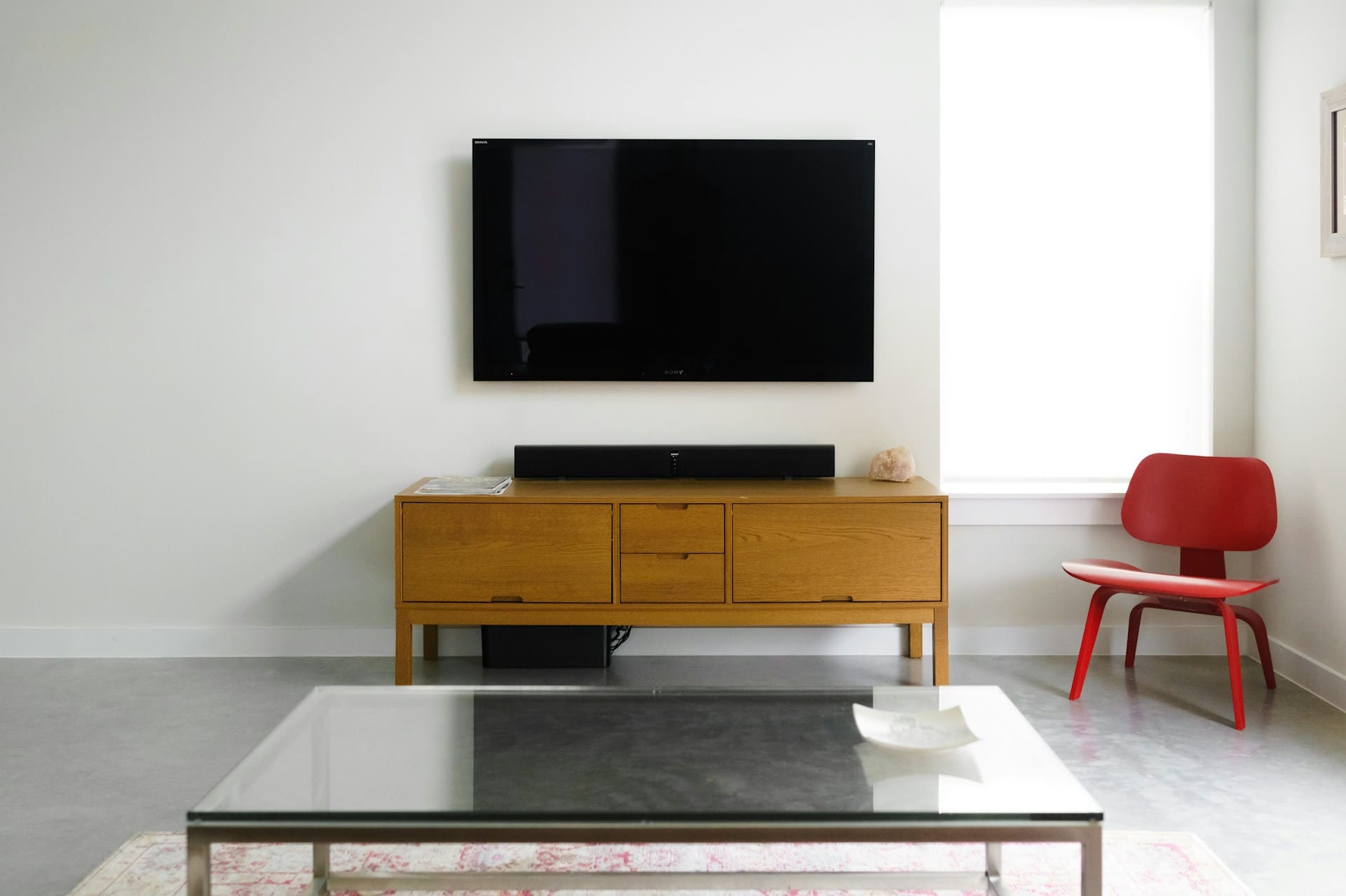
If your Samsung TV sound stops working, it can disrupt your viewing experience, but the issue is often fixable without professional help. The most effective way to resolve this problem is to perform a sound test on your TV, check for software updates, and verify your connections. These steps quickly identify whether the problem lies with the TV itself, the cables, or an external device.
You should also consider restarting your TV with a cold boot to reset internal components, and test different HDMI cables or ports if available. Sometimes, simply reconnecting cables or switching devices helps isolate the issue. Following these troubleshooting methods can restore your TV’s audio without needing costly repairs.
If these solutions don’t work, it may indicate a hardware problem, and contacting Samsung support or requesting service could be necessary. This article will guide you through clear, practical steps to diagnose and fix your Samsung TV sound problems efficiently. For detailed insight, refer to trusted Samsung troubleshooting advice.

Amazon Fire TV Stick HD
Turn Any TV to a Smart TV. Stream Netflix, Prime Video & More. Alexa Voice Remote Included. Easy Plug & Play Setup.
Shop on Amazon
Essential Checks for Samsung TV Sound Issues
Before diving into complex troubleshooting, it’s important to review basic settings and reset procedures that often resolve sound problems. These steps address common causes like muted volume, incorrect speaker selection, or temporary software glitches.
Verify Volume and Mute Settings
Start by ensuring your Samsung TV volume is turned up to an audible level. Check both the physical buttons on your remote and the on-screen volume indicator. Sometimes, sound issues are simply due to the TV being muted or set to a very low volume.
Also, verify the connected external devices’ volume controls if you’re using a set-top box, gaming console, or soundbar. Muted audio on those devices can affect your Samsung TV’s sound output.
Use the TV remote to toggle mute off and adjust volume step-by-step. If your Samsung TV has a volume limiter setting enabled, consider disabling it to restore full audio range.
Check TV Speakers Selection
Your Samsung TV allows you to choose between internal TV speakers and external audio systems. Incorrect settings here can cause sound to disappear from TV speakers.
To check, go to Settings > Sound > Sound Output and ensure that “TV Speaker” is selected if you want audio from your built-in speakers.
If you use an external sound system, confirm the correct output is chosen, such as “Receiver (HDMI),” and ensure cables are securely connected. Improper configuration can mute the TV speakers without affecting the external device.
Power Cycle and Cold Boot TV
Performing a power cycle or cold boot can clear temporary software glitches causing no sound on your Samsung TV. To power cycle, turn off the TV, unplug it from the power outlet, wait at least 30 seconds, then plug it back in and turn it on.
For a cold boot, while the TV is on, press and hold the Power button on your remote until the screen turns off and the TV restarts. This resets the main board and often resolves minor audio failures.
After rebooting, test the sound again to determine if the problem persists or has been corrected by the reset procedure.
For more detailed troubleshooting on Samsung TV sound problems, you can visit the official Samsung support guide.
Diagnosing and Fixing Cable and Connection Problems
Issues with your Samsung TV’s sound often stem from physical connections. Ensuring cables and ports are intact and securely connected is crucial. Testing different inputs and cables can help isolate the problem quickly.
Inspect HDMI Cable and Ports
Start by closely inspecting your HDMI cables for any visible damage like frayed wires or bent connectors. A faulty HDMI cable can cause partial or complete audio loss. Confirm that the HDMI cable length is appropriate; cables over 2 meters may experience signal degradation affecting audio quality.
Examine the HDMI ports on both your TV and the connected device for dust, debris, or physical damage. A damaged port can cause intermittent sound problems or no sound at all. If possible, use your Samsung TV’s built-in HDMI Cable Test feature to check for cable faults, available under Settings > Support > Self Diagnosis > Signal Information > HDMI Cable Test.
Check Cable Connections
Loose connections are a common cause of dropped or weak audio signals. Firmly reconnect HDMI and other audio cables on both ends, ensuring they click or fit snugly. Avoid forcing cables into ports, which could cause damage.
If your HDMI port shows consistent sound dropouts but video remains stable, try a different HDMI port on your TV. Use a checklist to confirm:
- All cable ends are fully inserted
- No twisting or bending near connectors
- Switch cables if any physical damage is detected
Proper cable maintenance reduces signal loss and improves overall audio performance.
Test Alternate Inputs
To determine if the issue is with the cable, the port, or the external device, connect a different external source using the same cable. If the alternate device produces clear sound, the original device likely has the problem.
You can also try using a different HDMI cable. Switching inputs this way helps isolate whether the problem lies with the TV’s HDMI port or your external device’s output. For set-top boxes, check with your cable provider if you experience signal loss, as weak transmission can cause audio dropouts unrelated to your TV hardware.
Following these steps can pinpoint connection-related audio issues efficiently. For more detailed troubleshooting steps, see this guide on Samsung TV HDMI cable and audio problems.
Resolving Issues with External Devices and Audio Outputs
Proper connection and configuration of your external audio devices are crucial for clear sound. Testing cables and confirming settings can prevent many common issues with soundbars, home theater systems, and other external devices on your Samsung TV.
Configure External Audio Devices
Start by verifying that all cables—HDMI, optical, or RCA—are securely connected and undamaged. Loose or faulty cables are a frequent cause of no sound or intermittent audio issues. If you use HDMI ARC or eARC, ensure your TV and external device support these standards.
Next, navigate to your TV’s audio settings and select the appropriate output. Many Samsung TVs require you to manually set the external device as the audio output, especially when using soundbars or home theater systems. Also, check that your external device is powered on and set to the correct input to receive audio from the TV.
Troubleshoot Soundbars and Home Theater Systems
If you experience no sound or low volume through a soundbar or home theater system, first isolate the problem by temporarily switching to the TV’s internal speakers. If the TV speakers produce sound, the issue lies with your external device or its connection.
Inspect the audio mode settings on both the TV and the external device. Some soundbars and systems have different sound modes or require additional setup through their own remote or app to properly process the audio signal. Additionally, try disconnecting and reconnecting all cables to reset the connection.
Switch Audio Output Source
Sometimes the TV’s audio output source is incorrectly set, causing no sound to external devices. You can fix this by selecting the audio output option manually in the TV’s settings menu.
Go to Settings > Sound > Sound Output and choose your external device from the list (e.g., Soundbar or HDMI device). If your device doesn’t appear, try powering off both TV and the device, then reconnecting the cables and powering back on. This step often resolves conflicts between the TV and external audio hardware.
If all else fails, test with a different external device or audio cable to rule out hardware problems. More detailed troubleshooting steps can be found in this guide on fixing Samsung TV issues with external speakers or soundbars.
Advanced Troubleshooting and When to Seek Help
Solving Samsung TV sound issues often requires specific, methodical steps. You might need to diagnose hardware or software causes precisely and keep your system updated. Some situations may call for support from Samsung’s experts after you exhaust DIY options.
Perform Sound Test and Self Diagnosis
Start by running the Sound Test available on your Samsung TV. This option is under All Settings > Support > Device Care > Self Diagnosis > Sound Test. It checks the TV’s speakers and internal audio circuits for faults. If the sound fails during this test, it confirms an internal problem, suggesting that further troubleshooting within the TV is necessary.
You should also use the self diagnosis tools to identify if there are issues with external connections or HDMI cables. They help isolate the problem specifically related to audio sources. If the self diagnosis indicates an error, note the specifics before contacting support, as this information speeds up the resolution process.
Update TV and Device Software
Outdated software often causes audio malfunctions. Check for updates via All Settings > Support > Software Update. Installing the latest firmware ensures bugs affecting sound are addressed. This also applies to devices connected to your TV, such as streaming devices or soundbars; updating their software increases compatibility.
If a sound problem started after a recent update, confirm whether a patch has been released to fix the issue. Always restart your TV after updates, as this ensures changes take effect properly. Keeping all components at their latest software version is critical for maintaining stable audio.
Reset Sound Settings or Factory Reset
If sound issues persist, try resetting sound settings to their default configuration. Navigate to Settings > Sound > Expert Settings, and select Reset Sound. This action clears any customized audio preferences that may interfere with normal operation.
When a sound reset is insufficient, performing a full Factory Reset can resolve deeper system glitches. You can do this in Settings > General > Reset. Note that a factory reset restores all TV settings to default, so back up any important configurations beforehand. This step is often effective when no hardware fault is detected.
Contact Samsung Support
If the TV still has no sound after all these steps, it’s time to reach out to Samsung support. Provide them with the details gathered from your sound test results and diagnostics. This information helps technicians understand your issue faster.
Samsung can arrange professional service, repair, or replacement if needed. You can contact them via the official Samsung Support Center online or through their customer service hotline. Don’t delay contacting them if hardware failure is suspected, especially if your TV is under warranty.
For more detailed instructions on sound troubleshooting, visit Samsung’s official audio troubleshooting guide.