
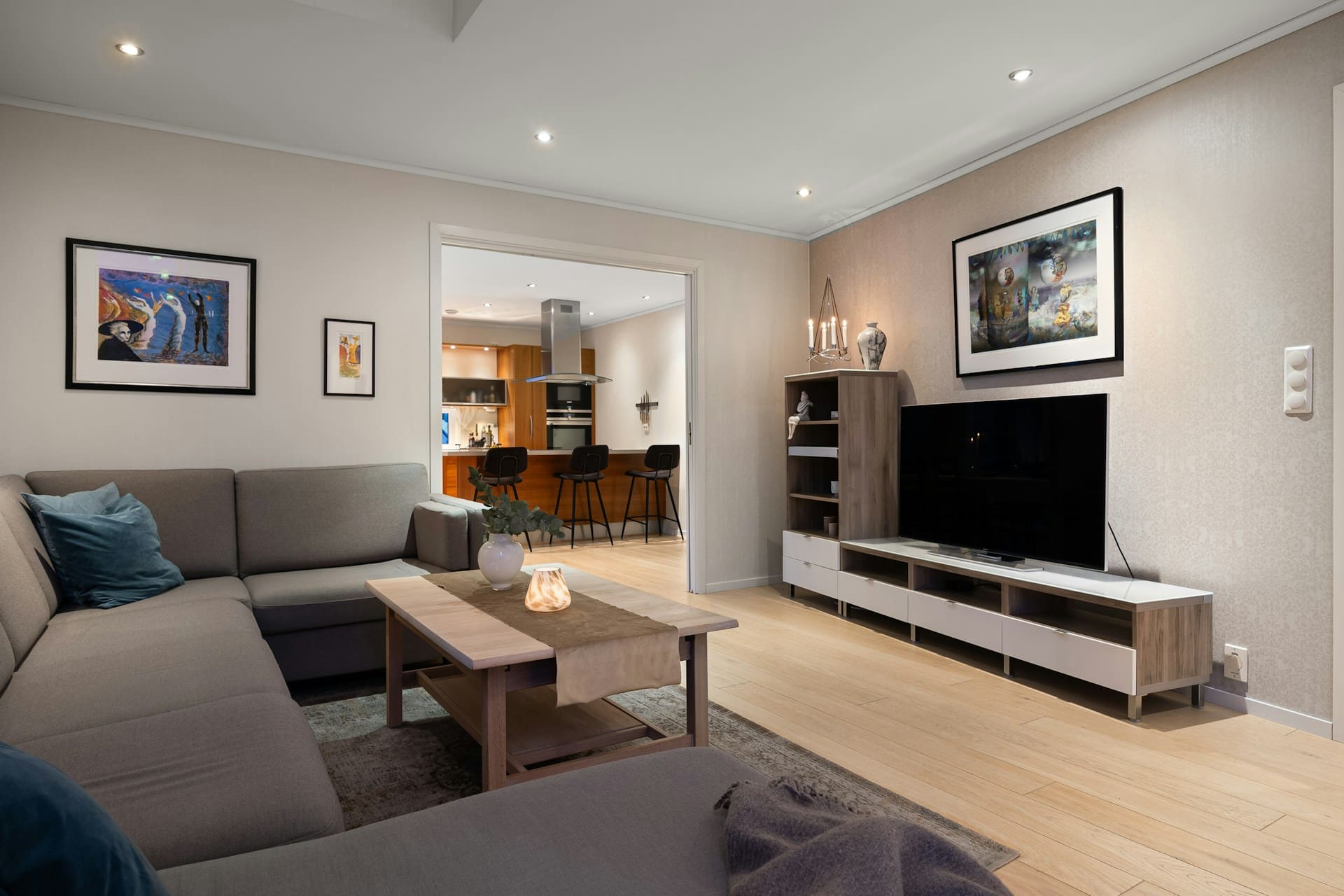
If your Samsung TV screen is jumping, it usually means there is a loose connection, a faulty power supply, or an issue with the main board or software. The most common cause is a loose connection between the TV and its power source or input devices, which you can often fix by checking cables and plugging them in securely.
Sometimes, software glitches or outdated firmware can cause the screen to jump. Updating your TV’s software or resetting it can resolve these issues.
If these steps don’t help, hardware problems like a damaged main board might be the cause.

Amazon Fire TV Stick HD
Turn Any TV to a Smart TV. Stream Netflix, Prime Video & More. Alexa Voice Remote Included. Easy Plug & Play Setup.
Shop on Amazon
Understanding Samsung TV Jumping Screen Issues
When your Samsung TV screen starts jumping, it disrupts your viewing experience and may signal underlying problems. Recognizing how the screen behaves, what typically causes these jumps, and the risks involved can help you troubleshoot effectively and determine if professional repair is needed.
Key Signs of Screen Jumping
Screen jumping on your Samsung TV appears as sudden shifts in the picture. This can include flickering, rapid vertical or horizontal movement, or brief image freezes followed by abrupt changes.
You might notice the picture “bouncing” or irregular jumps during any content type—live TV, streaming, or connected devices like Blu-Ray players. Often, the issue is consistent across multiple inputs, but it can also affect specific sources, indicating where the problem lies.
Sound may remain normal, or you could hear audio glitches synchronizing with the image instability. Identifying these signs early helps you narrow down the cause before exploring fixes.
Common Causes of Jumping Screen
Several factors can lead to your Samsung TV’s picture jumping. Faulty or loose HDMI cables are frequent culprits, so check cable connections and try replacing cables or inputs.
Software glitches may cause irregular screen motion. A factory reset or software update often resolves these issues.
Interference from external devices or signal disruptions, such as poor Wi-Fi during streaming, can also cause screen jumps. In rare cases, hardware problems like a failing T-Con board or loose internal connections may require disassembly or professional service.
Troubleshooting each component methodically will pinpoint if the TV itself or connected devices cause the screen behavior.
Potential Risks to the TV
Ignoring persistent screen jumping can have consequences beyond annoyance. If caused by hardware faults such as damaged circuit boards or connectors, continued operation may worsen the damage over time.
This could lead to more severe screen issues or permanent display failure. Electrical issues related to power supply or surge damage might also escalate without intervention, risking safety or costly repairs.
Addressing the symptom early through simple checks or professional diagnosis helps protect your Samsung TV’s longevity and performance.
Primary Causes of Samsung TV Screen Jumping
If your Samsung TV screen is jumping, the issue often stems from problems related to electrical connections, cables, or external interference. Understanding these factors can help you troubleshoot and fix the problem efficiently.
Loose Connections and Power Issues
A loose connection is one of the most common reasons your Samsung TV screen might jump unexpectedly. Check that the power cord is firmly plugged into both the power outlet and the TV itself.
Even a slightly loose connection can cause intermittent power interruptions, leading to screen instability. Power cords can sometimes get damaged or frayed, so inspect the cable for any visible wear.
Additionally, the outlet you’re using should provide consistent power. Using an outlet with a faulty connection or fluctuating voltage can cause your TV to behave erratically.
Resetting the TV by unplugging it for at least 30 seconds can also help resolve issues caused by minor power disruptions.
Cable and HDMI Cable Faults
Faulty or damaged cables often result in a jumping or flickering screen. An old or defective HDMI cable can lead to poor signal transmission between your TV and external devices like cable boxes, gaming consoles, or streaming devices.
Make sure your HDMI cables are securely connected to the TV and the source device. If the problem persists, try using a different HDMI port or replace the cable entirely.
Loose connections in these cables can cause image disruption, including screen jumps or flickering. Avoid using low-quality third-party cables, as poor shielding may result in signal interference.
Replacing cables with certified, high-quality versions often improves stability.
External Device Interference
External devices near your TV, such as microwaves, cordless phones, or wireless routers, can interfere with your Samsung TV’s screen performance. These devices emit electromagnetic signals that might disrupt your TV’s operation or the signal coming from connected devices.
Keep these electronics at a reasonable distance from your TV and its cables. If you notice the picture jumps when a nearby device is operating, try relocating one of them or turning the external device off temporarily.
Interference from other wireless devices connected to your home network can also impact streaming quality, causing the screen to jump or freeze temporarily.
Power Surges and Surge Protectors
Power surges caused by lightning, grid fluctuations, or heavy electrical appliances turning on and off can damage your TV’s internal components, like the power supply or main board. This damage can manifest as a jumping screen.
Using a high-quality surge protector is essential to protecting your TV against sudden spikes in electrical current. Without it, repeated surges may cause irreversible harm, leading to persistent screen problems.
If you experience frequent power surges in your area, consider upgrading to a surge protector with a higher joule rating to ensure better protection. This simple step can extend your TV’s life and prevent image stability issues.
For detailed troubleshooting, you can refer to guides like those on troubleshooting Samsung TV screen jumping issues.
Troubleshooting and Fixing the Jumping Screen
To address a jumping screen on your Samsung TV, focus on ensuring all connections are secure, performing resets and software updates, tweaking key settings, and knowing when to reach out for professional assistance. These steps target common causes and provide practical solutions to reduce or eliminate screen jumping.
Checking and Securing All Connections
Start by inspecting every cable connected to your TV, including HDMI, power, and input sources. Loose or damaged cables often cause video interruptions like jumping or flickering.
Firmly reconnect any loose cables to both the TV and the external devices, such as your cable box, Blu-ray player, or game console. Consider swapping cables if you suspect one is faulty.
Also, check the ports for dust or debris, which can interfere with signal transmission. Using high-quality cables that support the correct refresh rate and resolution for your content helps maintain stable video output.
Resetting the TV and Performing Software Updates
Unplug your Samsung TV from the power outlet, wait about 5 minutes, then plug it back in to perform a full power reset. This can clear minor glitches causing the screen jumping.
You can also reset the TV to factory settings through the menu, but note this will erase your custom settings. After resetting, check for software updates.
Samsung often releases firmware improvements that fix bugs and optimize performance. Navigate to Settings > Support > Software Update and select Update Now if an update is available.
Keeping your TV’s software current ensures it can handle the latest apps and video standards properly.
Adjusting TV Settings for Improvement
Certain settings may contribute to screen jumping and are worth adjusting. Disable motion smoothing or “auto-motion plus” features, which interpolate frames but can create visual artifacts.
Set picture mode to “Standard” or “Movie” rather than dynamic modes to prevent abrupt image changes. Turn off any energy-saving options that automatically change brightness, as this may lead to flicker-like effects.
Also, check that your input source’s resolution and refresh rate on the TV menu align with the device you’re using; mismatched settings can cause instability. Adjust sharpness, contrast, and other picture parameters carefully to find a balance that minimizes jumping.
Contacting Samsung Support
If you’ve secured connections, reset your TV, updated the software, and fine-tuned settings but the issue persists, the problem may be hardware-related. Components like the power supply or main board could be malfunctioning.
At this point, contacting Samsung Support is the most appropriate step. Provide clear details about what you’ve tried and when the jumping occurs.
Samsung professionals can guide you through advanced diagnostics or arrange for repairs if necessary. Early contact can prevent further damage and ensure your TV functions correctly.
For detailed troubleshooting, visit this guide on why your Samsung TV keeps jumping.
Preventing Future Screen Jumping Problems
Maintaining your Samsung TV in optimal condition involves regular care and thoughtful setup. Paying attention to power stability, physical connections, and early signs of malfunction will help you avoid recurring screen jumping issues.
Routine TV Maintenance Tips
Start by regularly inspecting all cables connected to your TV. Make sure the HDMI and power cords are firmly plugged into both the TV and the power outlet.
Loose or damaged cables often cause screen glitches. Clean your TV’s vents and screen gently to prevent dust buildup, which can overheat internal components.
Periodically check for software updates in your TV’s settings menu. Samsung releases updates that patch firmware bugs linked to performance problems.
Restart your TV monthly by unplugging it for a minute to clear temporary glitches that could cause jumping. Finally, avoid frequently switching between too many input sources without powering down in between, which can strain the TV’s hardware.
Ensuring Proper Environment and Power Protection
Place your TV in a stable environment away from strong electromagnetic interference such as microwaves, cordless phones, or Wi-Fi routers. These devices can disrupt signal quality.
Avoid exposing the TV to direct sunlight or excessive humidity, which can degrade internal components over time. Always connect your TV to a surge protector.
Power surges or unstable voltage from your power outlet can damage your Samsung TV’s hardware and trigger screen jumping. Use a surge protector with adequate joule rating to safeguard the TV’s power cord and internal circuits.
If possible, connect your TV to a dedicated power line to minimize electrical noise.
Recognizing Early Warning Signs
Be alert to small screen jitters or brief picture freezes, as they often precede more serious jumping problems.
If you notice these early warning signs, start by checking your TV settings and connections.
Sudden changes in picture quality or irregular motion can indicate internal hardware issues or failing components.
If the problem appears during specific apps or input sources, isolate those to find if the issue is software or external device related.
Persistent flickering may also point to faulty cables or a malfunctioning power cord.
If problems continue, consider contacting Samsung Support before hardware damage occurs.
For more guidance on stable picture troubleshooting, visit the detailed Samsung TV jumping troubleshooting guide.